

What is Text Enhance?
Text Enhance (Text-Enhance) is cross-browser adware and an advertising platform that uses multiple programs, browser extensions, and files to attach to internet browsers and gather personal data without user consent. Text Enhance is used by multiple third-parties in order to monetize freeware and other programs. This adware serves pop-up and targeted advertisements it feels users are most likely to click on across Chrome, Firefox, and Internet Explorer based off of the information it gathers.

Victims of Text Enhance adware usually notice they are infected with this adware when the content found on random webpages have links that display spam advertisements once they are hovered over. These types of advertisements are called in-text advertisements. *Hovering over the words racing teams opens up a small window showing a spam advertisement relative to racing teams (image).
Video example of a Text Enhance infection
Users who wish to install freeware may be given a “custom installation” option to accept or decline an offer to install Text Enhance adware and similar products during the installation; However, the user request to decline the adware from installing can be ignored by the program or presented in a confusing manner.
In some cases, Text Enhance and other unwanted programs are deceptively promoted through questionable advertisements. These advertisements may be dishonest, misleading, and cause the program to automatically download and install once clicked on.
How to remove Text Enhance (Removal Guide)
Botcrawl may earn a commission from purchases made through links in this article.
- Step 1: Remove unwanted add-ons and extensions
- Step 2: Uninstall Text Enhance
- Step 3: Remove Text Enhance malware with Malwarebytes Anti-Malware
- Step 4: Cleanup and repair settings with CCleaner by Piriform
Step 1: Remove Text Enhance add-ons and extensions
Google Chrome
1. Click the Customize and control Google Chrome icon on the top menu and navigate to More tools > Extensions.
2. Search for suspicious extensions in the list. Remove unwanted browser extensions individually by clicking the trashcan icon next to each one.
Mozilla Firefox
1. Type Ctrl+Shift+A.
2. Search for suspicious add-ons on the Extensions and Plugin tab. Highlight each one individually and click remove.
Step 2: Uninstall Text Enhance
1. Open Windows Start Menu and go to the Control Panel.
2. On Windows Control Panel, click Uninstall a program or Add and remove a program in the Programs section.
3. Search for Text Enhance and other unwanted programs in the list of installed programs. Once an unwanted program is located, double click the item or select it with your mouse and click the Uninstall button.
4. Restart your computer.
Step 3: Remove Text Enhance malware with Malwarebytes
1. Download and install the free or full version of Malwarebytes Anti-Malware. The full version enables real-time protection to block malware and unwanted programs from infecting your computer, while the free version is just a free scan and removal tool.


2. Open the Malwarebytes Anti-Malware.

3. Click the large Scan Now button or visit the “Scan” tab to manually run a scan.

4. Once the malware scan is complete, click the Remove Selected button and reboot your computer.
Step 4: Cleanup and repair settings with CCleaner
1. Download and install the free or full version of CCleaner by Piriform.

2. Once installed, open the program and navigate to Cleaner > Windows/Applications and click the Analyze button. Afterwards, click the Run Cleaner button on the bottom right of the program interface.
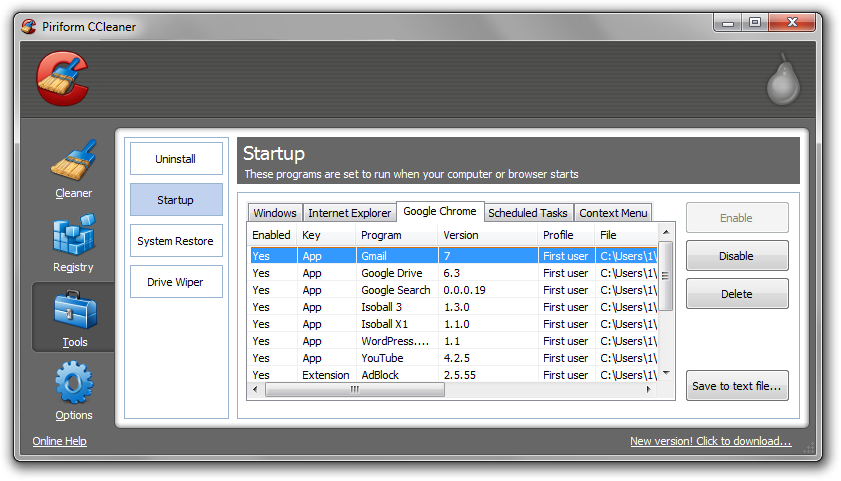
3. Next, navigate to Tools > Startup and search through each tab starting from windows, internet explorer, etc., all the way to Content Menu, for additional suspicious entries and click Disable and Delete once anything is found.
4. To automatically uninstall unwanted programs using CCleaner, navigate to the Uninstall tab and search for the program in the list of installed programs. Uninstall the unwanted software as selected by clicking the Run Uninstaller button.
- IDScan Data Breach May Expose 153 Million Driver’s Licenses
- Cloudflare Says Anthropic Mythos Can Chain Bugs Into Working Exploits
- DigiCert Revokes 60 Code Signing Certificates After Support Malware Incident
- cPanel Down Reports Were Linked to CVE-2026-41940 Emergency Patches
- cPanel Down for Some Users After Emergency Authentication Security Update

Related Posts






398 Comments
Adware: How To Remove Text Enhance http://t.co/2uCZxERi via @Botcrawl
yay thank you so much, mine was a facebook plug in! deleted it and its gone 🙂
Hey. My Chrome browser was infected with this s*4!-bag. didn’t see it among the extensions – instead deleted all the extensions that i’m not using at least once a week and it disappeared. anyway – tx for giving the direction. Helmuts
Thank you so much! All that I needed to fix my browser! For a second, I thought that my website malibuluxuryrealty.com had been hacked!
[…] You may have recently installed a Chrome plugin that has text enhance piggybacked on. Added: http://botcrawl.com/how-to-remove-text-enhance/#List […]
Thank you for clearing all this up.
[…] How to Remove Text Enhance Alternate idea, didn’t work for us. […]
@Tholfen Hittade denna. Lycka till.
http://t.co/IzDImAcU
Thank you so much for posting this. It helped me finally get that crap off my machine/browser. Your information and instructions were very easy to follow. Took me maybe 2 minutes to get it done by removing the site in the security exceptions of my browser. (I had just been disabling and re-enabling Shockwave for months now because other sites I found had info that was worthless)
Thank you so much!!!
Thanks a lot Sean! Mine installed with i-livid and something else so I am no longer downloading free junk but am going to try Graboid since you recommended it in another artical.
Adware: How To Remove Text Enhance http://t.co/vVGrUDfV via @Botcrawl
If you’re having trouble with the stupid text enhance ads – read this & fix your problem… http://t.co/3Qp31vmt SO MUCH BETTER NOW!!!
Thanks a lot! This page was amazingly easy to understand.
Thank you so, so much!
[…] Ce lien en dresse une liste assez complète (voir en bas de page) : http://botcrawl.com/how-to-remove-text-enhance/ […]
Fantastic advice and website! Thanks so much – my TextEnhance is gone and I now have the knowledge to tackle it in future, should I have to.
Thank you so much! Those text enhance pop up ads had been bugging me for weeks. A quick google and i came acroos this site, so clearly written and easy to understand!! Thank you 🙂
Adware: How To Remove Text Enhance: http://t.co/jJJSy8qf
THANK YOU so much! This adware was driving me to the point of wanting to throw all my furniture out of the window. I’m so glad there was an easy solution to remove this crap!
Thank you so much this not only got rid of the Text Enhance adware/virus it also got rid of this redirect virus that was making it so whenever I googled something it redirected!
[…] Læs mere om, hvordan text-enhance opfører sig og hvordan du fjerner det. […]
Thank you
I came here to check what Text Enhance was because some people at work had it. But I just wanted to say I love the simple design of this website. It reminds me of a virtual text book.
Thank you so much, I am so happy right now!
Mine was hidden inside the “facebook dislike button” extension. I removed this and the advertisment was gone.
@ZegMaarBella Aub http://t.co/pApO9X2q De plugin kon ik niet vinden die genoemd werd maar t zat in skype.
tnks
Creator of this website is really genious 🙂
Thank you! Worked perfectly :). Mine was called ‘Click 2 Save’, once I deleted it all the random highlights were gone, so that’s a new name for the list.
Thanks for the title, added. Good to hear you got rid of it!
Thank you 🙂
I dont have text enhance on my list yet I have the underlined texts…
I’m assuming you have gone through all the extensions for each internet browser installed on your computer. if not please do so.
There are many other names for extensions associated with Text Enhance which are detailed above (or here: http://botcrawl.com/how-to-remove-text-enhance/#List).
Also, if you do not want to disable Text Enhance we have detailed other removal options:
Disallow Third Party Flash Storage: http://botcrawl.com/how-to-remove-text-enhance/#Disallow
Delete Directory Files: http://botcrawl.com/how-to-remove-text-enhance/#Directory
Delete Registry Entries: http://botcrawl.com/how-to-remove-text-enhance/#Registry
Anti Malware: Malwarebytes.org
Symantec’s FixTDSS Tool: http://www.symantec.com/content/en/us/global/removal_tool/threat_writeups/FixTDSS.exe
I got rid of it!!!! I figured out where I got it. I added a plug in for Facebook to get rid of time line. It worked but it had text enhance hidden inside. I simply deleted that plugin and now it is gone.
[…] Læs mere om, hvordan text-enhance opfører sig og hvordan du fjerner det. […]
Adware: How To Remove Text Enhance http://t.co/qExElyBn via @Botcrawl
Thankyou ever so much it was really beginning to Piss me off!!! Have a 100 internetz 🙂
Ever noticed some words on a web sites are highlighted in a colour and the word is a links to advert how to remove > http://t.co/S8oKz2Ic
This is such an informative article and very clearly written.
Spams are the most common issue that is troubling the network users.It not only reduces the bandwidth but also like viruses, spread rapidly and infectious.
[…] based on keywords which pop up while hovering over text links on webpages (similar to Text Enhance). We consider Kontera adware because Kontera is known to install onto computers without user […]
@TadekSolarz dat is malware op je pc. Zie ook: http://t.co/fAPSdQSz of zoek op Text Enhance
Just met with a new type of Spamware. It hijacks your browser and uses keywords to make ads pop up. Here’s how to remove it.
http://botcrawl.com/how-to-remove-text-enhance/
remove vid-saver plugin/extension in chrome/firefox
I wondered where I got it from GRRRR!!! Thanks 🙂
at least on my my machine, I learned that this rotten piece $hit text enhance disguised itself as Vid Saver extension in chrome and the same Vid saver add-on in Firefox. Its possible that on your machine it may be disguising itself using another extension/plugin.
Remove these extensions/plugins.
same here, it disguised itself as Vid saver on chrome. The irony is I saw text enhance advertise three times whilst reading this article :S
Did everyone know this? I thought text enhance was legitimate advertising until I looked it up. I was suspicious when I saw it on dartmouth.edu…
“Text Enhance is not a realistic in text advertising service.”
http://botcrawl.com/how-to-remove-text-enhance/
Thank you. I am so grateful for your help. It worked.
Thank you for your help! In my case, it came in the form of a Java update. I disabled it and viola- problem fixed!
Thank you!
thanks
[…] constant linking of ads….even on personal internal pages (like viewing your bank statements). http://botcrawl.com/how-to-remove-text-enhance/ __________________ Jonathan's Nadine! Accepting Funding for Project Wicked 4.0! […]
RT @philiplocke: client: “Joomla’s been hacked”… no, your PC is naff & has adware, good bye http://t.co/rOviHrK9