

What is Text Enhance?
Text Enhance (Text-Enhance) is cross-browser adware and an advertising platform that uses multiple programs, browser extensions, and files to attach to internet browsers and gather personal data without user consent. Text Enhance is used by multiple third-parties in order to monetize freeware and other programs. This adware serves pop-up and targeted advertisements it feels users are most likely to click on across Chrome, Firefox, and Internet Explorer based off of the information it gathers.

Victims of Text Enhance adware usually notice they are infected with this adware when the content found on random webpages have links that display spam advertisements once they are hovered over. These types of advertisements are called in-text advertisements. *Hovering over the words racing teams opens up a small window showing a spam advertisement relative to racing teams (image).
Video example of a Text Enhance infection
Users who wish to install freeware may be given a “custom installation” option to accept or decline an offer to install Text Enhance adware and similar products during the installation; However, the user request to decline the adware from installing can be ignored by the program or presented in a confusing manner.
In some cases, Text Enhance and other unwanted programs are deceptively promoted through questionable advertisements. These advertisements may be dishonest, misleading, and cause the program to automatically download and install once clicked on.
How to remove Text Enhance (Removal Guide)
Botcrawl may earn a commission from purchases made through links in this article.
- Step 1: Remove unwanted add-ons and extensions
- Step 2: Uninstall Text Enhance
- Step 3: Remove Text Enhance malware with Malwarebytes Anti-Malware
- Step 4: Cleanup and repair settings with CCleaner by Piriform
Step 1: Remove Text Enhance add-ons and extensions
Google Chrome
1. Click the Customize and control Google Chrome icon on the top menu and navigate to More tools > Extensions.
2. Search for suspicious extensions in the list. Remove unwanted browser extensions individually by clicking the trashcan icon next to each one.
Mozilla Firefox
1. Type Ctrl+Shift+A.
2. Search for suspicious add-ons on the Extensions and Plugin tab. Highlight each one individually and click remove.
Step 2: Uninstall Text Enhance
1. Open Windows Start Menu and go to the Control Panel.
2. On Windows Control Panel, click Uninstall a program or Add and remove a program in the Programs section.
3. Search for Text Enhance and other unwanted programs in the list of installed programs. Once an unwanted program is located, double click the item or select it with your mouse and click the Uninstall button.
4. Restart your computer.
Step 3: Remove Text Enhance malware with Malwarebytes
1. Download and install the free or full version of Malwarebytes Anti-Malware. The full version enables real-time protection to block malware and unwanted programs from infecting your computer, while the free version is just a free scan and removal tool.


2. Open the Malwarebytes Anti-Malware.

3. Click the large Scan Now button or visit the “Scan” tab to manually run a scan.

4. Once the malware scan is complete, click the Remove Selected button and reboot your computer.
Step 4: Cleanup and repair settings with CCleaner
1. Download and install the free or full version of CCleaner by Piriform.

2. Once installed, open the program and navigate to Cleaner > Windows/Applications and click the Analyze button. Afterwards, click the Run Cleaner button on the bottom right of the program interface.
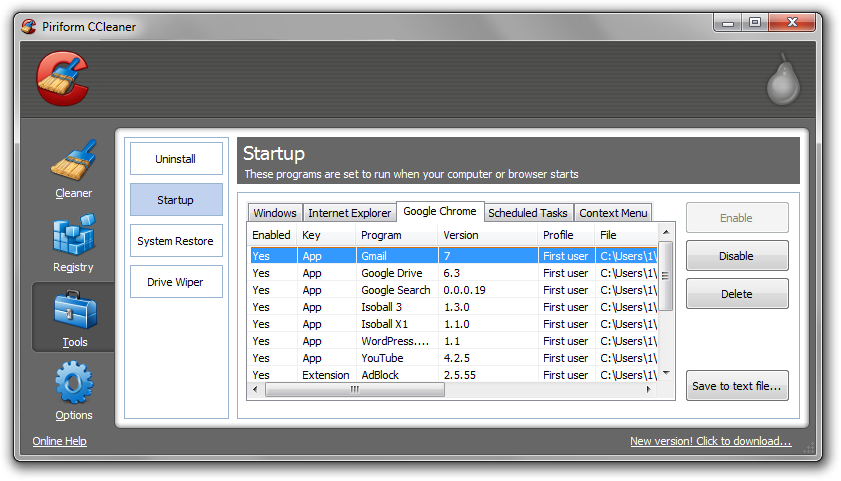
3. Next, navigate to Tools > Startup and search through each tab starting from windows, internet explorer, etc., all the way to Content Menu, for additional suspicious entries and click Disable and Delete once anything is found.
4. To automatically uninstall unwanted programs using CCleaner, navigate to the Uninstall tab and search for the program in the list of installed programs. Uninstall the unwanted software as selected by clicking the Run Uninstaller button.
- IDScan Data Breach May Expose 153 Million Driver’s Licenses
- Cloudflare Says Anthropic Mythos Can Chain Bugs Into Working Exploits
- DigiCert Revokes 60 Code Signing Certificates After Support Malware Incident
- cPanel Down Reports Were Linked to CVE-2026-41940 Emergency Patches
- cPanel Down for Some Users After Emergency Authentication Security Update

Related Posts






398 Comments
client: “Joomla’s been hacked”… no, your PC is naff & has adware, good bye http://t.co/rOviHrK9
Finding links on a webpage that don’t make sense, or simply go to advertizing. It’s probably not the website…. http://t.co/MIobJAci
Text Enhance showed up for me today in IE9 under Win7 64bit Home Premium. I checked the programs I’ve installed in the last week and it was just Toad for MySQL and VMWare Player – both of which have good pedigrees.
Also there was nothing unexpected in the “Add-ons” (show all add-ons). However, disabling Flash did prevent it from working, but I don’t consider that a valid workaround because some of the sites I use require Flash.
The fact that Flash is facilitating Text Enhance’s operation put me onto a workaround which was to look at the Flash Global Storage Settings which you get to via this webpage:
http://www.macromedia.com/support/documentation/en/flashplayer/help/settings_manager03.html
And then uncheck the box which says “Allow third-party Flash content to store data on your computer”
That seems to have prevented Text Enhance from operating on two machines I’ve looked at, without having to disable Flash entirely. I don’t know if there’s still something installed on my machine – neither AVG or AdAware picked it up at any point in a full scan.
I FOUND IT! it’s a codec file…i disabled it and tested it in google then just deleted it. Had to do it for ie as well, but YAY! it’s gone :)…i hope
What an awesome site for help!!! I could understand the instructions even tho i’m not techie…THANKS BUNCHES!
Adware: How To Remove Text Enhance http://t.co/yEy0N8eQ via @Botcrawl
Well thank you very much, this website was a big help.
OMG thank you soooo much!!
RT @SEO_Tweetz: Adware: How To Remove Text Enhance http://t.co/2ZHpPOZc via @Botcrawl
Adware: How To Remove Text Enhance http://t.co/2ZHpPOZc via @Botcrawl
Hur ta bort Text enhance, så irriterande! http://t.co/INvKa816
[…] 316 This may help How To Remove Text Enhance Spam and Malware/Adware Hover Text Links | Bot Crawl […]
@deheems dat is duidelijk. Text Enhance rommel: http://t.co/bu7AFvgI
So… I don’t have any of those plug ins- except for Shockwave, which updated yesterday, which, coincidentally, is when I noticed this hideous Text Enhance. I’ve searched my files, add ons, plug ins and the only thing that it could be is Shockwave. So, if I can’t turn off Shockwave, what are my options? Thanks for any advice!
thank you for that…I had that annoying text enhance on my website 🙁 now its bug free….
Thanks guys!
damn thing was driving me nuts !!
Thanks a million mate
Fixed by uninstalling vid-saver extension… And I loved that 🙁
hey thanks a lot, you cleared my headache!
Thank you! That’s work! For me, it was “i want that”.
Got it! Unsavory add-on in my browser – Safari no less. @HaikBedrosian @LoganCooke Adware: How To Remove Text Enhance http://t.co/mlX7vMeW
[…] WTF Is This? Got it, this link helped me here, followed these directions: How To Remove Text Enhance Spam and Malware/Adware Hover Text Links | Bot Crawl Thanks guys! __________________ Wiseblood Jackson King V (Duncan Distortion) > JCM 800 […]
Continúa mi decepción con #YoSoy132 http://t.co/0zvSLCOi
Phew..Thanks to this article http://t.co/EKD1Ajf4 now I can type without ‘text enhancer’ hovering my screen
Many thanks, I appreciate the info.
Thankyou i think its gone now!!!! i couldnt use ebay because of it!! thanku xxx
Ugh thank you! Mine came up as “BFlix5.0.” It was so annoying!
Thanks, this was very very helpful!
BEAUTIFUL! LOVE IT! : D … Adware: How To Remove Text Enhance http://t.co/9JVxeniC
Yeah this page helped me.. Thanks alot.. I had an extension on my chrome as Vid-Saver which I removed and now everything is fine.. Thanks again..
Adware: How To Remove Text Enhance http://t.co/Fp3SaT4e
Thanks!
RT @BotCrawl: #Adware #Spam: How To Remove Text Enhance http://t.co/WEJsPmP2
RT @BotCrawl: #Adware #Spam: How To Remove Text Enhance http://t.co/WEJsPmP2
How To Remove Text Enhance Spam and Malware/Adware Hover Text Links | Bot Crawl http://t.co/7KB1IGA1
RT @BotCrawl: #Malware #Adware: Remove unwanted Text Enhance (http://t.co/oZsVSyOG) hover links from any browser: http://t.co/WEJsPmP2
RT @BotCrawl: #Adware #Spam: How To Remove Text Enhance http://t.co/WEJsPmP2
Adware: How To Remove Text Enhance http://t.co/NJPGn7A9
RT @BotCrawl: #Adware #Spam: How To Remove Text Enhance http://t.co/WEJsPmP2
RT @BotCrawl: #Malware #Adware: Remove unwanted Text Enhance (http://t.co/oZsVSyOG) hover links from any browser: http://t.co/WEJsPmP2
RT @BotCrawl: Remove #spam text links from websites made by popular browser hijacker Text Enhance – http://t.co/MVA7D0gM – #SEO t…
RT @BotCrawl: Remove #spam text links from websites made by popular browser hijacker Text Enhance – http://t.co/WEJsPmP2 – #SEO tips #Adware removal
RT @BotCrawl: #Adware #Spam: How To Remove Text Enhance http://t.co/WEJsPmP2
How To Remove #Text Enhance #Spam and #Malware/Adware Hover Text Links | Bot Crawl http://t.co/eNZTItZA
#Malware #Adware: Remove unwanted Text Enhance (http://t.co/oZsVSyOG) hover links from any browser: http://t.co/WEJsPmP2
Thanks, adblock plus on firefox is super easy.
How To Remove Text Enhance Spam Links! – http://t.co/pGfR9jMk
Thank you!
I use Mozilla but found bflix on Chrome which I didnt know was installed on my computer.
Masquerading as an addon called: Vid-save & screwing up my website! Thanks article!
#Adware: How To Remove Text Enhance http://t.co/W54RJY3Q
Thank you so much. It was driving me nuts!
Helpful instructions on how to remove crappy a crappy adware virus: Adware: How To Remove Text Enhance http://t.co/FxCFxfFy