PDFOnline-express ads
PDFOnline-express ads is an internet browser extension compatible with the Google Chrome web browser for personal computers. PDFOnline-express ads is recognized as a potentially malicious browser extension for numerous reasons.
- Injects web pages with advertisements
- Advertised by malicious advertising networks and on malicious websites
- Modifies existing browser settings
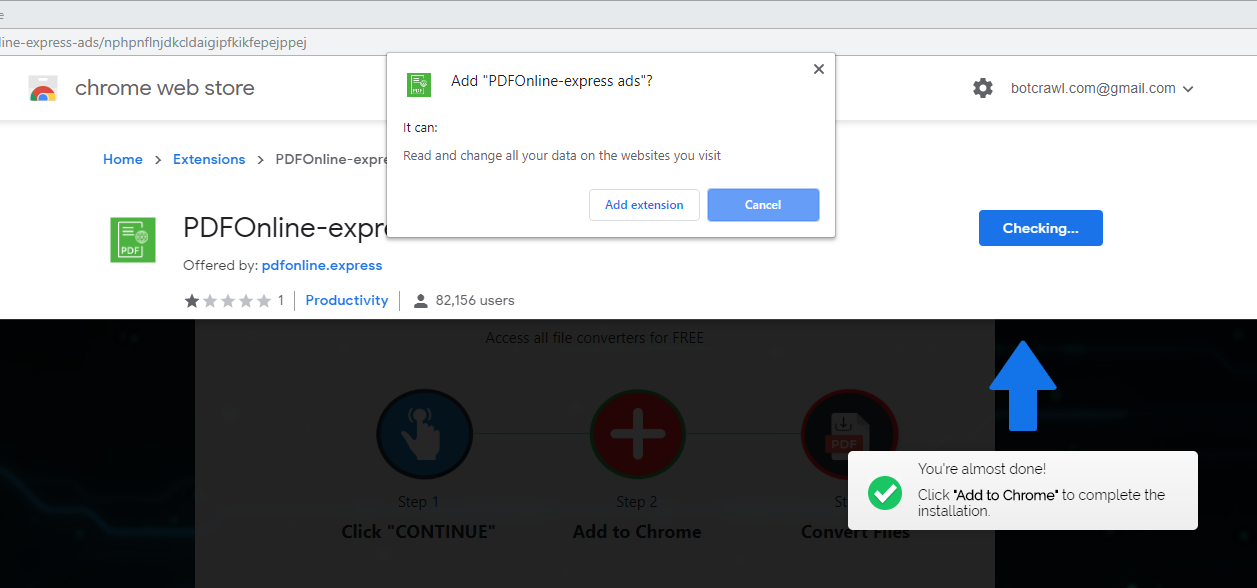
Additionally, the PDFOnline-express ads extension has permission to read and change your data on the websites you visit and will utilize various methods to track you and gather data about you. The information observed by the app is most likely used for a variety of unknown marketing purposes.
This page contains instructions to remove the PDFOnline-express ads extension from Google Chrome and scan your computer for malware using reputable Antivirus software such as Malwarebytes and HitmanPro.
Botcrawl may earn a commission from purchases made through links in this article.
- Launch Google Chrome, open the menu, and go to More tools > Extensions.
- Click the Remove button.
- Malwarebytes.
- Double click the executable file or icon, such as mb3-setup-1878.1878-3.7.1.2839.exe to begin installing the program.
- When you have installed Malwarebytes, click the Scan Now button to begin scanning your computer.
- When the scan is complete, click the Quarantine Selected button to remove all threats detected by Malwarebytes.
- Download HitmanPro.
FREE DOWNLOAD BUY NOW - Double click the executable file or icon, such as HitmanPro.exe to begin installing the program.
- When you have installed HitmanPro, click the Next button to begin scanning your computer.
- When the scan is complete, click the Next button to remove all threats detected by HitmanPro.
- Download CCleaner.
- Double click the executable file or icon, such as ccsetup556.exe to begin installing the program.
- When you have installed CCleaner, click the Analyze button to begin analyzing your system.
- Once analyzation is complete, click the Run Cleaner button to clean your system.
- Now, let’s run through the Tools section; Go to Tools.
- Uninstall: Is there a program you missed uninstalling before? CCleaner can often show you programs that are hidden from the Control panel.
- Software Updater: Are there any programs to update? Make sure to keep the programs on your computer up-to-date to avoid issues with security vulnerabilities.
- Startup: Go through the Windows, Scheduled Tasks, and Context Menu tabs. Are there any suspicious startup keys enabled? If so, highlight them with your mouse and click the Delete button to remove them.
- Browser Plugins: Go through the tabs for each browser installed on your computer. Are there any suspicious plugins installed? If so, highlight them with your mouse and click the Delete button to remove them.
- Finally, let’s clean up the registry. Get out of the Tools area and go to Registry.
- Click the Scan for Issues button and follow the instructions.
- Once the registry scan is complete click the Fix selected Issues… button and follow the instructions to fill all the selected issues found in your computer’s registry.
- IDScan Data Breach May Expose 153 Million Driver’s Licenses
- Cloudflare Says Anthropic Mythos Can Chain Bugs Into Working Exploits
- DigiCert Revokes 60 Code Signing Certificates After Support Malware Incident
- cPanel Down Reports Were Linked to CVE-2026-41940 Emergency Patches
- cPanel Down for Some Users After Emergency Authentication Security Update

Related Posts