
The October 2025 cumulative update for Windows 11, identified as KB5066835, has caused significant disruption for both home users and enterprise environments. Reports from IT administrators, end users, and Microsoft’s own release notes confirm failures in the Windows Recovery Environment, smart card authentication, and IIS websites. These windows 11 kb5066835 update issues are critical because they affect recovery tools, authentication systems, and web hosting services that people and organizations depend on every day.
Microsoft has acknowledged these problems and is updating official guidance on its Windows 11 version 25H2 release health page. This article examines what KB5066835 was supposed to deliver, explains how the issues appear in real-world use, and provides detailed steps that users and administrators can take while waiting for Microsoft’s permanent fixes.
What KB5066835 Was Supposed to Deliver
KB5066835 was released on October 14, 2025, as part of Microsoft’s Patch Tuesday cycle. It applies to Windows 11 versions 24H2 and 25H2, as well as Windows Server 2025. The update included cumulative security patches, reliability improvements, and cryptography hardening. One major change was a move from the older Cryptographic Service Provider (CSP) model to the modern Key Storage Provider (KSP) for handling RSA-based smart card certificates. From a security standpoint, this is a positive step forward, but in practice it broke compatibility for organizations still dependent on legacy CSP paths.
For most consumer devices, KB5066835 installed automatically through Windows Update. In business environments, IT admins often approved it quickly due to its security relevance. Unfortunately, many soon discovered regressions that outweighed the intended benefits. The most disruptive issues are outlined below.
Windows Recovery Environment (WinRE) Input Breaks
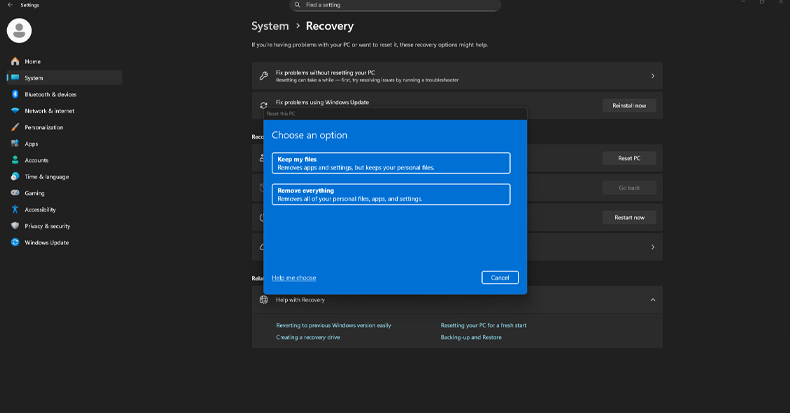
The Windows Recovery Environment is a critical component of Windows 11. It is a lightweight operating system used for repairing installations, resetting devices, restoring backups, and running advanced troubleshooting tools. Users can reach it automatically after repeated failed boots or by navigating through Settings > System > Recovery > Advanced startup. Inside WinRE, you normally interact with menus using a keyboard or mouse.
After installing KB5066835, USB keyboards and mice no longer function in WinRE. They continue to work perfectly once Windows has booted, but inside recovery they stop responding. This makes it impossible to navigate menus or select any recovery option. In effect, WinRE becomes unusable at the exact moment when users need it most.
Microsoft has confirmed the problem for Windows 11 versions 24H2 and 25H2, as well as Windows Server 2025. The company has stated that an out-of-band fix is being prepared and will be distributed as soon as it is ready. Until then, anyone relying on WinRE faces the risk of downtime if another failure forces the system into recovery mode.
Why the WinRE Bug Matters
- IT technicians often depend on WinRE to repair devices in the field. With input broken, their standard troubleshooting process is blocked.
- Users experiencing boot loops after driver or firmware changes cannot easily recover the system.
- Organizations that incorporate WinRE into their standard repair workflows must find alternative methods until Microsoft issues a fix.
Temporary Workaround to Restore WinRE Input
Administrators and advanced users can temporarily restore WinRE by replacing the broken recovery image with a working version from an older Windows 11 ISO. This is not a casual step; it touches system files and can prevent Windows from booting if done incorrectly. In managed environments, it should be tested in a small pilot group before being deployed more broadly.
What You Need
- An older Windows 11 ISO, build 10.0.26100.5059 or earlier
- Administrator rights
- A verified backup or system snapshot
Steps to Replace winre.wim
- Mount the ISO and extract a working copy of
winre.wim. - Open Command Prompt as administrator and disable WinRE:
reagentc /disable
- In File Explorer, show hidden items and navigate to:
C:\Windows\System32\Recovery
- Back up the current
winre.wimto another location. - Delete the broken
winre.wimand copy in the working version from the ISO. - Re-enable WinRE by running:
reagentc /enable
- Restart the computer and launch Advanced startup to confirm keyboard and mouse input works.
While effective, this workaround is risky. Most users should wait for Microsoft’s official patch unless WinRE access is absolutely critical.
Smart Card Authentication Failures
Enterprises using smart cards for logins and digital signatures encountered widespread failures after installing KB5066835. Reported issues included smart cards not being recognized in 32-bit applications, failed certificate-based logins, and signing errors. Users saw messages such as “invalid provider type specified” or “CryptAcquireCertificatePrivateKey error.”
The cause was Microsoft’s change from CSP to KSP for RSA-based smart card certificates. While KSP is more secure and future-proof, many environments still rely on legacy CSP integration. As a result, authentication systems broke immediately after the update.
How to Fix Smart Card Problems
Microsoft documented a registry-based fix and marked the issue resolved on October 17, 2025. The workaround restores compatibility while administrators plan a long-term migration to KSP.
Registry Adjustment
HKEY_LOCAL_MACHINE\SOFTWARE\Microsoft\Cryptography\Calais
DisableCapiOverrideForRSA  DWORD  0
After applying this value, restart the device. Enterprises can deploy the setting at scale using Group Policy Preferences, Intune, or another configuration management system. Always validate on a subset of devices before broader rollout.
CSP vs. KSP Explained
Legacy CSP (Cryptographic Service Provider) paths are tied to older APIs that many enterprise applications still use. KSP (Key Storage Provider) centralizes cryptographic operations and improves security. KB5066835 moved aggressively toward KSP, but without adequate warning for organizations anchored to CSP. The registry setting acts as a temporary bridge, giving IT teams time to coordinate application updates and vendor support for KSP.
IIS Websites Fail to Load
Another problem tied to KB5066835 is broken IIS websites. Servers and developer machines that rely on HTTP.sys experienced connection failures, with browsers showing “ERR_CONNECTION_RESET.” This affected localhost environments as well as production sites. Microsoft confirmed the problem for Windows 11 24H2, 25H2, and Windows Server 2025.
Mitigation with Known Issue Rollback
Microsoft is using Known Issue Rollback (KIR) to mitigate the issue on consumer and unmanaged devices. KIR silently tells Windows to ignore the problematic code path introduced in the update. For most users, it applies automatically after checking for updates and restarting the machine. Managed environments may require a Group Policy package that administrators must download and deploy.
Steps to Accelerate IIS Fix
- Open Windows Update and click Check for updates.
- Allow any pending updates or configurations to apply.
- Restart the device, even if no updates appear to install.
- For managed environments, deploy the KIR Group Policy package referenced on Microsoft’s release health page and then restart.
Other Issues Linked to KB5066835
In addition to the major failures described above, KB5066835 is associated with other disruptions:
- Protected content playback issues in BluRay, DVD, and Digital TV apps. Some applications display copyright errors, black screens, or freeze during playback. Microsoft partially addressed these problems in the September 2025 preview update KB5065789, but some DRM audio paths remain broken.
- WUSA installation errors when attempting to install updates from shared network folders containing multiple
.msufiles. The error is typically ERROR_BAD_PATHNAME. Installing updates locally or keeping only one.msuper folder avoids the problem. Microsoft is mitigating this through KIR and special Group Policy packages.
Who Is Impacted
- Windows 11 versions 24H2 and 25H2 – affected by WinRE and IIS issues.
- Windows Server 2025 – impacted by WinRE and IIS problems.
- All environments still using CSP for smart cards – impacted until the registry fix is applied.
Checking Your Build and Update Status
- Open Settings and select System, then About.
- Look under Windows specifications to confirm Version and OS build. KB5066835 corresponds to OS build 26100.6899.
- Open Windows Update and check Update history to confirm if KB5066835 is installed.
How to Roll Back KB5066835 Safely
If the update disrupts critical functions and no workaround is feasible, you can uninstall KB5066835. Be cautious in managed environments and stage the rollback carefully.
- Open Settings and select Windows Update, then Update history.
- Choose Uninstall updates.
- Locate KB5066835 and click Uninstall.
- Restart the system.
Administration Checklist for Enterprises
Because the windows 11 kb5066835 update issues span recovery, authentication, and web hosting, administrators should treat them as a coordinated incident. A structured playbook helps reduce impact:
1. Inventory and Assess
- Query management systems for OS build 26100.6899 and KB5066835 presence.
- Identify devices that rely on WinRE, smart card authentication, or IIS workloads.
- Segment affected devices into pilot and production rings.
2. WinRE Contingency
- Test USB input inside WinRE on a sample device.
- Consider piloting the recovery image replacement only if immediate access is critical.
- Create bootable recovery USBs as an alternative until the patch arrives.
3. Smart Card Remediation
- Apply the registry fix and validate authentication flows.
- Document application dependencies on CSP and plan migration to KSP.
4. IIS Mitigation
- Verify Known Issue Rollback applied correctly by testing website access.
- Deploy Group Policy packages if required.
5. Rollback Planning
- Stage uninstallations of KB5066835 if mitigations fail.
- Document recovery steps and communicate them to service desk teams.
6. Communication
- Publish internal bulletins summarizing symptoms and mitigations.
- Assign an owner to track updates on Microsoft’s release health page.
Microsoft’s Official Guidance
Microsoft tracks all confirmed and resolved issues on the Windows 11 version 25H2 release health portal. As of now:
- The smart card authentication problem is marked resolved with the registry fix.
- The IIS failure is mitigated by Known Issue Rollback, with Group Policy available for enterprises.
- The WinRE USB input failure remains confirmed with an out-of-band update in development.
Administrators should monitor the release health page daily for updates, download mitigation packages as they appear, and plan controlled rollouts of fixes.
- How to Remove the “Drop Here to Share, Move, or Do More” Popup in Windows 11
- Microsoft Confirms Windows 11 Shutdown Bug After January Update
- Manus AI Is the First Agent That Can Read Your Files Through Windows’ New Agent Connector
- Windows 11 AI Feature Sparks Privacy Concerns After Gaining Access to Personal Folders
- Microsoft Confirms “Update and Shut Down” Was Actually Restarting Windows 10/11 and Patches the Bug

Related Posts