How to remove SkyTech (Virus Removal Guide)
The SkyTech virus (also known as the Sky Tech virus) is a Potentially Unwanted Program (PUP) identified as adware and a browser hijacker that may also associate with spyware and trojan horses. SkyTech adware generates advertisements on Google Chrome, Mozilla Firefox, Microsoft Internet Explorer, and other internet browsers by utilizing Windows software, including browser helper objects (BHOs), as well as browser attachments including add-ons, extensions, and plugins that are commonly found as Toolbars.
SkyTech virus
The SkyTech virus (also known as the Sky Tech virus) is a Potentially Unwanted Program (PUP) identified as adware and a browser hijacker that may also associate with spyware and trojan horses. SkyTech adware generates advertisements on Google Chrome, Mozilla Firefox, Microsoft Internet Explorer, and other internet browsers by utilizing Windows software, including browser helper objects (BHOs), as well as browser attachments including add-ons, extensions, and plugins that are commonly found as Toolbars.

Once potential SkyTech malware is installed, the adware program and programs that may have installed alongside the program such as V9 Uninstaller will change existing browser settings, including the homepage and default search engine. This causes affected browsers to start-up on and redirect to suspicious websites.
Skytech and associated programs may also observe and collect user information used to display targeted advertisements. This information may also be submitted to third-party marketing and mailing lists which can result in unwanted email spam, junk mail, and phone calls from telemarketers.
If SkyTech software is installed, a user will notice pop-under advertisements that take up an entire browser window or browser tab, generic banner and skyscraper advertisements, in-text ads that pop-up when a user hovers over hyperlinked text, and/or pop-up advertisements that appear when a user hovers over images with their mouse pointer. Most of these advertisements will say something similar to “brought by ____” or “____ Deals.”

Most of the time a user may not know they are infected with the Skytech virus (though not technically a computer virus) until it’s detected in an Antivirus or Anti-Malware scan or visually identified in the Windows Task Manager by the title Skytech (32 bit). The software’s not always present in Windows Control Panel.
SkyTech adware primarily bundles with third-party freeware and shareware distributed by websites such as download.com and can also be found in advertisements, torrents, and other items on media related websites such as thepiratebay.se.
Users are sometimes given the opportunity to accept or decline an offer to install Skytech software and other items during the setup process of third-party software; However, the request to decline the offer is often ignored or presented in a very confusing manner.
 How to remove SkyTech virus
Botcrawl may earn a commission from purchases made through links in this article.
- Option 1: SkyTech Removal Software & Tools – This first option details how to remove SkyTech malware using the free or full versions of Malwarebytes Anti-Malware software and/or CCleaner by Piriform.
- Option 2: Manually remove SkyTech – This second option details how to manually uninstall SkyTech and remove unwanted browser attachments
1. SkyTech Removal Software & Tools
Use the instructions below to automatically remove SkyTech and third-party malware, as well as automatically remove unwanted search engines from your installed internet browsers.
Malwarebytes Anti-Malware
2. Install the free or purchase the full version of Malwarebytes Anti-Malware software.


3. Once Malwarebytes is installed, run the program and update the database if needed.

4. On the Dashboard click the large green Scan Now button.
5. Once the malware scan is complete, Malwarebytes may state that potential malware or malware was detected. Click the Apply All Action button.
6. If files were quarantined, visit the History section and remove all files in the Quarantine selection.
CCleaner
CCleaner can be used to automatically repair internet browser settings startup up settings, and uninstall SkyTech adware and associated third-party software.
1. Install the free or paid version of CCleaner by Piriform.


2. Once installed, open the program and navigate to Cleaner > Windows/Applications and click the Analyze button. Afterwards, click the Run Cleaner button on the bottom right of the program interface.
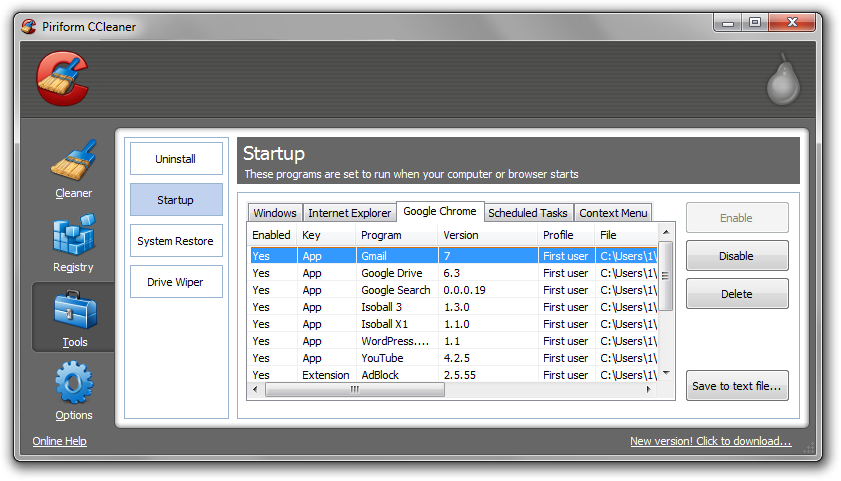
3. Next, navigate to Tools > Startup and search through each tab starting from windows, internet explorer, etc., all the way to Content Menu, for additional suspicious entries and click Disable and Delete once anything is found.
4. To automatically uninstall SkyTech and other unwanted programs, navigate to the Uninstall tab and search for SkyTech, etc. in the list of installed programs. Uninstall the unwanted software as selected by clicking the Run Uninstaller button.
2. Manually Remove SkyTech
Use the instructions below to manually uninstall SkyTech adware from Microsoft Windows XP, Windows Vista, Windows 7, and Windows 8.
How to uninstall SkyTech
1. Access Windows Start Menu and navigate to the Control Panel (on Windows 8, right click the bottom left corner to access the Windows 8 Start Menu).

2. Click Uninstall a program or Add and remove a program.
3. In the list of installed programs search for SkyTech and other potentially unwanted software. Once the adware program is located, double click the unwanted program(s) or highlight them in the list and click the Uninstall button.
How to remove SkyTech add-ons and extensions
Use the instructions below to remove SkyTech add-ons and extensions from Chrome, Firefox, and Internet Explorer. It may be necessary to remove third-party browser attachments.
Google Chrome
1. Click on the Customize icon (wrench or 3 bar icon) next to the address bar and navigate to Tools > Extensions.
2. Search for the SkyTech extension and remove it by clicking the trashcan icon next to it.
Mozilla Firefox
1. Type Ctrl+Shift+A.
2. On the Extensions and Plugin search for the SkyTech add-on and remove it.
Microsoft Internet Explorer
1. Click Tools and select Manage add-ons.
2. On the Toolbars and Extensions tab search for the SkyTech add-on and remove it if located.