How To Remove The Smart Security Virus – Uninstall Rogue Antivirus Software (Smart Security Malware)
Smart Security is a fake and malicious Antivirus program considered rogue software or Scareware and is often referred to as the Smart Security virus, or the designed to protect virus. The Smart Security virus uses social engineering to cause the perception of computer issues and threats, in order to target unsuspecting victims into purchasing fraudulent “full time protection” by activating Smart Security. In other words, the rogue Smart Security program displays fake notifications, alerting the computer user of issues and threats that do not exist, including messages that urge the user to activate the Smart Security program due to a low protection level, firewall issues, malware, and a series of fraudulent computer requirements. Fake notifications displayed by Smart Security may pop-up on the bottom right of the desktop, appear in a pop-up window, or simply be displayed on the fake software’s interface.
What Is Smart Security Antivirus (Smart Security Virus)?
Smart Security is a fake and malicious Antivirus program considered rogue software or Scareware and is often referred to as the Smart Security virus, or the designed to protect virus. The Smart Security virus uses social engineering to cause the perception of computer issues and threats, in order to target unsuspecting victims into purchasing fraudulent “full time protection” by activating Smart Security. In other words, the rogue Smart Security program displays fake notifications, alerting the computer user of issues and threats that do not exist, including messages that urge the user to activate the Smart Security program due to a low protection level, firewall issues, malware, and a series of fraudulent computer requirements. Fake notifications displayed by Smart Security may pop-up on the bottom right of the desktop, appear in a pop-up window, or simply be displayed on the fake software’s interface.

How Does Smart Security Infect A Computer?
The fake Smart Security Antivirus program and Smart Security scanner can be contracted via websites that host malware and Trojans, in malicious links, and software such as codecs, freeware, shareware, and torrents that bundle with the Smart Security program, or allow the rogue software to access the computer system.
Alike most fraudulent Antivirus programs and virus scanners, the Smart Security software can also be voluntarily downloaded from a variety of unethical websites that offer free downloads, as the program disguises itself as a legitimate Antivirus program used to detect and remove malware, as well as maintain the computer and operating system.
Smart Security Dangers & Symptoms
- Smart Security is a corrupt computer application attemping to disguise as a legitimate scanner
- Smart Security may spread via Trojans and allow additional Trojans access to the computer system
- Smart Security asks to pay for non-functional “full version”
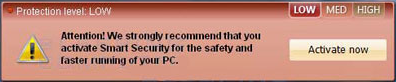
- Smart Security displays fake messages warning about computer problems that do not exist
- Smart Security may install spyware to your computer
- Smart Security may repair its files, spread or update by itself
- Smart Security may restrict internet access
- Smart Security may block or restrict legitimate software from removing it
Overall affects of the Smart Security virus may cause a computer to lose complete functionality as well as introduce victims to severe cyber crime involving credit theft, identity theft, and extortion.
How To Remove The Smart Security Virus – Rogue Software
- Antivirus & Anti-Malware Software – Scan, detect, and remove Smart Security and third party malware
- System Restore – Restore computer to date and time before issues
- Uninstall Smart Security – Windows Uninstaller
- Safe Mode With Networking – Troubleshoot internet access and remove malware
- Manually Remove Smart Security (Advanced) – Remove Smart Security process, files, and entries
1. Antivirus & Anti-Malware Software
Botcrawl may earn a commission from purchases made through links in this article.
In order to remove the fake Smart Security program and related malware, we recommend running a full system scan with reputable Anti-Malware software Malwarebytes – the most recommended Antivirus/Anti-Malware software used to scan, detect, and remove malware including rogue software and Scareware. View other Antivirus recommendations.

Instructions: 1. Install Malarebytes 2. Update the software 3. Perform full scan(Image).

2. System Restore
Perform a system restore to an automatic restore point created by Window’s each week or during system updates, including installments of new software. System restores are a great way of removing severe malware infections and can be utilized to “recover” a system to factory settings if wanted.

System Restores can be used to remove entire installments without harming your computer, nor deleting any data including images and videos.
3. Uninstall Smart Security Program
Uninstall Smart Security From Control Panel
If possible, you might be able to uninstall Smart Security using Window’s Uninstaller.
- Start > Settings > Control Panel > Uninstall a Program or Add/Remove Programs.Double click infectious program to uninstall.
4. Safe Mode With Networking
Safe Mode with Networking can be used to troubleshoot internet access (Safe Mode can be used to simply access the system) and install software to remove the Smart Security virus and relating malware.
1. Restart your computer.
2. Before Window’s launches tap the F8 key constantly to access the appropriate menu. Use the keyboard arrow keys to navigate to and highlight the Safe Mode with Networking option and press ENTER.

3. You can now access the internet to install legitimate software to remove Smart Security and relating malware from your computer, or use the advanced manual removal instructions below with caution.
5. Manually Remove Smart Security (Advanced)
Stop Smart Security Process
1. Access Window’s Task Manager typing Ctrl+Shift+Esc.
2. Find and remove the Smart Security process, which may be similar to the process below. The Smart Security process is usually a random series of numbers, letters, and symbols.
Protector-[rnd].exe
Remove Smart Security Files
Search for and delete Smart Security related files in Local Disk C, mainly found in the system32 folder. Smart Security files may be random alike the process.
 C:\Windows\SysWOW64\notepad.exe
 C:\Windows\system32\wbem\wmiprvse.exe
 C:\Windows\System32\random.exe
Repair And Remove Smart Security Registry Entries
1. Access Window’s Registry Editor by navigating to the Start Menu and typing regedit into the search bar, followed by pressing Enter.
2. If you are not experienced with repairing or removing Registry entries, keys, etc, please do not proceed. Search for Smart Security registry entries below and remove them.
HKEY_LOCAL_MACHINE\SOFTWARE\Microsoft\Internet Explorer\Main\FeatureControl\FEATURE_ERROR_PAGE_BYPASS_ZONE_CHECK_FOR_HTTPS_KB954312
HKEY_CURRENT_USER\Software\Microsoft\Windows\CurrentVersion\Internet Settings "WarnOnHTTPSToHTTPRedirect" = 0
HKEY_CURRENT_USER\Software\Microsoft\Windows\CurrentVersion\Policies\System "DisableRegedit" = 0
HKEY_CURRENT_USER\Software\Microsoft\Windows\CurrentVersion\Policies\System "DisableRegistryTools" = 0
HKEY_CURRENT_USER\Software\Microsoft\Windows\CurrentVersion\Policies\System "DisableTaskMgr" = 0
HKEY_CURRENT_USER\Software\Microsoft\Windows\CurrentVersion\Run "Inspector".