

What is Text Enhance?
Text Enhance (Text-Enhance) is cross-browser adware and an advertising platform that uses multiple programs, browser extensions, and files to attach to internet browsers and gather personal data without user consent. Text Enhance is used by multiple third-parties in order to monetize freeware and other programs. This adware serves pop-up and targeted advertisements it feels users are most likely to click on across Chrome, Firefox, and Internet Explorer based off of the information it gathers.

Victims of Text Enhance adware usually notice they are infected with this adware when the content found on random webpages have links that display spam advertisements once they are hovered over. These types of advertisements are called in-text advertisements. *Hovering over the words racing teams opens up a small window showing a spam advertisement relative to racing teams (image).
Video example of a Text Enhance infection
Users who wish to install freeware may be given a “custom installation” option to accept or decline an offer to install Text Enhance adware and similar products during the installation; However, the user request to decline the adware from installing can be ignored by the program or presented in a confusing manner.
In some cases, Text Enhance and other unwanted programs are deceptively promoted through questionable advertisements. These advertisements may be dishonest, misleading, and cause the program to automatically download and install once clicked on.
How to remove Text Enhance (Removal Guide)
Botcrawl may earn a commission from purchases made through links in this article.
- Step 1: Remove unwanted add-ons and extensions
- Step 2: Uninstall Text Enhance
- Step 3: Remove Text Enhance malware with Malwarebytes Anti-Malware
- Step 4: Cleanup and repair settings with CCleaner by Piriform
Step 1: Remove Text Enhance add-ons and extensions
Google Chrome
1. Click the Customize and control Google Chrome icon on the top menu and navigate to More tools > Extensions.
2. Search for suspicious extensions in the list. Remove unwanted browser extensions individually by clicking the trashcan icon next to each one.
Mozilla Firefox
1. Type Ctrl+Shift+A.
2. Search for suspicious add-ons on the Extensions and Plugin tab. Highlight each one individually and click remove.
Step 2: Uninstall Text Enhance
1. Open Windows Start Menu and go to the Control Panel.
2. On Windows Control Panel, click Uninstall a program or Add and remove a program in the Programs section.
3. Search for Text Enhance and other unwanted programs in the list of installed programs. Once an unwanted program is located, double click the item or select it with your mouse and click the Uninstall button.
4. Restart your computer.
Step 3: Remove Text Enhance malware with Malwarebytes
1. Download and install the free or full version of Malwarebytes Anti-Malware. The full version enables real-time protection to block malware and unwanted programs from infecting your computer, while the free version is just a free scan and removal tool.


2. Open the Malwarebytes Anti-Malware.

3. Click the large Scan Now button or visit the “Scan” tab to manually run a scan.

4. Once the malware scan is complete, click the Remove Selected button and reboot your computer.
Step 4: Cleanup and repair settings with CCleaner
1. Download and install the free or full version of CCleaner by Piriform.

2. Once installed, open the program and navigate to Cleaner > Windows/Applications and click the Analyze button. Afterwards, click the Run Cleaner button on the bottom right of the program interface.
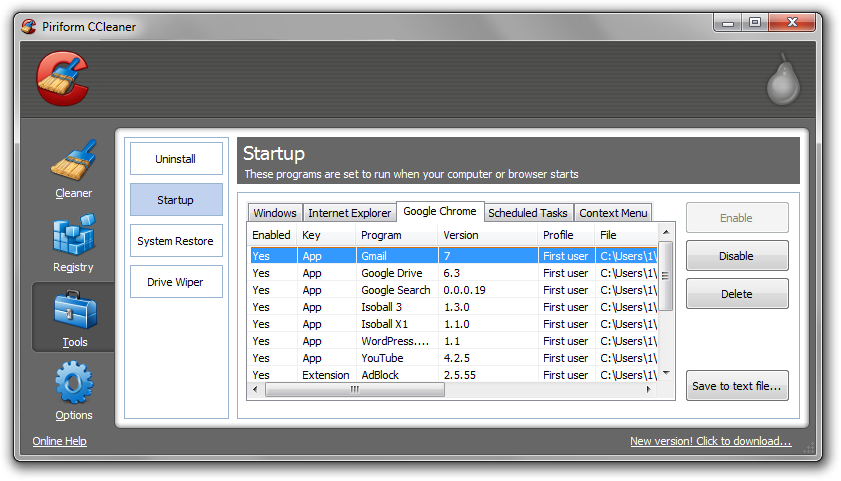
3. Next, navigate to Tools > Startup and search through each tab starting from windows, internet explorer, etc., all the way to Content Menu, for additional suspicious entries and click Disable and Delete once anything is found.
4. To automatically uninstall unwanted programs using CCleaner, navigate to the Uninstall tab and search for the program in the list of installed programs. Uninstall the unwanted software as selected by clicking the Run Uninstaller button.
- IDScan Data Breach May Expose 153 Million Driver’s Licenses
- Cloudflare Says Anthropic Mythos Can Chain Bugs Into Working Exploits
- DigiCert Revokes 60 Code Signing Certificates After Support Malware Incident
- cPanel Down Reports Were Linked to CVE-2026-41940 Emergency Patches
- cPanel Down for Some Users After Emergency Authentication Security Update

Related Posts






398 Comments
I’ve tried to uninstall the program (I’m on Windows 7 with IE9) but can’t locate it in the list of software to uninstall. Where can I locate it?
Yeeeeeeahh Buddy!!! Thank you so much for this! I found another possible name from TE in my extensions, sent it to you for investigation. Thought I was going crazy seeing it everywhere! Posted this article’s link on my blog.
Great post!
RT @WPsean: Text Enhance Removal: http://t.co/PIeT9zio #SEO #DOMAINS #MALWARE #COMPUTERS #SPAM via @WPsean
RT @WPsean: Text Enhance Removal: http://t.co/PIeT9zio #SEO #DOMAINS #MALWARE #COMPUTERS #SPAM via @WPsean
RT @WPsean: Text Enhance Removal: http://t.co/PIeT9zio #SEO #DOMAINS #MALWARE #COMPUTERS #SPAM via @WPsean
RT @WPsean: Text Enhance Removal: http://t.co/PIeT9zio #SEO #DOMAINS #MALWARE #COMPUTERS #SPAM via @WPsean
RT @WPsean: Text Enhance Removal: http://t.co/PIeT9zio #SEO #DOMAINS #MALWARE #COMPUTERS #SPAM via @WPsean
I found it in Chrome under “CodecC 1.0” and in Firefox under Shockwave Flash 11.2.202.233
Finally figured my own text enhance problem, which seems to be different than everyone here. You can add “notepad++” to your list of infected software. It was hiding in shockwave flash like others. Uninstalling “notepad++” in the control panel fixed my own text enhance nightmare. This is one hour i want back hah! Anyway add Notepad++ to your list above and save people some time.
i use google chrome and have not found any of the listed extensions installed on the extensions page or in my add/delete programs in control panel….this is really getting on my nerves…any ideas?
Start with the extensions and just go down the line disabling one by one until you find it. I had two that weren’t on the list.
RT @WPsean: Text Enhance Removal: http://t.co/PIeT9zio #SEO #DOMAINS #MALWARE #COMPUTERS #SPAM via @WPsean
RT @WPsean: Text Enhance Removal: http://t.co/PIeT9zio #SEO #DOMAINS #MALWARE #COMPUTERS #SPAM via @WPsean
RT @WPsean: Text Enhance Removal: http://t.co/PIeT9zio #SEO #DOMAINS #MALWARE #COMPUTERS #SPAM via @WPsean
RT @WPsean: Text Enhance Removal: http://t.co/PIeT9zio #SEO #DOMAINS #MALWARE #COMPUTERS #SPAM via @WPsean
RT @WPsean: Text Enhance Removal: http://t.co/PIeT9zio #SEO #DOMAINS #MALWARE #COMPUTERS #SPAM via @WPsean
no,no. re: firefox —– switching off the ‘shockwave flash’ plugin did get rid of the TE sh*t, but also stopped my flashplayer working
SO i switched to the ‘extentions’ tab in my add-ons manager, and removed and extension called ‘bflix 5.0’
thats worked so far…but i aint jumping for joy yet. give it a day or two with no infection 1st……
i run firefox on vista
deleteted cookies
disabled the ‘shockwave flash 11.2 etc’ add on in the manager
uninstalled ‘bfix’ prog via me control panel
havent tried explorer yet,so will c, but worked for firefox
CUD KISS YOU MATE!
not very encouraging in FFox manager that the thing can still be seen(altho disabled) would be nice to just strait delete it imediately maybe FFox 12.1 will sort that out?
Thanks for all your help!
JUST CLICK ON MY NAME AND IT WILL TAKE YOU TO THE YOU TUBE VIDEO WHERE I FOUND HELP AND BIG THANK YOU TO http://www.botcrawl.com
A very big thank you to this english guy for showing how to get rid of it my mum said she could kiss you and that your a big help..
Look for either BFLIX 5.0 OR Bflix and uninstall this this is also caused by torrent downloads and the torrent upload toolbar… Thank you once again to the english guy… HOPE THIS HELPS EVERYBODY
RT @WPsean: How To Remove Text Enhance: http://t.co/PIeT9zio
RT @ShirleyHarbro: #SEO #SEM – Don’t bother w/ Text Enhance #Malware http://t.co/mL9H8DLC via @Botcrawl @WPsean #Marketing #SMX #SMO #Computers #Blackhat
RT @ShirleyHarbro: #SEO #SEM – Don’t bother w/ Text Enhance #Malware http://t.co/mL9H8DLC via @Botcrawl @WPsean #Marketing #SMX #SMO #Computers #Blackhat
How To Remove Text Enhance http://t.co/YhPoVmyj via @Botcrawl
RT @ShirleyHarbro: #SEO #SEM – Don’t bother w/ Text Enhance #Malware http://t.co/mL9H8DLC via @Botcrawl @WPsean #Marketing #SMX #SMO #Computers #Blackhat
How To Remove Text Enhance http://t.co/A7opsbSB via @Botcrawl
RT @ShirleyHarbro: #SEO #SEM – Don’t bother w/ Text Enhance #Malware http://t.co/mL9H8DLC via @Botcrawl @WPsean #Marketing #SMX #SMO #Computers #Blackhat
How To Remove Text Enhance http://t.co/5cZgnn4r via @Botcrawl
RT @ShirleyHarbro: #SEO #SEM – Don’t bother w/ Text Enhance #Malware http://t.co/mL9H8DLC via @Botcrawl @WPsean #Marketing #SMX #SMO #Computers #Blackhat
How To Remove Text Enhance http://t.co/Thqfqvzx via @Botcrawl
RT @ShirleyHarbro: #SEO #SEM – Don’t bother w/ Text Enhance #Malware http://t.co/mL9H8DLC via @Botcrawl @WPsean #Marketing #SMX #SMO #Computers #Blackhat
How To Remove Text Enhance http://t.co/ue8be2jP via @Botcrawl
RT @ShirleyHarbro: #SEO #SEM – Don’t bother w/ Text Enhance #Malware http://t.co/mL9H8DLC via @Botcrawl @WPsean #Marketing #SMX #SMO #Computers #Blackhat
RT @ShirleyHarbro: #SEO #SEM – Don’t bother w/ Text Enhance #Malware http://t.co/mL9H8DLC via @Botcrawl @WPsean #Marketing #SMX #SMO #Computers #Blackhat
RT @WPsean: How To Remove Text Enhance: What is Text Enhance? [Dropcaps]Text Enhance is a form of malware that downloads… http://t.co/ …
How To Remove Text Enhance http://t.co/oUxPujrS via @Botcrawl
RT @WPsean: How To Remove Text Enhance: What is Text Enhance? [Dropcaps]Text Enhance is a form of malware that downloads… http://t.co/ …
How To Remove Text Enhance http://t.co/rX7Xb3WC via @Botcrawl
Text Enhance is fairly new malware, not many have written about it, this is the best article on removing text enhance. http://botcrawl.com/how-to-remove-text-enhance/
How To Remove Text Enhance http://t.co/L4liIzef via @freewebviews
How To Remove Text Enhance http://t.co/dx0VjXwH via @freewebviews
How To Remove Text Enhance http://t.co/rmYTTiVZ via @freewebviews
How To Remove Text Enhance http://t.co/HE2Jk1rL via @freewebviews
How To Remove Text Enhance http://t.co/rX7Xb3WC via @freewebviews
How To Remove Text Enhance http://t.co/2ZHunp06 via @freewebviews
How To Remove Text Enhance http://t.co/hMP8mZOX via @freewebviews
How To Remove Text Enhance http://t.co/hMP8mZOX via @freewebviews @WPSean
How To Remove Text Enhance http://t.co/5cZgnn4r via @freewebviews
Ty ty
How To Remove Text Enhance http://t.co/VOk2tXT4 via @freewebviews
How To Remove Text Enhance http://t.co/eKyx8OTe via @freewebviews
Thank you, thank you, thank you! I am very grateful. Byeeee