How to remove app.worldtime.news (Virus Removal Guide)
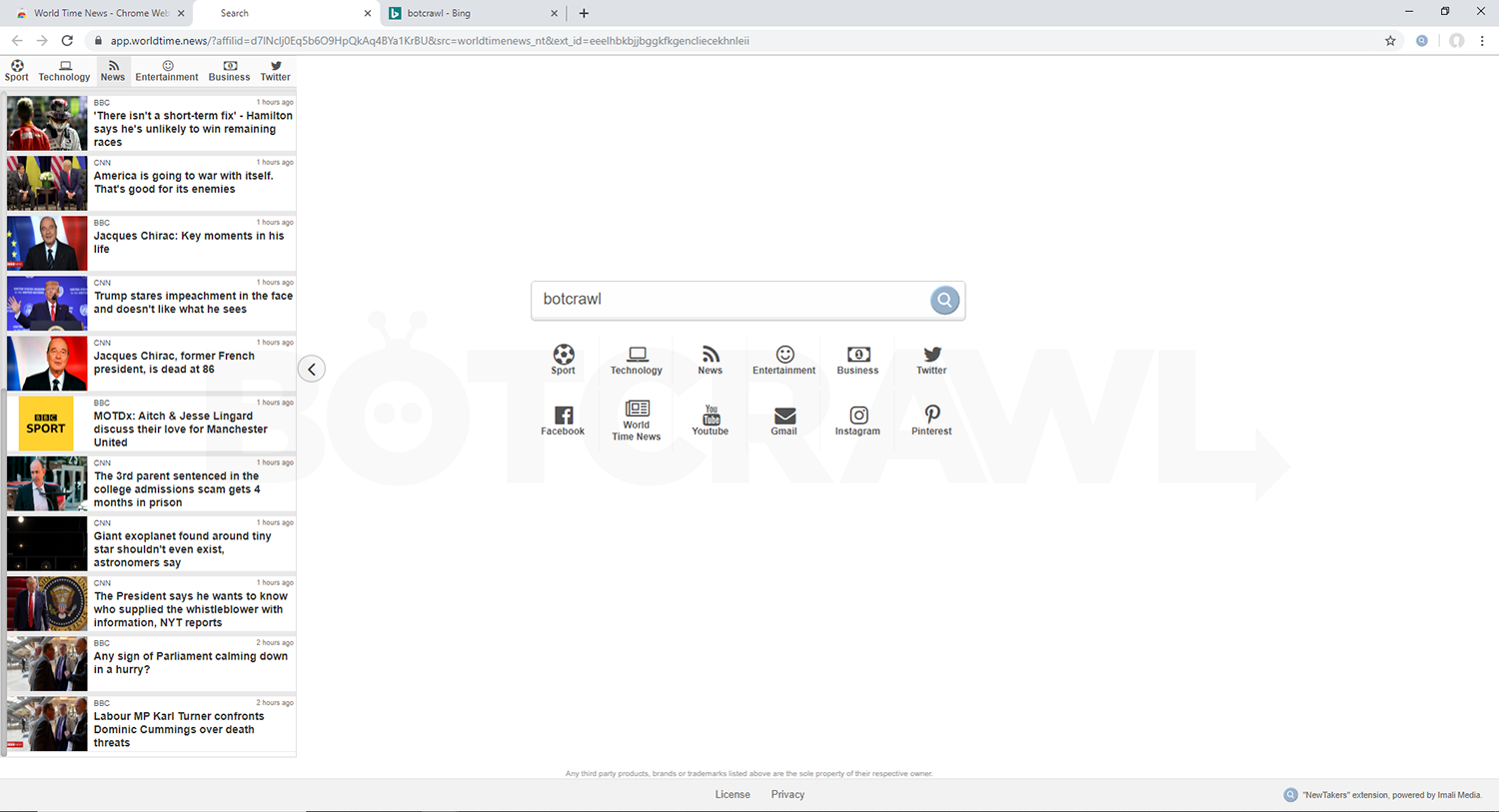
App.worldtime.news virus is a browser hijacker infection, also known as a redirect virus, that forcibly takes control of existing internet browser settings including the startup page, new tab page, and search provider. When a computer is infected with the browser hijacker affected browser(s) will start up on and redirect to app.worldtime.news when a search is performed from the address bar or Omni box.
App.worldtime.news does employs the use of potentially rogue and malicious browser extensions to gain control of web browsers including the aptly named World Time News extension compatible with Google Chrome. Along with being able to modify browser settings the extensions can also read and change your data on numerous sites and collect personal information.
Furthermore, extensions native to the website may bundle with or be advertised alongside malware, adware, spyware, viruses, and potentially unwanted programs that may cause other problems and provide an even larger security risk. Due to this, it is recommended to scan an infected computer with reputable antivirus tools including Malwarebytes Premium to ensure that malicious software and files have been removed.
How to remove app.worldtime.news (Virus Removal Guide)
Follow the steps in this removal guide to completely remove app.worldtime.news, viruses, malware, adware, spyware, and other threats from your computer.
Botcrawl may earn a commission from purchases made through links in this article.
1. First, Malwarebytes to scan your computer for malware and potentially unwanted programs.
2. Once Malwarebytes is installed, click the Scan Now button to begin scanning your computer.
3. When the scan is complete, click the Quarantine Selected button to remove all threats detected by Malwarebytes.
4. Reboot your computer.
5. Next, download and install HitmanPro to perform a second-opinion scan and remove remaining trace files.
6. Once HitmanPro is installed, click the Next button to begin scanning your computer.
7. When the scan is complete, click the Next button to remove all threats detected by HitmanPro.
8. Reboot your computer.
9. Finally, download and install CCleaner to automatically delete files, clean up Windows registry, and repair settings.
10. Once CCleaner is installed, click the Analyze button to begin analyzing your system.
11. When the analyzation is complete, click the Run Cleaner button to clean your system.
12. Now, let’s walk through the Tools section; Go to Tools.
13. Go to Uninstall: Is there a program you missed uninstalling before? CCleaner can often show you programs that are hidden from the Control panel.
14. Go to Software Updater: Are there any programs to update? Make sure to keep the programs on your computer up-to-date to avoid issues with security vulnerabilities.
15. Go to Startup: Go through the Windows, Scheduled Tasks, and Context Menu tabs. Are there any suspicious startup keys enabled? If so, highlight them with your mouse and click the Delete button to remove them.
16. Go to Browser Plugins: Go through the tabs for each browser installed on your computer. Are there any suspicious plugins installed? If so, highlight them with your mouse and click the Delete button to remove them.
17. Leave the Tools section and go to Registry.
18. Click the Scan for Issues button and follow the instructions.
19. Once the registry scan is complete click the Fix selected Issues… button and follow the instructions to fill all the selected issues found in your computer’s registry.
20. To ensure that rogue browser extensions have been removed launch Google Chrome.
21. In the settings menu, go to More tools > Extensions.
22. Search for suspicious browser extensions and click the Remove button if any are located.