How to remove UniDeals (Virus Removal Guide)
The UniDeals virus is adware that injects targeted advertisements on the websites you visit. UniDeals adware is known to utilize browser add-ons and extensions to access, collect, and modify internet browsing data. The data collected by this adware is primarily used to serve targeted advertisements across Google Chrome, Mozilla Firefox, and Internet Explorer.
UniDeals
The UniDeals virus is adware that injects targeted advertisements on the websites you visit. UniDeals adware is known to utilize browser add-ons and extensions to access, collect, and modify internet browsing data. The data collected by this adware is primarily used to serve targeted advertisements across Google Chrome, Mozilla Firefox, and Internet Explorer.

What is UniDeals?
Publisher Description: N/A
- This program bundles with third-party malware, malicious files, and potentially unwanted programs (PUPs).
- This program can read and change all your data on the websites you visit.
- This program can read and change your browsing history.
- This program can manage your apps, extensions, and themes.
- This program can manage your downloads.
- This program is not technically a computer virus.
How does UniDeals get on a computer?
The UniDeals virus is usually introduced to a computer system without knowledge alongside downloadable content, such as freeware, shareware, torrents, and other items. In many cases users are given the opportunity to accept or decline a custom offer to install this program; However, the offer to decline the program from installing is often ignored or presented in a deceptive manner.
How to remove UniDeals
- Step 1: Remove browser attachments
- Step 2: Uninstall UniDeals
- Step 3: Scan your computer for malware
- Step 4: Cleanup and repair settings
- For Tech Support Call: 1-866-521-2427
Step 1: Remove browser attachments
Google Chrome
1. Click on the Customize icon (3 bar icon) next to the address bar and navigate to More tools > Extensions.

2. Search for the UniDeals extension and other suspicious extensions. Remove them individually by clicking the trashcan icon next to each one.
Mozilla Firefox
1. Type Ctrl+Shift+A.
2. On the Extensions and Plugin search for the UniDeals add-on and other suspicious add-ons and remove them if located.
Microsoft Internet Explorer
1. Click Tools and select Manage add-ons.
2. On the Toolbars and Extensions tab search for the UniDeals add-on, click it, and click the Remove button. Remove other suspicious add-ons if found. If the Remove button does not appear you must first uninstall associated software through the Control Panel.
Step 2: Uninstall UniDeals
1. Access Windows Start Menu and navigate to the Control Panel.
2. On Windows Control Panel, click Uninstall a program or Add and remove a program in the Programs section.

3. In the list of installed programs, search for UniDeals and other unwanted programs. Once an unwanted program is located, double click the unwanted program or select it with your mouse and click the Uninstall button.
4. Restart your computer.
Step 3: Scan your computer for malware
1. Download and install the free or full version of Malwarebytes Anti-Malware. The full version enables real-time protection to block malware and unwanted programs from infecting your computer, while the free version is just a free scan and removal tool.


2. Open the Malwarebytes Anti-Malware.

3. Click the large Scan Now button or visit the “Scan” tab to manually run a scan.
4. Once the malware scan is complete, click the Quarantine All button and reboot your computer.
Step 4: Cleanup and repair settings
1. Download and install the free or full version of CCleaner by Piriform.

2. Once installed, open the program and navigate to Cleaner > Windows/Applications and click the Analyze button. Afterwards, click the Run Cleaner button on the bottom right of the program interface.
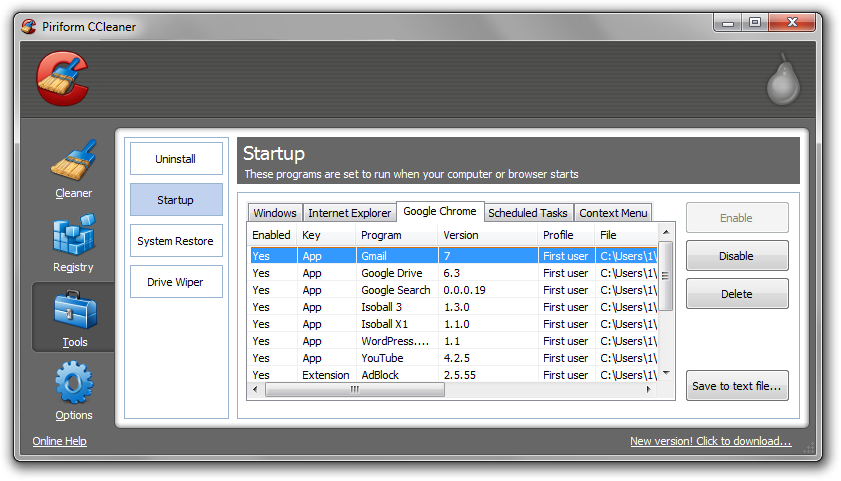
3. Next, navigate to Tools > Startup and search through each tab starting from windows, internet explorer, etc., all the way to Content Menu, for additional suspicious entries and click Disable and Delete once anything is found.
4. To automatically uninstall unwanted programs using CCleaner, navigate to the Uninstall tab and search for the program in the list of installed programs. Uninstall the unwanted software as selected by clicking the Run Uninstaller button.