

3 Solutions: From Windows Start Screen | From User Settings | From Windows Control Panel
Your Windows account picture has multiple uses. It is used by applications and is shown on Windows Sign in and Star screens. The account picture is also used for email messages and will be shown to recipients of email messages you send from your account. Windows will display a default gray picture if you have not chosen an account picture. To change your Microsoft Windows account picture follow the instructions below.
From Windows Start Screen
1. Go to Windows Start screen

2. Click on your default image or name on the top of the Start screen and select “Change account picture“

3. In the Your Account tab click the Browse button in the Account picture section

4. Browse OneDrive, This PC, Homegroup, and Network for the image you want to use as your account picture, select it with your mouse, and click the “Choose Image” button
From User Settings
1. Go to Windows Start screen

2. Search for the term “Users” and select the Add, delete, and mange other user accounts option

3. Select “Your account” in the Accounts tab
4. In Your Account, click the Browse button in the Account picture section
5. Browse OneDrive, This PC, Homegroup, and Network for the image you want to use as your account picture, select it with your mouse, and click the “Choose Image” button
From Windows Control Panel
1. Go to Windows Control Panel

2. Click User Accounts and Family Safety

3. Click User Accounts

4. Click Make changes to my account in PC settings
5. Click the Browse button in the Account picture section
6. Browse OneDrive, This PC, Homegroup, and Network for the image you want to use as your account picture, select it with your mouse, and click the “Choose Image” button

Related Posts
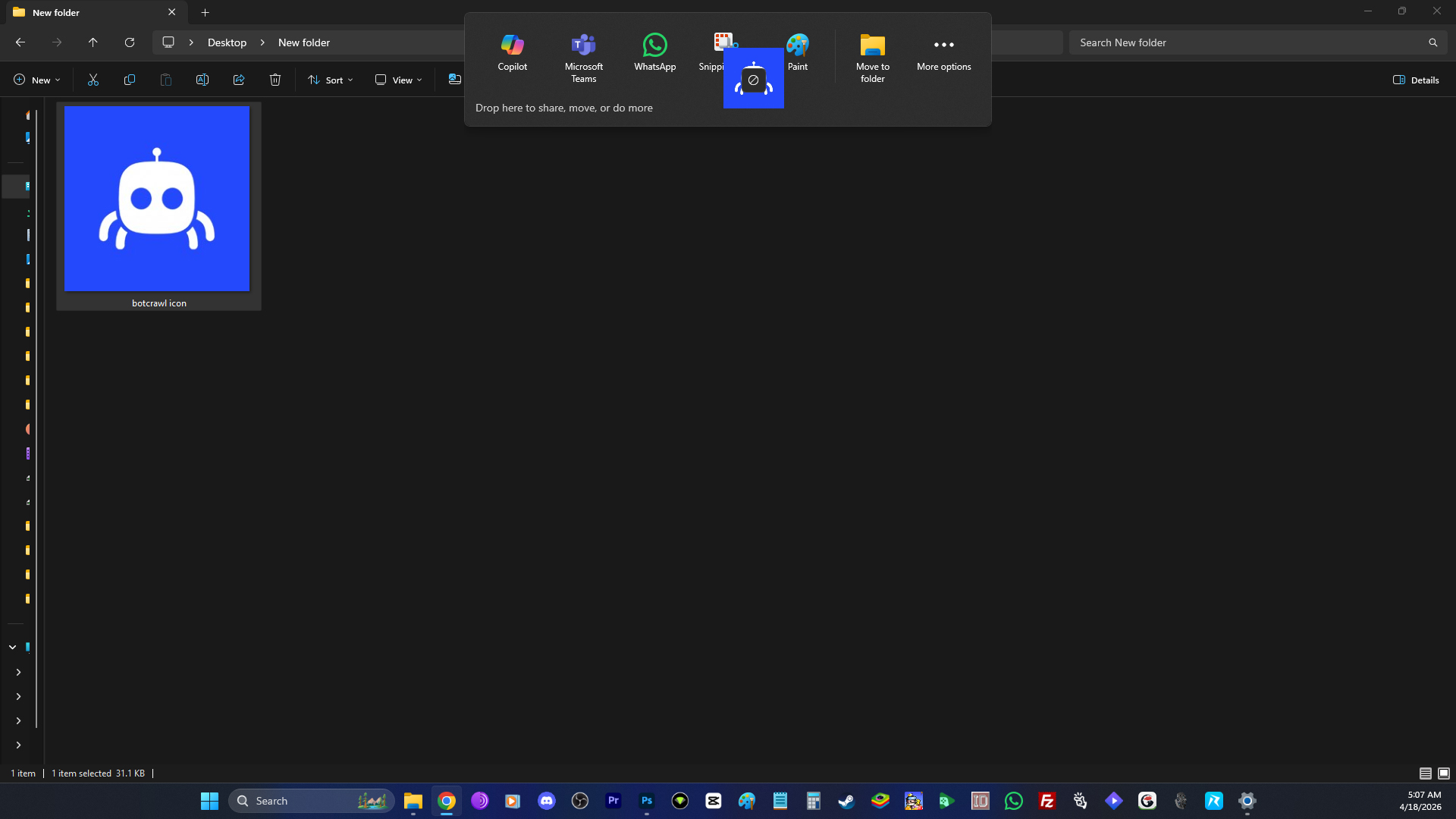
How to Remove the “Drop Here to Share, Move, or Do More” Popup in Windows 11
The “drop here to share, move, or do more” popup in Windows 11 is one of those features that sounds fine until it actually…
Read article
Microsoft Confirms Windows 11 Shutdown Bug After January Update
Microsoft has confirmed a Windows 11 shutdown bug that prevented some systems from shutting down or entering hibernation after installing the January 2026 security…
Read article
Manus AI Is the First Agent That Can Read Your Files Through Windows’ New Agent Connector
The productivity agent Manus AI has quietly become a milestone for the Windows ecosystem. It is the first publicly promoted agent that can read…
Read article