By default, when you snap an open window to the side of your screen or desktop on Windows 10 an additional window on the side will appear that shows you “what you can snap next.” I found this feature annoying; However, I can see where it can be very useful for many users.

There is a screen snap option preset in Windows 10 which actually allows you to stop the multi-window screen from appearing when you lock, dock, or snap your open window to the left or right side of the screen.
This guide will show you how to change the “when I snap a window, show what I can snap next” option and remove the multi-window screen when you snap a window on Windows 10.
1. Open Windows Start menu and go to Settings > System > Multitasking.

2. In the “Snap” section at the top of the window turn the dial off next to “When I snap a window, show what I can snap next to it.”
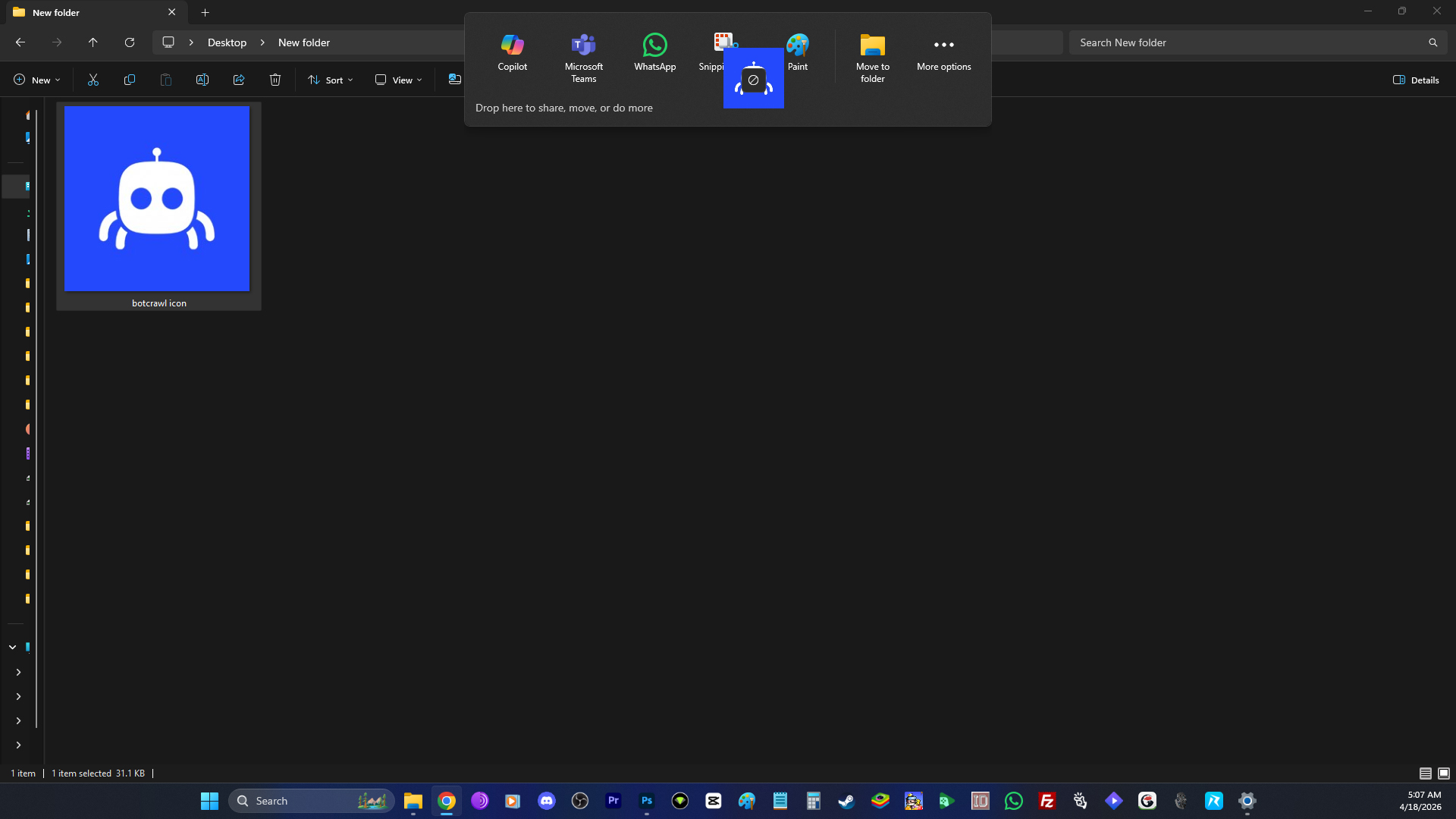
- How to Remove the “Drop Here to Share, Move, or Do More” Popup in Windows 11
- Microsoft Confirms Windows 11 Shutdown Bug After January Update
- Manus AI Is the First Agent That Can Read Your Files Through Windows’ New Agent Connector
- Windows 11 AI Feature Sparks Privacy Concerns After Gaining Access to Personal Folders
- Microsoft Confirms “Update and Shut Down” Was Actually Restarting Windows 10/11 and Patches the Bug
Sean Doyle
Sean is a tech author and security researcher with more than 20 years of experience in cybersecurity, privacy, malware analysis, analytics, and online marketing. He focuses on clear reporting, deep technical investigation, and practical guidance that helps readers stay safe in a fast-moving digital landscape. His work continues to appear in respected publications, including articles written for Private Internet Access. Through Botcrawl and his ongoing cybersecurity coverage, Sean provides trusted insights on data breaches, malware threats, and online safety for individuals and businesses worldwide.