How to remove Vista Antivirus 2014 (Virus Removal Guide)
This Vista Antivirus 2014 removal guide contains instructions to remove Vista Antivirus 2014 virus and other malware from Microsoft Windows. Get rid of fake Vista Antivirus 2014 scareware with the steps provided on this webpage.
What is Vista Antivirus 2014?
Vista Antivirus 2014 is a fake Windows program that is detected as rogue software or scareware by most legitimate security products. Vista Antivirus 2014 causes many complications for computer users from the invasion or privacy to lower system performance. This program can be used to scare victims into purchasing the product by performing fake system scans.

Vista Antivirus 2014 is primarily contracted by trojan horses that release it onto a computer system and may bundle with additional malware that can cause additional problems. If this fake Windows Antivirus program is installed, a user’s operating system may also be infected with several parasites that should be removed.
The main symptoms of the Vista Antivirus 2014 virus is that the program is designed to infect a computer without direct user knowledge in order to perform fake system scans structured to persuade computer users to spend money on the program. Once installed, the program may run a scan and show results that falsely indicate that the infected computer has additional programs that may be removed by purchasing the fraudulent product; However, although the computer is infected with this program, this program will not assist in the removal of malicious parasites and may further block efforts to eradicate associated parasites.
This Vista Antivirus 2014 removal guide contains instructions to remove Vista Antivirus 2014 virus and other malware from Microsoft Windows. Get rid of fake Vista Antivirus 2014 scareware with the steps provided on this webpage.
How to remove Vista Antivirus 2014
- Automatic Removal Guide
- Manual Removal Guide
1. Automatic Removal Guide
Use the instructions below to automatically remove Vista Antivirus and third-party malware.
Malwarebytes Anti-Malware
Botcrawl may earn a commission from purchases made through links in this article.
2. Install the free or paid version of Malwarebytes Anti-Malware.


3. Once Malwarebytes is installed, run the program. *Malwarebytes may automatically begin to update and scan your computer at this point.

4. Once the Malwarebytes program has been open, if a scan has not initiated, please click the large Scan Now button or visit the “Scan” tab to initiate a scan. Before the scan is started Malwarebytes may ask to update the software, make sure to do so if prompted to.

5. Once the scan is complete, click the Quarantine All button to remove the files.

6. You may also chose to visit the History tab and click Delete All to remove these files from the Quarantine log, although these files no longer prove a threat.
CCleaner by Piriform
CCleaner can be used to automatically repair internet browser settings, system settings, and uninstall unwanted software.
1. Install the free or paid version of CCleaner by Piriform.

2. Once installed, open the program and navigate to Cleaner > Windows/Applications and click the Analyze button. Afterwards, click the Run Cleaner button on the bottom right of the program interface.
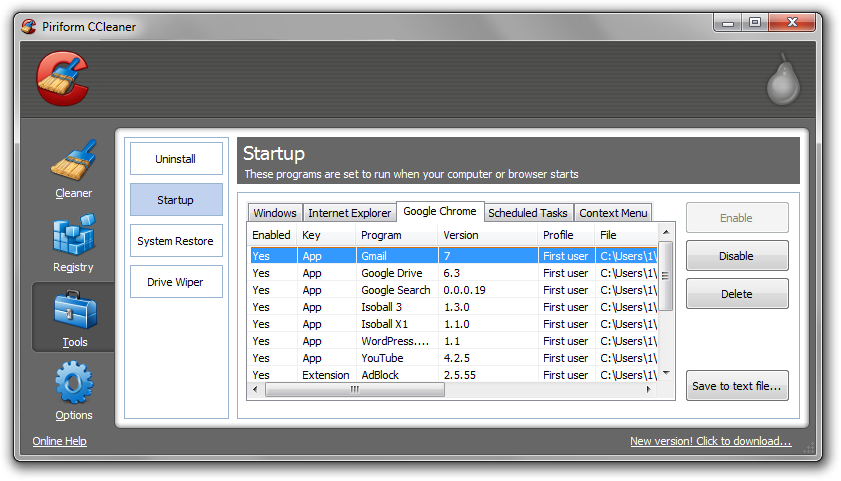
3. Next, navigate to Tools > Startup and search through each tab starting from windows, internet explorer, etc., all the way to Content Menu, for additional suspicious entries and click Disable and Delete once anything is found.
4. To automatically uninstall unwanted software, navigate to the Uninstall tab and search for the program in the list of installed programs. Uninstall the unwanted software as selected by clicking the Run Uninstaller button.
2. Manual Removal Guide
If permitted, use the instructions below to manually uninstall rogue Vista Antivirus scareware from Microsoft Windows XP, Windows Vista, Windows 7, and Windows 8 Operating Systems.
How to uninstall Vista Antivirus 2014
1. Access Windows Start Menu and navigate to the Control Panel (on Windows 8, right click the bottom left corner to access the Windows 8 Start Menu).

2. Click Uninstall a program or Add and remove a program.
3. In the list of installed programs search for Vista Antivirus and other potentially unwanted software. Once the rogue Windows program is located, double click the unwanted program or highlight it in the list and click the Uninstall button.