
How to remove Snapdo (Virus Removal Guide)
Snapdo by Resoft (also searched for as Snap.do) is a questionable search engine and title of a potentially unwanted program (PUP) in the browser hijacker category of computer threats. Unwanted programs used to promote snap.do including the Snapdo program for Windows often install without user consent and change your existing internet browser settings such as the homepage and default search engine. This causes internet browsers to start-upon and redirect to search.snap.do, snapdo.com, and other webpages when you open a new browser window, open a new browser tab, or search the web using the browser address bar.

Snap.do utilizes one of multiple programs, browser helper objects (BHOs), and browser attachments to change your browser settings. This means that you may need to uninstall various unwanted programs and remove multiple browser add-ons and extensions to get rid of this infection. Google Chrome, Mozilla Firefox, and Microsoft Internet Explorer.

Snapdo programs and browser attachments have public permissions set allowing them to access, gather, and control user data and user settings. Information collected by Snap.do malware include all of your browsing activities, bookmarks, and history. This information is often used for a wide variety of marketing purposes and may warrant unsolicited targeted advertisements.
How to remove Snapdo
This snapdo removal guide will completely remove the “snapdo virus” in order to stop browser redirects to snap.do, search.snap.do, and snapdo.com.
Step 1: Scan your computer for malware
Botcrawl may earn a commission from purchases made through links in this article.
2. Install the free or full version of Malwarebytes Anti-Malware. The full version enables real-time protection to block malware and unwanted programs from infecting your computer, while the free version is just a free scan and removal tool.
3. Once Malwarebytes is installed, run the Anti-Malware program. Malwarebytes may automatically begin to update and scan your computer at this point.

4. Once Malwarebytes has been opened, if a scan or update has not automatically initiated, please click the large Scan Now button or visit the “Scan” tab to manually run a scan. Before the scan is started Malwarebytes may ask to update the software, make sure to do so if prompted to.

5. Once the scan is complete, click the Quarantine All button to isolate and remove the detected files. You may be asked to reboot your computer after removal to completely remove detected files.

6. You can chose to visit the History tab and click Delete All to remove these files from the Quarantine log, although these files no longer provide a threat.
Step 2: Clean up and repair settings
1. Install the free or full version of CCleaner by Piriform.


2. Once installed, open the program and navigate to Cleaner and click the Analyze button. Afterwards, click the Run Cleaner button on the bottom right of the program interface. This will clean up unnecessary junk that may have been introduced to your computer.
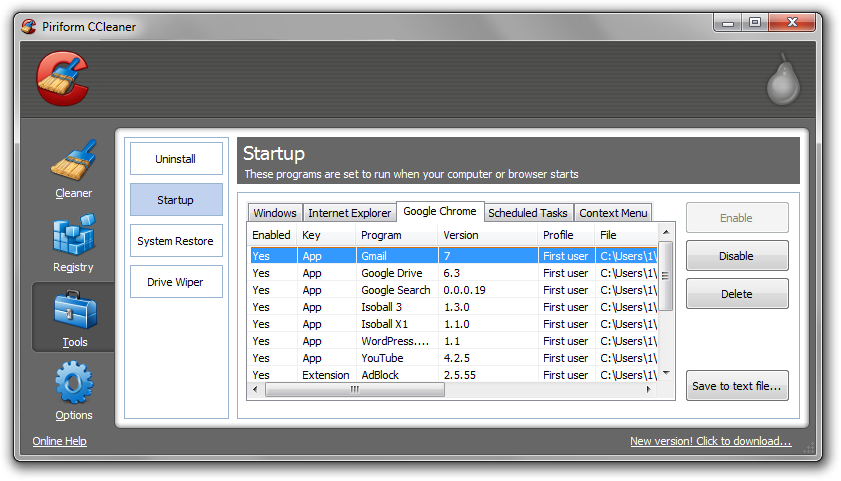
3. Next, navigate to Tools > Startup and search through each tab starting from Windows, Internet Explorer, etc., all the way to Content Menu, for additional suspicious entries and click Disable and Delete once anything you do not recognize is found. This will help you locate and remove unwanted browser attachments and repair other settings.
Step 3: Manually uninstall Snap.do
1. Access Windows Start Menu and navigate to the Control Panel (on Windows 8, right click the bottom left corner to access the Windows 8 Start Menu).

2. Click Uninstall a program or Add and remove a program.

3. In the list of installed programs search for Snap.do or other program used to promote the search engine. Once the program is located, double click it or select the program in the list and click the Uninstall button to begin the uninstall process.
Step 4: Manually remove browser attachments
Google Chrome
1. Click on the Customize icon (wrench or 3 bar icon) next to the address bar and navigate to More tools > Extensions.
2. Search for the Snap.do extension and remove it by clicking the trashcan icon next to it.
Mozilla Firefox
1. Type Ctrl+Shift+A.
2. On the Extensions and Plugin search for the Snap.do add-on and remove it.
Microsoft Internet Explorer
1. Click Tools and select Manage add-ons.
2. On the Toolbars and Extensions tab search for the Snap.do add-on, click it, and click the Remove button.
Step 5: Remove Snap.do search engine
- In Mozilla Firefox, click the small search magnify glass near the search box (not url/search field) and click “Manage Search Engines…”. Remove search.snap.do, snapdo.com, and other webpages from the list of search providers by highlighting the selections and clicking remove.
- In Microsoft Internet Explorer navigate to Tools > Manage Add Ons > Search Providers and remove search.snap.do, snapdo.com, and other webpages from the list.
- In Google Chrome, click the customize icon (wrench or 3 bars) and navigate to Settings > Manage search engines… click the X next to search.snap.do, snapdo.com, and other webpages to remove them.
Please note, If http://www.snap.do/ is set as Google Chrome’s default search engine, add (or select) a new search engine (such as Google.com) and select the new search engine as the default search engine, then remove the unwanted search engine by clicking the X next to it.
Step 6: Remove Snap.do from homepage
- In Mozilla Firefox navigate to Tools > Options or click Firefox in the top left corner and click Options > Options. Under the General tab remove search.snap.do, snapdo.com, or other webpage from the “Home Page:” field and replace it with your preferred home page URL.
- In Microsoft Internet Explorer navigate to Tools >Internet Options. Remove search.snap.do, snapdo.com, or other webpage from the Home Page field and replace it with your preferred URL.
- In Google Chrome click the customize icon (wrench or 3 bars) and navigate to Settings.Click “Set pages” under the On startup option. Remove search.snap.do, snapdo.com, or other webpage and replace it with your preferred homepage URL.



SNAPDO SUCKS IT HJACKED MY COMPUTER AND IT WONT GO AWAY I THINK ITS STUPID
Note that if you need to remove the search provider, set another one (e.g., google) as the default. Otherwise, the remove button is disabled.
Thank you so much for this. I was just trying to watch a movie, and the site forced me to install this…got everything fixed. Thank you again!
Thanks Sean! I contracted Snap.do when trying to download a free zip app. This advice was super helpful.
Thanks a lot. Very helpful.
I was attempting to download a program I need for class and this piggy backed it’s way onto my system. Luckily I knew I didn’t download it so I refused to use the search engine and have only looked up ways to remove the program. Your site has been the most useful thus far.
Thank you so much. I accidentally downloaded this off the internet for a ‘survey’ thing, and it was my homepage. I was kinda annoyed and changed my homepage back to what it was, but it kept reappearing. I searched how to uninstall it, and came upon this site, where the corresponding article admittedly freaked me out a bit, but it helped a lot. Thanks!
I got it from tweetcaster
thanks for the help
Just wanted to say thank you. This did the trick
Thank you! After downloading Gimp suddenly snap.do was all over my computer and no matter how many times I changed my settings, it kept reappearing. So annoying! Finally gone now.
Very helpful. Thank you so much.
thanks!
**** these little hacker *******
thank your a life saver
THIS WAS UNBELIEVABLY HELPFUL THANK YOU SO MUCH.
thank you!
Thank you. That was really helpful.
Thanks
Thank You
so after i had removed every thing i am safe once again right?
Thank you Thank you Thank you. You are a life and computer saver. I have been having problems for a few days an honestly thought I was going to have to restore my computer to its very beginning stages, which I hate doing. I have to much on here I am in college and I have all my assignments and such along with my business stuff (and yes I do keep a lot on thumb drives). I can not afford to have my computer down for any length of time. You saved me so much time and hassle. whats your address I am going to send you some Christmas Cookies. lol Whats your favorite?
I just found this today and have had snapshit on my comp for about a week. I didnt understand how it got there. Whoever wrote this page deserves some present for xmas ferser. P.s. ur comment helped me trust this site to ahah thx
That really helped. Thanks!
great work. THANKS!!!
great stuff, thanks
Thank You!
done! thx from turkey…
thank you so much!
Thank you so much. Followed to teh letter & all is fine again!
when i go to the bar at the top of imternet explorer i type something in and it goes to snap.do? i got rid of it for homepage…
You have to remove Snap.do as your provided/managed search engine. Tools > Manage add-ons > Search Providers Tab
Thank you
Thank you so much! I kept deleting the snap.do in the “Manage web browsers” page in chrome, but it kept coming back. Now I think I took care of it.
I just wanted to say thank you very much! I actually think snap.do was slowing my computer down because it has now been running faster ever since I uninstalled it.
very informative. Thanks
If you use Firefox, to remove the auto search hijack (when you use the address bar to search)…
Type about:config in the Firefox address bar
search for “snap” in search bar in the config menu
right click value that has the snap.do url
click reset
voila
Thx so much! Appreciate you taking the time to share that.
that really helped !!! THANKS A TON
Thank you – THIS seems to clear det snap.do search appearing when doing a sarch from the addressline
I would never have found all of this on my own. Thank you.
Fixed it now, thanks
Thank you very much. Simple and clear!
Mate you’re a god… Each time I deleted it from my extensions and new page settings but it always came back… Thanks a million:)
Thank you very much.
Thanks. REALLY helpful and easy to follow.
Thanks, really helpful.
thanks,this really helped 🙂
It won’t show snap.do in the control panel
Thankyou ,nice and easy to follow ,cheers
Thanks a lot dude for this tutorial! This snap.do thing was driving me crazy!
Thank YOU !
Snap.do you are Poo ! F You !
Ahaha, i’m a poet and i didn’t no it. Oh shit there i go again……
thank you. Snap.do is a pain to remove. Is there a registry entry for snap.do that I need to look for?
There might be, given which software is bundled with Snap.do, such as Smartbar or DVDVideoSoftTB.
Here’s an image: http://botcrawl.com/wp-content/uploads/2012/09/SmartBar-DVDVideoSoftTB.png
I will add more on this subject after more insight.
If you wish to search for corrupted or changed entries, keys, values I suggest to try the free version of CCleaner by Piriform http://www.piriform.com/CCLEANER.
Freemake Video Converter was what gave it to me. The product used to linked on DVDVideoSoft’s page, it isn’t anymore. I love these programs, so sad that they went this route. Thanks for the help Sean.
RT @BotCrawl: Snap.do virus #malware problems? Of course we have the best Snap.do hijacker removal steps around. http://t.co/wIgLIGjc ht …
RT @BotCrawl: Snap.do virus #malware problems? Of course we have the best Snap.do hijacker removal steps around. http://t.co/wIgLIGjc ht …
Snap.do virus #malware problems? Of course we have the best Snap.do hijacker removal steps around. http://t.co/wIgLIGjc http://t.co/LlwjcP7b
MG1. Brilliant! Thank you so much.