How to Remove Galaxy Ad Blocker (Virus Removal Guide)
Galaxy Ad Blocker is a Chrome browser extension that claims to protect users from intrusive ads by providing a “powerful defense against overwhelming ads.” At first glance this may sound appealing, but a deeper look at how Galaxy Ad Blocker operates shows that it is not a safe or trustworthy tool. The permissions it requests, the way it is promoted, and the lack of transparency from its developers all raise red flags. Instead of protecting users, Galaxy Ad Blocker creates serious privacy and security risks that make it unsafe to keep installed.
The official domain for Galaxy Ad Blocker is galaxyadblocker.com, registered on May 12, 2025, through Cloudflare, Inc.. The domain is new, set to expire in May 2026, and is masked behind Cloudflare nameservers that hide the owner’s identity. Legitimate ad blocker developers usually operate long-established domains with clear ownership, privacy policies, and support details. Galaxy Ad Blocker does not. You can confirm these records using our WHOIS Lookup tool.
The most troubling issue is the extension’s permissions. Galaxy Ad Blocker asks for the ability to read your browsing history and change data on all websites you visit. This type of access is not required for blocking ads and is not requested by trusted extensions like Adblock Plus, AdGuard, or uBlock Origin. Permissions like these open the door for data collection, tracking, and exploitation of personal information. Any extension that requests more access than it needs should be considered unsafe.
Botcrawl may earn a commission from purchases made through links in this article.
This guide explains what Galaxy Ad Blocker is, how it gets installed, why it is considered unsafe, what symptoms to look out for, and how to remove it completely. Because Galaxy Ad Blocker is distributed in the same advertising networks that spread malware threats, adware, and other potentially unwanted programs, you will also learn how to scan your system with Malwarebytes, reset your browser to restore security, and follow prevention steps to avoid similar issues in the future.
Table of Contents
- What Is Galaxy Ad Blocker?
- How Galaxy Ad Blocker Gets Installed
- Why Galaxy Ad Blocker Is Unsafe
- Common Symptoms of Galaxy Ad Blocker
- Risks Tied to the Galaxy Ad Blocker Ecosystem
- Manual Removal for Windows and Browsers
- Remove Galaxy Ad Blocker and Other Threats with Malwarebytes
- Advanced Checks for Persistent Issues
- Why Antivirus Sometimes Misses Suspicious Extensions
- How to Prevent Galaxy Ad Blocker and Similar Threats
- Key Takeaways
What Is Galaxy Ad Blocker?
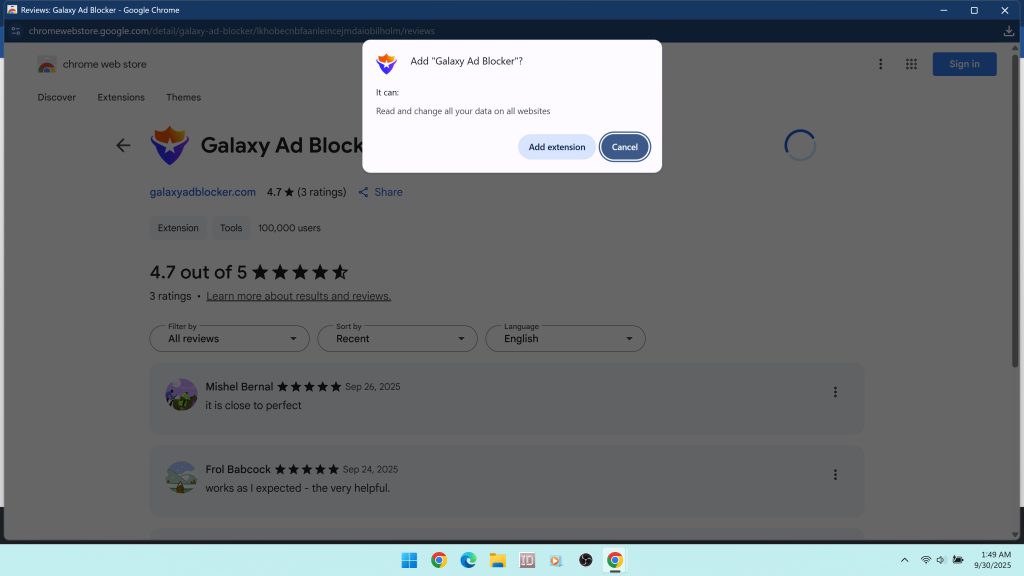
Galaxy Ad Blocker is a Chrome extension that presents itself as an ad blocking tool. Its listing in the Chrome Web Store describes it as a “Powerful defense against overwhelming ads,” and it promises to improve browsing by filtering unwanted content. At first glance this makes it look like a normal free utility, but when you analyze its behavior and requirements it becomes clear that Galaxy Ad Blocker is not a safe or trustworthy extension.
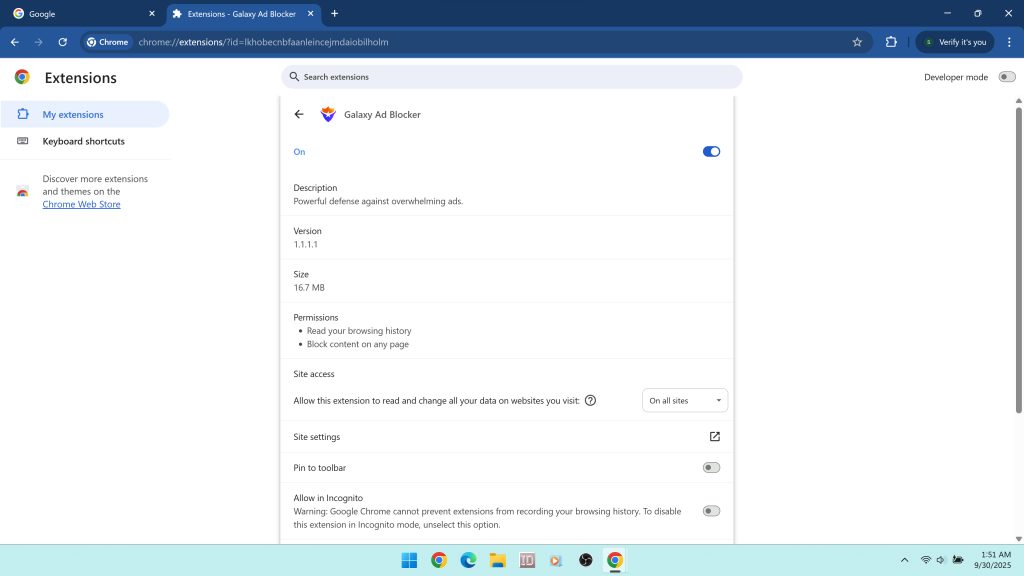
The technical details of the extension show immediate red flags. Galaxy Ad Blocker requests permissions to read your browsing history and to read and change all your data on websites you visit. While an ad blocker does need to block page elements and intercept requests, it does not need to log every website you visit or access all personal data across sites. Legitimate ad blockers such as uBlock Origin, Adblock Plus, or AdGuard do not require browsing history access. This type of permission is unnecessary and suggests tracking, profiling, or other undisclosed monetization practices.
The extension’s domain history is another concern. The official site, galaxyadblocker.com, was registered on May 12, 2025, through Cloudflare, Inc.. The registration is very new and is set to expire in May 2026. All ownership information is hidden by Cloudflare’s privacy protection, leaving users with no way to verify who created the extension or how data may be handled. Trusted developers usually operate long-established domains with transparent contact details, published privacy policies, and active development communities. Galaxy Ad Blocker has none of these signs of legitimacy. You can confirm its domain record with our WHOIS Lookup tool.
Another issue is how Galaxy Ad Blocker spreads. Although it is available in the Chrome Web Store, suspicious extensions like this often appear alongside unsafe promotions in high-risk advertising networks. These are the same networks used by malware threats, fake update prompts, and survey scams. A legitimate extension does not need to grow installs through deceptive ads or bundles. Its presence in these environments places Galaxy Ad Blocker in the same ecosystem as adware and potentially unwanted programs (PUPs).
In short, Galaxy Ad Blocker is marketed as an ad blocking tool but shows multiple warning signs. Its excessive permissions, hidden ownership, new and unproven domain, and distribution through questionable networks make it a privacy risk. Even if it blocks some ads, the risks tied to its installation outweigh the benefits. For these reasons, security experts recommend removing Galaxy Ad Blocker as soon as it is detected in Chrome.
How Galaxy Ad Blocker Gets Installed
Galaxy Ad Blocker does not usually appear on a system because someone actively searched for it in the Chrome Web Store. Like many suspicious extensions, it is often pushed through aggressive advertising campaigns, deceptive popups, and software bundles that trick users into installing it. These tactics are designed to bypass informed consent and get the extension added to browsers without users fully understanding what they are agreeing to. Understanding these distribution methods is important because it explains why Galaxy Ad Blocker should be treated as unsafe.
Promotion through unsafe ad networks
One of the most common ways Galaxy Ad Blocker spreads is through untrustworthy advertising networks. Sites that cannot run legitimate ads, such as illegal streaming portals, torrent indexes, and file hosting mirrors, rely on low quality networks that allow misleading promotions. Within this environment, Galaxy Ad Blocker is advertised alongside survey scams, fake antivirus tools, and other potentially unwanted programs. These campaigns often use full-page overlays that mimic browser messages or video player requirements. The goal is to make users think they must install the extension in order to proceed.
Deceptive prompts and overlays
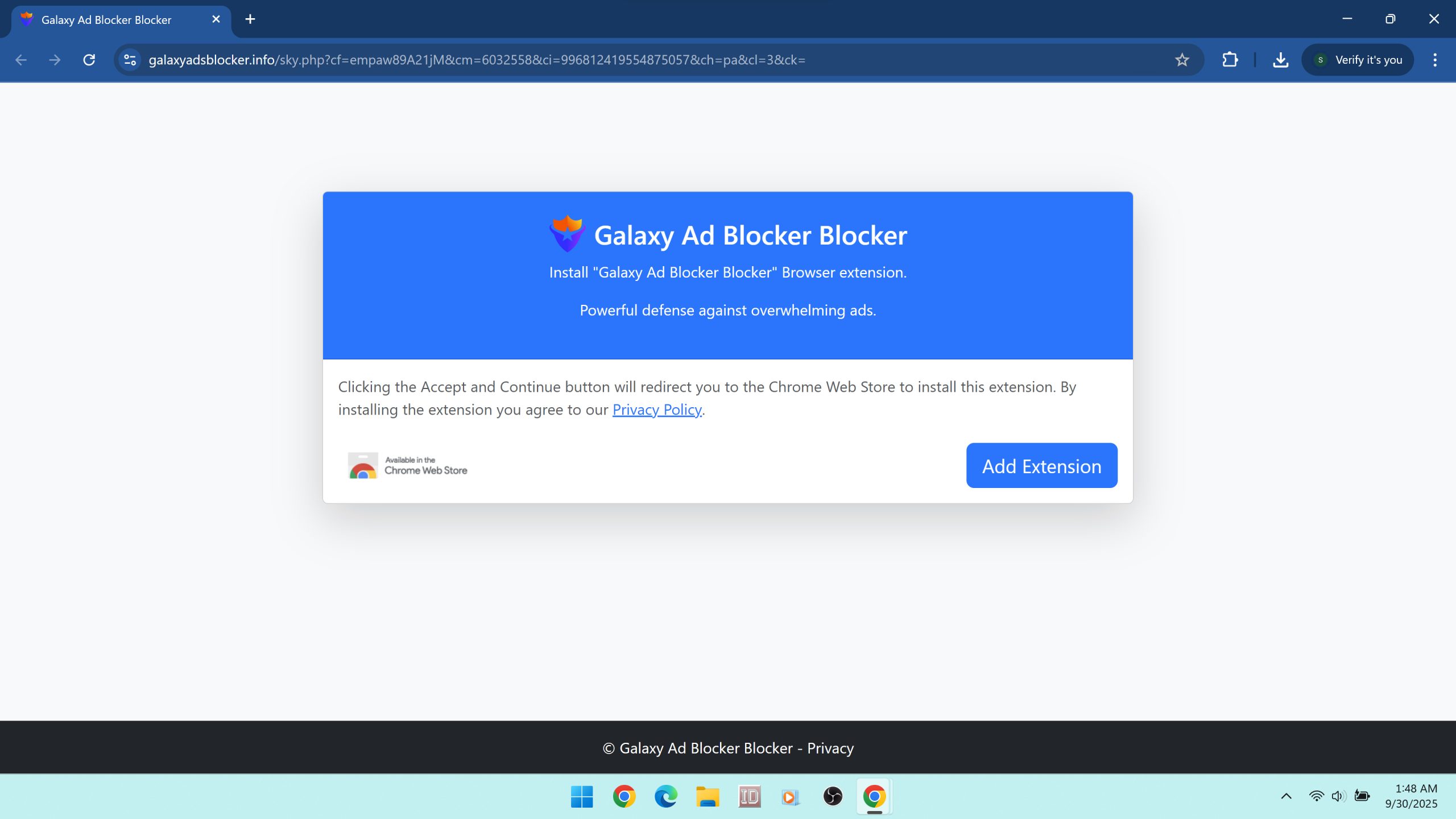
Another major tactic involves full-screen prompts that push the extension by disguising it as a requirement. For example, a user may try to start a video stream and instead see a message that says an “ad blocker” or “security tool” must be installed to continue. The page provides a single highlighted button to “Add to Chrome.” This design intentionally removes clarity and pressures the user to click through quickly. By the time the extension is installed, the user has granted it permissions to monitor browsing history and change data on every site they visit.
Bundled software installers
Suspicious Chrome extensions like Galaxy Ad Blocker are also frequently included in software bundles. Freeware downloaded from third-party websites often includes pre-checked installation offers for additional programs or extensions. Unless users read the fine print and manually deselect these offers, Galaxy Ad Blocker can be added automatically in the background. This is one reason people often report that they do not remember installing the extension. It simply appears in Chrome after installing unrelated freeware or utilities.
Redirect chains and spoofed pages
Some installation attempts involve redirect chains that move users through several sites before landing on a Chrome installation prompt. Along the way, the user may encounter pages that mimic browser update screens, antivirus alerts, or download helpers. These spoofed pages reuse familiar logos and designs to make the offer look legitimate. Clicking any button leads to a Galaxy Ad Blocker install page, making the user believe they are responding to a real Chrome or security requirement.
Browser notification abuse
Risky websites often request notification permissions with misleading wording. Once granted, these notifications can be abused to promote Galaxy Ad Blocker directly. Notifications may appear on the user’s desktop, linking to the extension’s install page. Because they come from Chrome’s built-in system, they can trick users into believing the suggestion is safe. This tactic blurs the line between trusted browser features and malicious advertising.
Affiliate catalogs and free tool lists
Another distribution vector is so-called “free tool” catalogs. These sites list collections of extensions and free software, but their real business model is driving as many installs as possible regardless of quality. Galaxy Ad Blocker may appear alongside PDF converters, video players, and screenshot utilities in these catalogs, presented as just another free tool. In reality, the site is paid whenever someone installs, so the focus is on volume, not safety.
Why distribution matters
All of these methods have one thing in common: they rely on manipulation, confusion, or force rather than informed user choice. This separates Galaxy Ad Blocker from trusted extensions that gain users through positive reviews, open development, and transparency. The fact that it is promoted through deceptive ads, bundles, and high-risk networks places it in the same ecosystem as adware and potentially unwanted programs. Even if the extension does provide some ad blocking, the way it is distributed makes it clear that safety is not a priority. If you see Galaxy Ad Blocker in your browser, you should assume it was installed through one of these risky methods and remove it immediately.
Why Galaxy Ad Blocker Is Unsafe
At first glance, Galaxy Ad Blocker may seem like just another free Chrome extension that promises to make browsing faster and less cluttered. The danger does not come from whether it hides a few ads. The real danger comes from the combination of permissions abuse, deceptive distribution, hidden ownership, and lack of transparency. These factors place Galaxy Ad Blocker in the same risk category as other suspicious extensions that are widely regarded as unsafe.
Excessive permissions
The most alarming concern is permissions overreach. A normal ad blocker requires access to block scripts, requests, and page elements. Galaxy Ad Blocker goes further by demanding the ability to read your browsing history and read and change all your data on websites you visit. This permission allows the extension to log every site you visit, how often you visit, and even inject or modify content on those sites. Reputable ad blockers like AdGuard, Adblock Plus, and uBlock Origin do not request this level of access because it is unnecessary for the task of blocking ads. Extra permissions create opportunities for profiling, tracking, and monetizing your activity without consent.
Distribution through unsafe channels
Another reason Galaxy Ad Blocker is unsafe is how it reaches users. Instead of being discovered through trusted sources such as positive reviews, open communities, or organic search results, it is aggressively pushed in high-risk environments. These include illegal streaming portals, torrent sites, and free software download pages. These sites often partner with advertising networks that promote scams, fake update prompts, survey traps, and other unwanted software. A developer that cared about user safety would not rely on these channels, yet Galaxy Ad Blocker does. This shows a willingness to be associated with the same pipelines that deliver adware and spyware.
Lack of developer transparency
The extension’s ownership is completely hidden. Its domain, galaxyadblocker.com, was only registered in May 2025 and is masked behind Cloudflare’s privacy service. There are no clear developer details, no visible support information, and no established reputation. Trusted ad blocker developers typically have open-source code, public development histories, or at least a transparent company identity. The fact that Galaxy Ad Blocker hides all of this information raises questions about how user data is handled and why the developers prefer to remain anonymous.
Privacy and monetization concerns
The saying “if a product is free, you are the product” applies here. Since Galaxy Ad Blocker does not charge money, it must generate revenue another way. The most likely methods are collecting and selling browsing data, injecting its own advertising into pages, or redirecting traffic for profit. With full access to browsing history and the ability to modify all websites, the extension has everything it needs to track behavior and exploit personal information. For users, this means trading one form of advertising annoyance for another while exposing private data to unknown third parties.
Part of a wider infection chain
Galaxy Ad Blocker is rarely encountered in isolation. Because it is distributed in the same networks that spread adware, spyware, and other malware, its presence on a system is often a sign that other unwanted programs may be present as well. Many users who find Galaxy Ad Blocker installed also notice new entries in their installed apps list, unfamiliar extensions, or changes to search and homepage settings. These are common symptoms of a broader PUP infection. Even if Galaxy Ad Blocker itself is not coded as malware, its role in this ecosystem makes it unsafe by association.
Loss of user trust
A true ad blocker exists to give users more control over their browsing. Galaxy Ad Blocker flips this dynamic by requesting more control from the user and then hiding who operates it. Instead of creating a safer experience, it creates more risks. This erosion of trust is why security experts classify it as unsafe and recommend immediate removal.
In summary, Galaxy Ad Blocker is unsafe because it requests excessive permissions, spreads through deceptive channels, hides its ownership, and likely monetizes users through data collection or ad injection. Its presence also suggests exposure to a wider infection chain. For these reasons, it should be removed immediately and followed by a full system scan.
Common Symptoms of Galaxy Ad Blocker
Recognizing the signs of Galaxy Ad Blocker is important because users often do not remember installing it. This is common with extensions spread through deceptive ads, bundles, and spoofed prompts. If you find Galaxy Ad Blocker in your extensions list or notice unusual browser behavior, these symptoms can help confirm that the extension is active or that your system has been exposed to additional threats from the same ecosystem.
Presence in Chrome extensions
The clearest sign is the appearance of Galaxy Ad Blocker in your Chrome extensions menu. Many users report that they never intentionally added it. If you see it listed and active, especially if you do not remember installing it, treat it as a red flag.
Unexpected ads and popups
Despite claiming to block ads, suspicious extensions like Galaxy Ad Blocker often do the opposite. You may notice new banner ads, popups, or redirects on websites that previously did not show them. In some cases, the extension may inject its own advertising code into pages to generate revenue, disguising itself as an ad blocker while actually serving ads.
Browser redirects
A common symptom is being redirected through unfamiliar websites before reaching your intended destination. These redirects are used to generate affiliate revenue or to push you toward software downloads, scams, and surveys. If your searches or links open additional pages first, Galaxy Ad Blocker or related PUPs may be responsible.
Permission prompts and notifications
Users often notice repeated requests to grant browser notifications or other permissions. If you allow them, you may start receiving unwanted alerts that promote shady extensions, fake updates, or suspicious offers. These notifications can appear even when Chrome is closed and can be difficult to stop without removing the extension and clearing permissions.
Altered search results
Extensions like Galaxy Ad Blocker may tamper with search results to insert extra sponsored content or reroute queries to unfamiliar providers. Instead of getting direct results from Google, Bing, or your chosen search engine, you may see modified layouts, injected ads, or custom search engines you did not select.
Browser slowdowns and performance issues
Running extra scripts in the background can make Chrome lag or freeze. Tabs may take longer to load, or the browser may use more memory than normal. Instead of speeding up browsing by removing ads, Galaxy Ad Blocker can reduce performance by adding hidden processes.
New or suspicious programs in Windows
Because Galaxy Ad Blocker is often distributed in bundles, its appearance may coincide with other potentially unwanted programs. Check your installed applications list for unfamiliar entries, optimizers, download managers, or utilities that you did not knowingly install. These often arrive alongside unwanted extensions.
Security tool alerts
Anti-malware programs such as Malwarebytes may detect Galaxy Ad Blocker or related files as potentially unwanted. If your security software flags new threats soon after Galaxy Ad Blocker appears, it is likely part of the same infection chain.
These symptoms may start small, such as a new extension or an extra ad or two, but they can escalate quickly as more unwanted software gets installed. If you notice any combination of these behaviors, treat Galaxy Ad Blocker as unsafe and follow the removal steps outlined in this guide.
Risks Tied to the Galaxy Ad Blocker Ecosystem
The risks linked to Galaxy Ad Blocker extend far beyond the extension itself. Because it is promoted in the same environments that distribute malware threats, adware, and potentially unwanted programs, installing it often means exposing your system to a wider chain of unsafe software. Even if Galaxy Ad Blocker does function as an ad blocker on the surface, the ecosystem it belongs to is dangerous and untrustworthy.
Loss of privacy
The most immediate risk is privacy invasion. By requesting permission to read your browsing history and modify all websites you visit, Galaxy Ad Blocker can monitor your online activity. This data may include every site you visit, how often you visit, and what you interact with. Extensions in this category often monetize that information by selling it to advertising networks or data brokers. Instead of protecting you from ads, it can turn you into a product by harvesting your behavior.
Exposure to scams and fraud
Because Galaxy Ad Blocker is advertised on high risk sites, users who encounter it are also being exposed to survey scams, phishing schemes, and fake update prompts. A single misclick during one of these redirects can result in installing additional malware, handing over login credentials to a spoofed page, or unknowingly agreeing to subscriptions or charges. The extension itself is not the only threat. The ad network ecosystem around it creates constant opportunities for fraud.
Bundled PUPs and adware
Galaxy Ad Blocker rarely travels alone. It is often delivered through bundles that install multiple programs at once. These may include shopping assistants, system optimizers, or file converters that you did not intend to install. Common examples of bundled software include unwanted tools like Gwyddion or SmartPDFMaker. Each added program increases clutter, slows down performance, and creates more entry points for tracking and ad injection.
Financial and security risks
Redirects triggered by Galaxy Ad Blocker’s ecosystem may lead to phishing pages disguised as login portals for email, banking, or social media. Entering your credentials on these pages can result in account theft, identity fraud, and financial loss. Once stolen, your credentials may be sold on underground forums or used directly for fraudulent transactions. Because the extension is tied to shady networks, you cannot assume that your data is handled safely.
Persistence and reinfection
Unwanted extensions like Galaxy Ad Blocker are often accompanied by persistence mechanisms. Bundled software may create scheduled tasks, alter system settings, or install background services that reinstall the extension after removal. This means that unless you follow advanced cleanup steps, you may see the same symptoms return even after uninstalling the extension from Chrome. Persistent reinfection is a common tactic in PUP campaigns because it guarantees ongoing ad revenue.
Erosion of trust
Perhaps the biggest risk is the erosion of trust in your browser environment. A true ad blocker empowers users by improving privacy and control. Galaxy Ad Blocker does the opposite: it demands excessive access, hides its developers, spreads through deceptive channels, and then uses your system for profit. By associating with this type of software, users lose control over their browsing and expose themselves to a cycle of unwanted ads, scams, and infections.
In summary, the risks tied to Galaxy Ad Blocker include privacy loss, exposure to scams, installation of additional PUPs, financial theft, and persistent reinfection. These are not minor inconveniences. They are serious threats that justify immediate removal and a full system scan.
Manual Removal for Windows and Browsers
If you discover Galaxy Ad Blocker in your browser, the first step is to remove it as an extension. Because it is often installed alongside other potentially unwanted programs (PUPs), you should also check your system for suspicious software, reset your browser settings, and clear cached data. Manual removal is an important part of the cleanup process before running a full malware scan.
Step 1. Uninstall suspicious programs in Windows
Extensions like Galaxy Ad Blocker are frequently bundled with other software. Before removing the extension, check your installed applications to ensure no other unwanted programs remain on your system.
- Right-click the Start button and select Installed apps (Windows 11) or Apps and Features (Windows 10).
- Sort the list by Install date. This groups together programs added at the same time Galaxy Ad Blocker appeared.
- Look for suspicious or unfamiliar entries. Pay close attention to utilities you did not intentionally install, such as optimizers, shopping assistants, or download managers.
- Select and uninstall anything suspicious. If an uninstaller fails, restart the computer and try again. You can also open Control Panel > Programs and Features to remove programs manually.
Step 2. Remove Galaxy Ad Blocker from Chrome
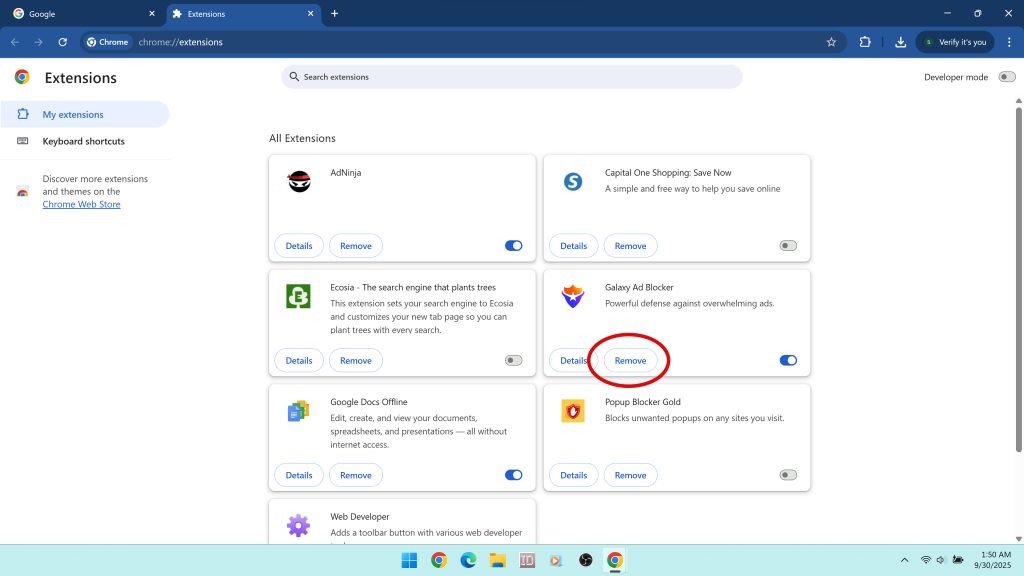
Next, disable and remove the extension from Chrome.
- Open Chrome and click the three-dot menu in the top right corner.
- Select Extensions > Manage extensions.
- Locate Galaxy Ad Blocker in the list.
- Click Remove and confirm when prompted.
If you do not see Galaxy Ad Blocker but are experiencing symptoms, look for other extensions that request suspicious permissions such as “Read your browsing history” or “Read and change all your data on websites you visit.” Remove those as well.
Step 3. Remove suspicious extensions from other browsers
If you use multiple browsers, the same infection chain may have added extensions elsewhere. Check Microsoft Edge and Mozilla Firefox for unfamiliar entries.
- Edge: Open the three-dot menu, select Extensions, and remove any suspicious add-ons.
- Firefox: Type
about:addonsin the address bar, look for extensions you did not install, and remove them. Restart Firefox afterward.
Step 4. Reset homepage, new tab, and search engine settings
Extensions like Galaxy Ad Blocker may change your search and startup settings. Restoring them ensures no hijacker remains active.
- Chrome: Go to
chrome://settings/searchand select your preferred search engine. Then openchrome://settings/onStartupand restore your homepage. - Edge: Open Settings > Privacy, search, and services > Address bar and search, and set your preferred provider. Then reset startup tabs under Start, home, and new tabs.
- Firefox: Open Settings > Search to reset the search engine. Under Home, restore the homepage and new tab settings.
Step 5. Revoke notification permissions and clear site data
Some campaigns that push Galaxy Ad Blocker also abuse Chrome and Edge notifications. If you previously allowed notifications on a risky site, you may still be receiving spam alerts. Remove these permissions and clear cached data.
- Chrome: Navigate to
chrome://settings/content/notifications. Remove any suspicious sites from the Allowed list. - Edge: Go to Settings > Cookies and site permissions > Notifications and block suspicious sites.
- Firefox: Open Settings > Privacy & Security. Scroll to Permissions and review notification access.
After adjusting permissions, use your browser’s “Clear browsing data” feature to wipe cookies, cached files, and site settings that may be tied to ad injection or redirects.
Step 6. Delete temporary files
To prevent Galaxy Ad Blocker or its bundled programs from reinstalling, clean out temporary folders that may contain leftover installers.
- Press Windows + R, type
%temp%, and press Enter. Delete all files in this folder. - Repeat by typing
tempin the Run dialog and delete all files inside.
Completing these steps removes Galaxy Ad Blocker and other obvious unwanted components from your system. However, because infections like this often include hidden files, registry entries, and scheduled tasks, a manual cleanup alone may not be enough. Continue with a full malware scan to ensure your system is completely secure.
Remove Galaxy Ad Blocker and Other Threats with Malwarebytes
Manual removal is an important step, but it may not be enough to fully clean your system. Suspicious extensions like Galaxy Ad Blocker are often distributed in the same campaigns that install hidden files, registry entries, scheduled tasks, and additional potentially unwanted programs (PUPs). These components can silently reinstall the extension or continue to display ads and redirects even after the extension itself has been deleted. To ensure a complete cleanup, you should scan your computer with a dedicated anti-malware tool such as Malwarebytes.
Malwarebytes specializes in detecting adware, browser hijackers, and PUPs that traditional antivirus programs often miss. It can identify and remove registry changes, browser policies, and hidden executables linked to Galaxy Ad Blocker’s installation. Running a scan gives you confidence that your browser and operating system are free from reinfection risks.
Download and install Malwarebytes here:
How to Use Malwarebytes to Remove Galaxy Ad Blocker
- Save the installer: After clicking the download button, save the file (MBSetup.exe) to your Downloads folder.
- Run the installer: Double-click the file and allow it to run. If Windows prompts you with a User Account Control alert, click Yes.
- Complete installation: Accept the license terms and keep the default settings. Launch Malwarebytes once setup is finished.
- Update definitions: Malwarebytes updates its detection rules automatically, ensuring protection against the newest PUPs and malicious Chrome extensions.
- Run a Threat Scan: In the main dashboard, click Scan. The Threat Scan checks memory, startup items, registry keys, browser policies, and locations where adware and hijackers are known to hide.
- Review detections: When the scan completes, expand the results. Malwarebytes may flag Galaxy Ad Blocker files, related extensions, and bundled programs like Gwyddion or SmartPDFMaker.
- Quarantine threats: Select all detected items and click Quarantine. This isolates them so they can no longer run.
- Reboot if required: If Malwarebytes prompts you to restart, do so immediately. This ensures active threats are fully removed from memory.
- Run a second scan: After restarting, run another Threat Scan to confirm that Galaxy Ad Blocker and related components are completely removed.
If Malwarebytes finds no direct references to Galaxy Ad Blocker but your browser is still acting suspicious, check for managed browser policies. In Chrome, type chrome://policy into the address bar. If you see policies you did not create, they may have been added by unwanted software. Malwarebytes can often help remove the underlying program that enforces these policies.
Running Malwarebytes after manual removal ensures that all hidden files, browser hijackers, and persistence mechanisms are eliminated. Once the scan is complete, your browser should return to normal performance and you can be confident that Galaxy Ad Blocker is fully removed.
Advanced Checks for Persistent Issues
Even after you remove Galaxy Ad Blocker manually and run a scan with Malwarebytes, you may still experience symptoms if hidden components remain on your system. This happens when the extension was bundled with other software that installs persistence mechanisms designed to keep it or other PUPs coming back. If your homepage resets itself, search results continue to redirect, or you see new extensions appear after removal, these advanced checks can help eliminate the root cause.
Check browser shortcuts
Malicious installers sometimes alter browser shortcuts by appending a URL or command that forces your browser to load a hijacker page at every launch.
- Right-click your browser shortcut (on the Desktop, Taskbar, or Start Menu).
- Select Properties.
- Look at the Target field. It should end with the browser’s executable, for example:
"C:\Program Files\Google\Chrome\Application\chrome.exe"
If you see an additional URL or command after the executable path, delete it and click Apply.
Review the hosts file
Some adware and hijackers modify the Windows hosts file to redirect legitimate domains to malicious servers.
- Open Notepad as Administrator.
- Navigate to
C:\Windows\System32\drivers\etc\hosts. - Review the file for suspicious entries that point well-known domains (Google, Bing, Facebook, etc.) to unusual IP addresses.
A clean hosts file usually only contains lines starting with # as comments. Remove any malicious entries, save, and close.
Inspect proxy settings
Adware campaigns sometimes force Windows to use a proxy server to control all traffic.
- Press Windows + R, type
inetcpl.cpl, and press Enter. - Go to the Connections tab and click LAN settings.
- If “Use a proxy server for your LAN” is checked and you did not configure it, uncheck it and click OK.
Verify DNS settings
Changing DNS servers is another way for malicious software to hijack your browsing.
- Press Windows + R, type
ncpa.cpl, and press Enter. - Right-click your active network connection and choose Properties.
- Select Internet Protocol Version 4 (TCP/IPv4) and click Properties.
- Ensure “Obtain DNS server address automatically” is selected, or manually set a trusted DNS provider such as Google (8.8.8.8) or Cloudflare (1.1.1.1).
Check Chrome policies
Some unwanted software uses enterprise policies to lock extensions or search providers into Chrome so that you cannot remove them normally.
- Open Chrome and type
chrome://policyin the address bar. - Look for policies you did not set, especially ones referencing suspicious extensions or custom search engines.
- If you find any, remove the underlying program from your system and scan again with Malwarebytes.
Clear scheduled tasks and startup items
PUPs often create scheduled tasks or startup entries that reload the extension or its companion apps on every reboot.
- Press Windows + R, type
taskschd.msc, and press Enter to open Task Scheduler. - Review the Task Scheduler Library for tasks pointing to executables in
AppDataorProgramData. - Right-click and disable or delete any suspicious tasks.
- Open Task Manager, go to the Startup tab, and disable unfamiliar items.
Completing these advanced checks helps ensure that Galaxy Ad Blocker and any related PUPs cannot silently reinstall themselves or continue hijacking your browser. Once these steps are finished, your system should remain stable and secure.
Why Antivirus Sometimes Misses Suspicious Extensions
Many users are surprised to learn that traditional antivirus programs often fail to detect extensions like Galaxy Ad Blocker. This can create a false sense of security, making people believe the extension is safe just because their antivirus scanner shows no alerts. In reality, Galaxy Ad Blocker sits in a gray zone that makes it difficult for standard antivirus tools to classify and block. Understanding why this happens explains why additional steps are necessary to remove it.
Browser extensions are harder to classify
Most antivirus software is built to detect malware such as trojans, worms, spyware, and ransomware. These threats run as executables at the system level. Browser extensions, on the other hand, operate inside the browser sandbox. Unless the extension clearly exploits vulnerabilities or spreads a known payload, many antivirus tools overlook it. Galaxy Ad Blocker takes advantage of this gap by presenting itself as a legitimate ad blocker while abusing permissions to track activity.
Permissions look normal on the surface
Another reason antivirus software misses Galaxy Ad Blocker is that its functions mimic those of legitimate ad blockers. Blocking page elements and changing content is a normal requirement for extensions in this category. What makes Galaxy Ad Blocker unsafe is the unnecessary permission to read your browsing history. Because this request can technically be justified by developers, many antivirus tools hesitate to classify it as malicious, even though it introduces privacy risks.
Threat definitions prioritize higher severity malware
Security vendors prioritize detection of high severity threats such as ransomware or credential-stealing trojans. A Chrome extension that injects ads, collects browsing data, or redirects searches may only be categorized as a potentially unwanted program (PUP) rather than outright malware. In some cases, it may not be flagged at all unless you are using a tool designed to detect PUPs and adware specifically.
Constant variation in campaigns
Unwanted extensions like Galaxy Ad Blocker are often promoted through multiple advertising networks and distribution channels. The campaigns may change frequently, altering install flows, permissions, and even extension versions. By the time antivirus vendors create detection signatures for one variant, the extension may already be updated or repackaged. This makes consistent detection more difficult.
Why Malwarebytes is recommended
Tools like Malwarebytes specialize in identifying adware, browser hijackers, and PUPs that traditional antivirus software often miss. Instead of only flagging system level threats, Malwarebytes looks at behavior patterns that indicate risk, such as excessive permissions, promotion through unsafe ad networks, and installation through deceptive methods. This is why running Malwarebytes is strongly recommended after manually removing Galaxy Ad Blocker.
Galaxy Ad Blocker is often missed by antivirus because it operates in a space that is difficult to classify. It is not coded as a trojan or virus, but the permissions it requests, the way it is distributed, and the ecosystem of unsafe software it belongs to make it a privacy threat. Relying on antivirus alone is not enough. A combination of manual removal, anti-malware scanning, and browser resets is needed to fully eliminate it.
How to Prevent Galaxy Ad Blocker and Similar Threats
Once you have removed Galaxy Ad Blocker from your system, the next step is prevention. Extensions like this are part of a broader ecosystem of unwanted software that relies on deception, unsafe ad networks, and risky downloads. By following a few best practices, you can avoid reinstalling Galaxy Ad Blocker or encountering similar threats in the future.
Be cautious about where you download extensions
Only install Chrome extensions directly from the Chrome Web Store. Even then, read reviews, check developer details, and avoid extensions that are new, unproven, or lack transparency. Never install an extension because of a popup, overlay, or redirect from a streaming or download site. These are the same tactics used to spread Galaxy Ad Blocker and other malware threats.
Review permissions before installing
Legitimate ad blockers and productivity tools request the minimum permissions needed to work. Galaxy Ad Blocker stands out because it requests access to read your browsing history in addition to site data. This is a red flag. Before adding any extension, carefully read its permissions. If the access it demands goes beyond its advertised purpose, avoid it immediately.
Use trusted ad blockers
If you want to block ads, use widely trusted tools such as uBlock Origin, Adblock Plus, or AdGuard. These extensions are open source or backed by established developers, regularly updated, and do not request invasive permissions. Suspicious clones like Galaxy Ad Blocker are unnecessary when reputable alternatives already exist.
Keep your browser and operating system updated
Updates are critical for security. They patch vulnerabilities that malicious extensions and adware campaigns may try to exploit. Enable automatic updates in Chrome and Windows to reduce the attack surface. Outdated browsers and systems are much easier for unsafe software to exploit.
Run regular anti-malware scans
Even if you do not notice symptoms, running periodic scans with an anti-malware tool like Malwarebytes is an effective safety net. These scans detect and remove PUPs, hijackers, and adware that slip past antivirus software. A monthly scan can catch problems early before they spread or create persistent infections.
Be skeptical of “free” products
Extensions like Galaxy Ad Blocker highlight the old truth that if a product is free, your data is often the real product. Be wary of software that makes big promises without a clear business model or transparent developer. Always ask yourself: how does this extension make money? If the answer is unclear, it may be monetizing you instead.
Watch for signs of reinfection
Stay alert for unusual behavior after removing Galaxy Ad Blocker. If your homepage resets itself, if new extensions appear without your consent, or if you continue to see unwanted ads and redirects, treat these as warning signs. Recheck your extensions, scan your system, and revisit advanced cleanup steps to prevent persistence.
By practicing safe browsing habits, paying attention to extension permissions, and running regular scans, you can prevent Galaxy Ad Blocker and similar threats from compromising your system again. Prevention is the most effective defense against the cycle of adware and unwanted software.
Key Takeaways
Galaxy Ad Blocker is not a safe or trustworthy ad blocking extension. While it claims to stop intrusive ads, it asks for permissions that go far beyond what is required, including the ability to read your browsing history and change data on every site you visit. These requests create serious privacy concerns and make it clear that the extension is risky to use.
The official domain, galaxyadblocker.com, was registered in May 2025 and is hidden behind Cloudflare privacy services. The domain is new, the owner is anonymous, and the extension is promoted through deceptive advertising channels. These are the same signs security researchers associate with potentially unwanted programs. Well known ad blockers like uBlock Origin, Adblock Plus, or AdGuard do not rely on these tactics.
Here are the main points to keep in mind:
- Galaxy Ad Blocker often appears through misleading ads, fake prompts, or software bundles rather than intentional installs.
- It requests unnecessary permissions that legitimate ad blockers do not ask for.
- The extension is linked to an ecosystem of adware, PUPs, and scams.
- Manual removal is important, but scanning with Malwarebytes is recommended to catch hidden components.
- Prevention is key. Stick to trusted extensions, review permissions carefully, and avoid downloading tools from risky sites.
Galaxy Ad Blocker should be seen as a privacy and security risk. If it is present in your browser, remove it right away, scan your system, and use safer browsing habits to avoid running into similar threats again.