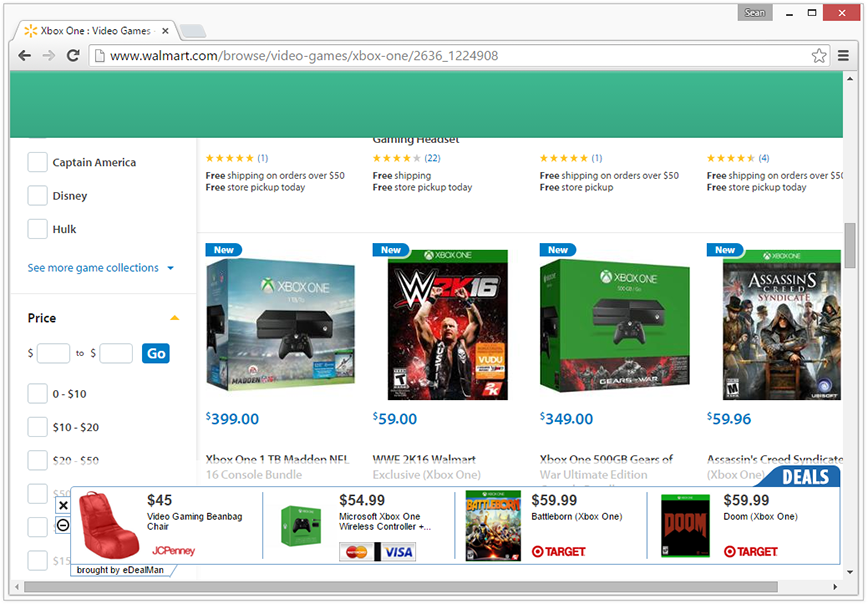

What is Freebies Machine?
Freebies Machine serves pop-up advertisements across popular web browsers including Google Chrome and Mozilla Firefox. Freebies Machine ads usually say “Ads by Freebies Machine” on them.
Freebies Machine is a concern because it bundles with other potentially unwanted programs and malware. Third-party objects that this adware bundlers with can cause additional symptoms and be difficult to detect and remove. Our Freebies Machine removal guide will help you completely remove Freebies Machine and other threats from your computer to ensure you and your computer are safe.
Threat Details
| Names | Freebies Machine, Freebies Machine virus *This infection is not technically defined as a computer virus |
| Detection Categories | Adware, Potentially Unwanted Program (PUP) |
| Publisher Description | N/A |
| Symptoms | Pop-up advertisements and sponsored search results in the web browser Browser redirects to sponsored webpages Decreased internet speed and performance Decreased computer functionality and performance Bundles with malware and other potentially unwanted programs with additional symptoms |
| Common Path(s) | C:\Program Files (x86) C:\Users\{USER}\Downloads\ C:\Users\{USER}\AppData\Local\Google\Chrome\User Data\Default\Local Storage\ |
| Quick Detection & Removal Tool | Click Here To Download Malwarebytes |
Freebies Machine Removal Options
Manual Removal Guide
This manual Freebies Machine removal guide contains steps to help you completely remove this adware and other threats from your computer. In order to eradicate this threat please follow each step in order.
Freebies Machine Removal Steps
- Step 1: Uninstall Freebies Machine via Windows Control Panel
- Step 2: Remove unwanted browser add-ons and extensions
- Step 3: Remove Freebies Machine and other threats with Malwarebytes
- Step 4: Remove Freebies Machine and existing threats with HitmanPro
- Step 5: Clean-up and repair settings with CCleaner
1. The first step to remove Freebies Machine is to uninstall the program and other programs that it may have bundled with from Windows Control Panel if there is a usable uninstall entry. To uninstall this adware go to Start Menu > Control Panel > Uninstall a Program (or Add and Remove Programs) and search for Freebies Machine and other suspicious programs in the list. Once you have found Freebies Machine, double click it to begin the uninstall process. Repeat this step for any other suspicious programs you may have found.
2. The second step to remove Freebies Machine is to remove any unwanted browser add-ons and extensions that may have installed from each web browser on your computer. View the table below to locate rogue browser attachments.
| Google Chrome | Go to Customize and control Google Chrome > More Tools > Extensions |
| Mozilla Firefox | Go to Menu > Add-ons |
| Microsoft Internet Explorer | Go to Tools > Manage add-ons |
| Apple Safari | Go to Safari > Preferences > Extensions |
3. The third step to remove Freebies Machine is to scan your computer and eradicate malicious files using Malwarebytes Anti-Malware software. This software is free to use.
4. Download and Install Malwarebytes Anti-Malware software.
5. Open Malwarebytes and click the large blue Scan Now button to begin a scan.
6. Once the scan is complete click the Remove Selected button and Finish button afterwards. If Malwarebytes suggests that you restart your computer please do so.
7. The fourth step to remove Freebies Machine is to scan your computer and eradicate malicious files using HitmanPro; a reputable second-opinion scan and removal tool. This software is free to use.
8. Download and Install HitmanPro by Surfright.
9. Open HitmanPro and click Next to start scanning your computer. *If you are using the free version you may chose to create a copy or perform a one-time scan.
10. When the HitmanPro scan is complete click the Next button and then click the Reboot button. *To activate the free version of HitmanPro: enter your email address twice and click the Activate button.
11. The fifth step to remove Freebies Machine is to clean-up and repair settings with CCleaner. This software is free to use.
12. Download and Install CCleaner by Piriform.
13. Open CCleaner and go to the main Cleaner screen. Click the Analyze button. When the process is complete, click the Run Cleaner button on the bottom right of the program interface.
14. Go to Tools > Startup and search for suspicious entries in each tab starting from Windows all the way to Content Menu. If you find anything suspicious click it and click the Delete button to remove it.
15. Go to the Registry window and click the Scan for Issues button. When the scan is complete click the Fix selected issues… button and click Fix All Selected Issues.