The Wavenote AI voice recorder is one of the newest hardware based tools built for recording calls, conversations, meetings, classes, interviews, personal notes, and long form spoken content, then converting that audio into usable written information. It is a physical recorder that works together with an AI powered app called Wavenoter to produce transcripts, summaries, mind maps, translations, and searchable archives. Unlike a simple voice memo or a basic speech to text function, Wavenote is designed to record for long periods, handle phone calls, store files locally, and process everything through artificial intelligence. This makes it part of the growing wave of artificial intelligence tools that extend beyond software alone.
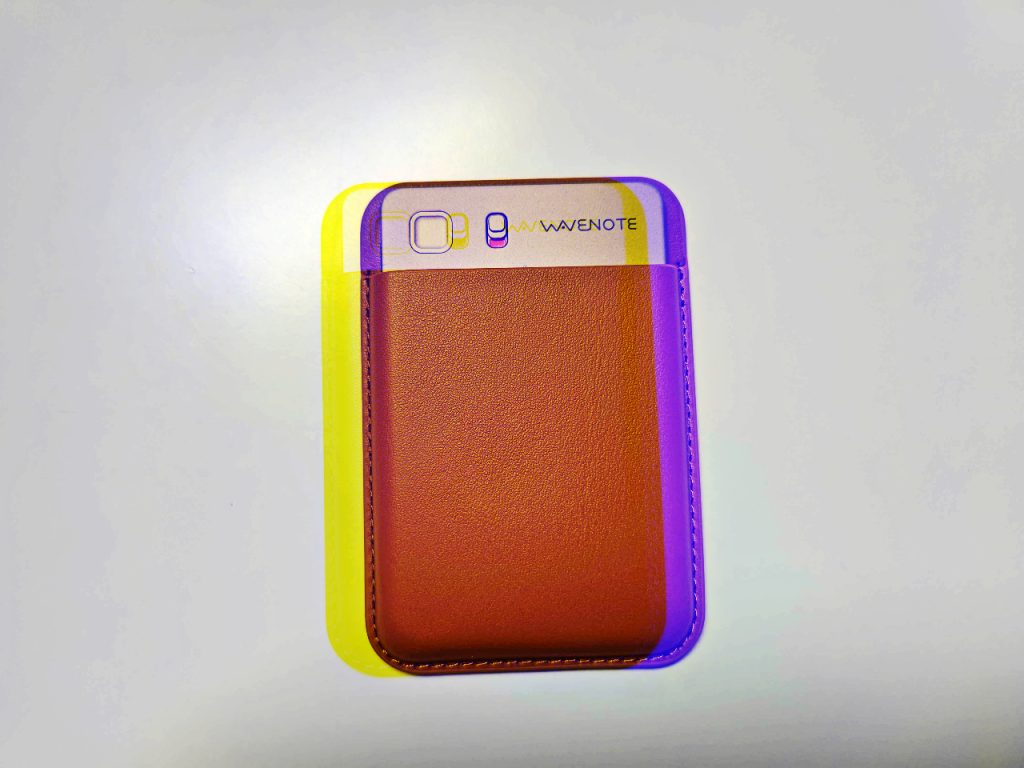
This is a comprehensive review based entirely on real world use, not promotional material. It covers what comes in the box, how the device works, how the app behaves, how accurate the AI features are, how long recordings process, how to use the recorder step by step, and what it is like to rely on Wavenote for calls and notes. It also includes my own opinions and experiences after testing it across everyday situations. The goal is to show exactly what Wavenote can do and whether it fits the needs of someone who wants a reliable AI recorder.
What Comes in the Box
The Wavenote package includes several items that make the device ready for daily use:
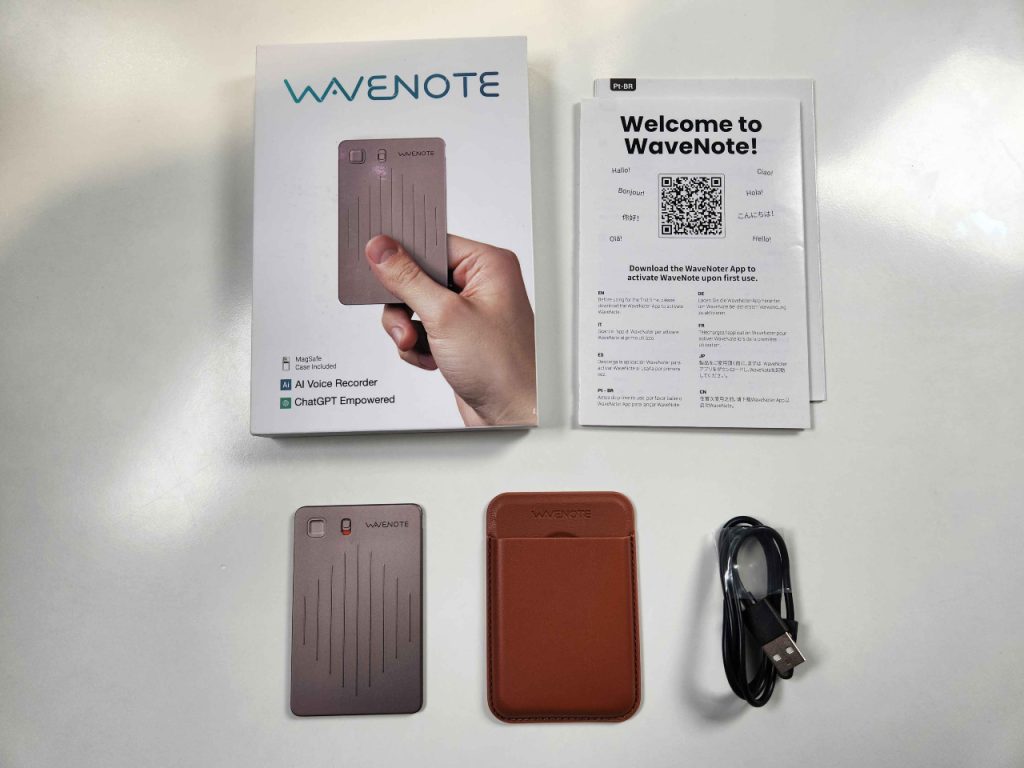
- The Wavenote AI voice recorder
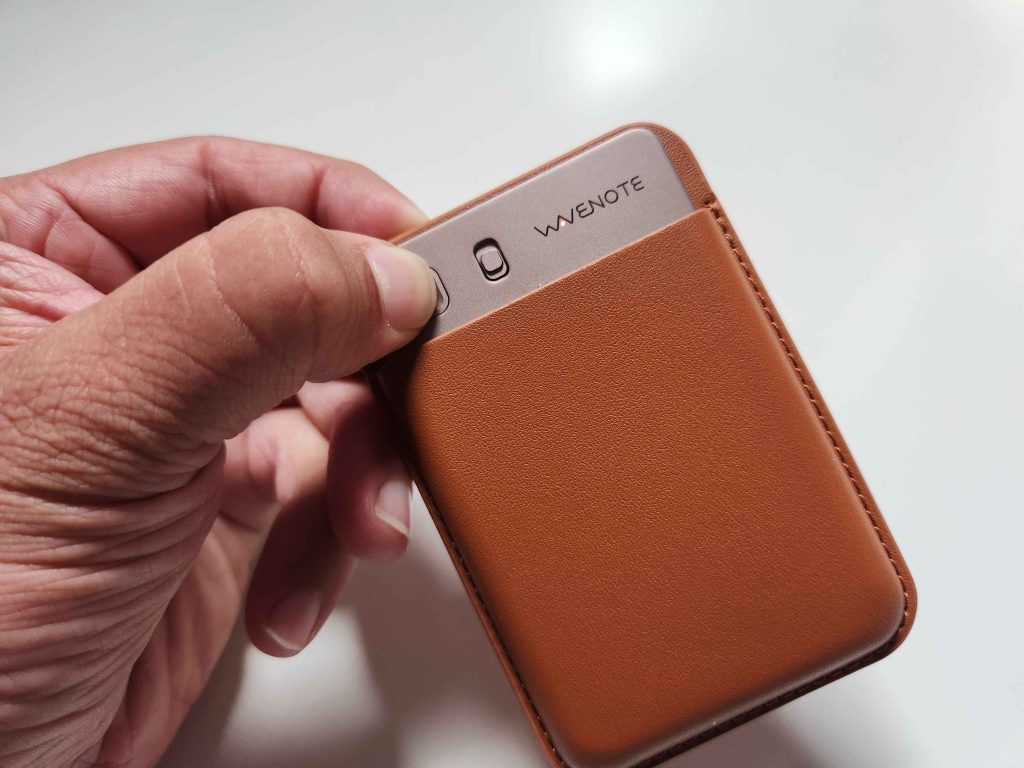
- A magnetic leather protective case
- A proprietary magnetic charging and data cable
- A magnetic ring you can attach to your phone case
- A small instruction booklet and QR code to download the Wavenoter app
The leather case is better quality than expected. It has clean stitching, a firm shape, and cutouts that allow the device’s switch and button to remain accessible. The magnetic plate inside the case lets the recorder attach to the back of a phone that supports magnetic mounting. If your phone case is not magnetic, the included magnetic ring can be attached to the back of your case to give you the same functionality. This is important because call recording works best when the recorder is physically attached to the back of the phone.
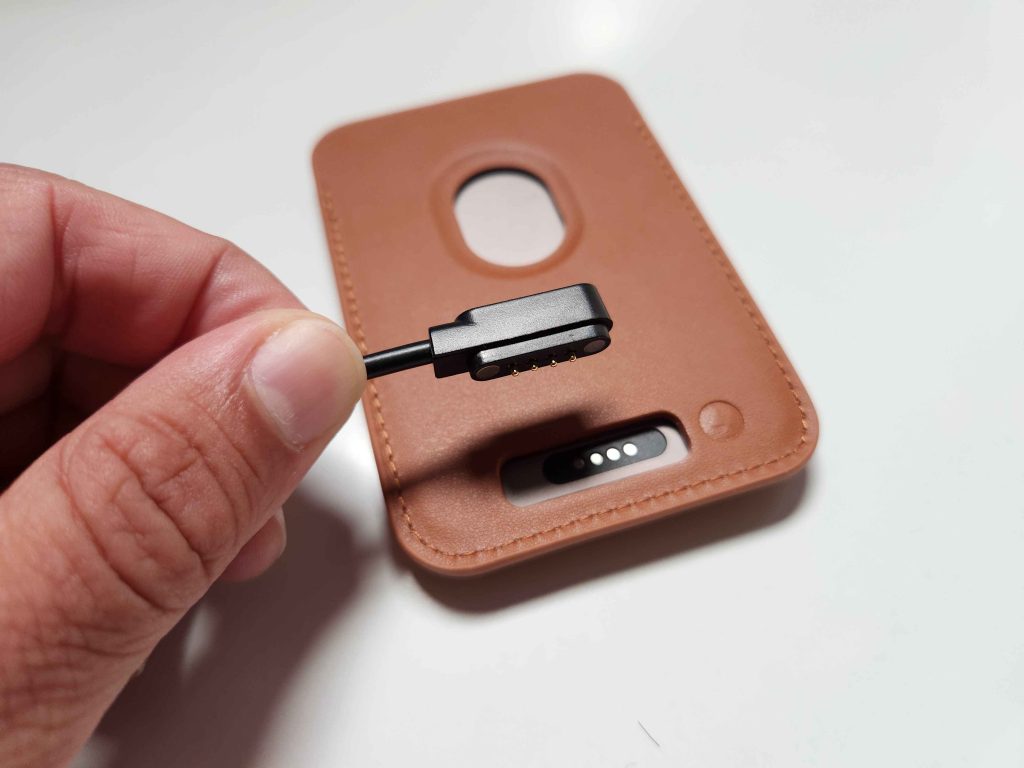
The cable is proprietary and uses a magnetic connector that snaps onto the back of the case. The cable is used for both charging and accessing the audio files directly on a computer. While it would be convenient if the device used USB C (at least to connect to PC, it is too thin for a USB C port), the included cable works well and connects cleanly.
Hardware Design and Build Quality
Wavenote is extremely thin and light. It feels more like a slim card than a traditional audio recorder. You can carry it in a pocket without noticing it. The design is minimal and clean. The front of the recorder has only two physical controls. There is a small sliding switch at the top that selects between phone call mode and normal note mode. Next to that, a square button acts as the main record button. That is the entire interface, which keeps things simple.
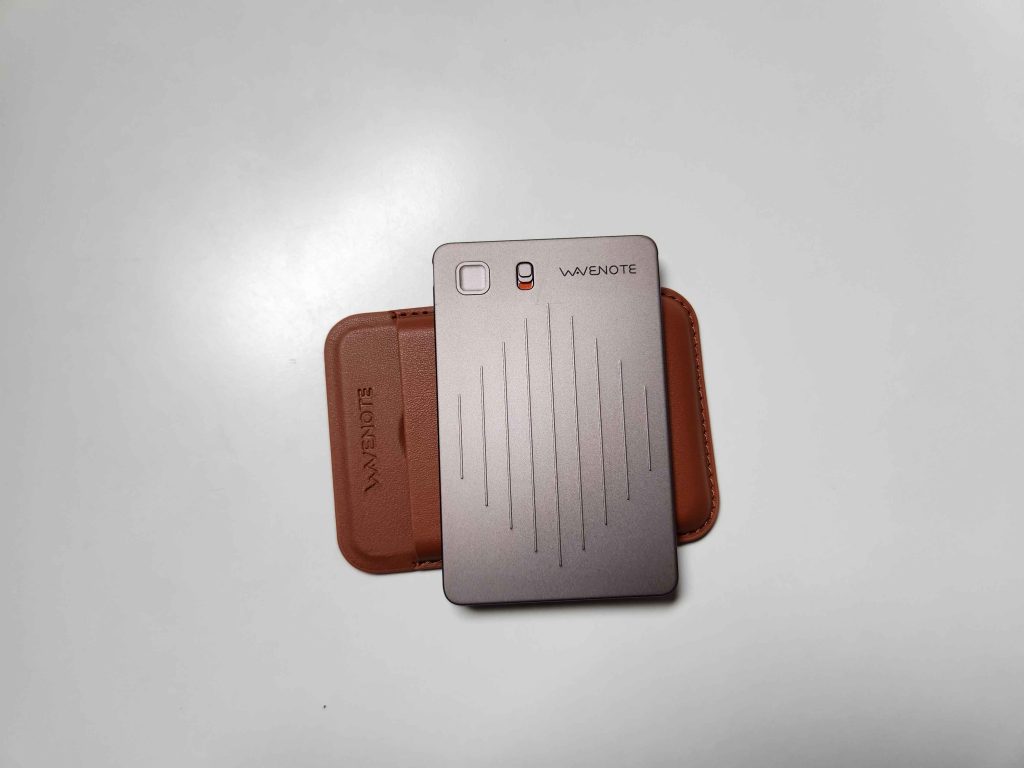
The back of the recorder has metal contacts where the magnetic charging cable attaches. When placed inside the leather case, these contact points remain exposed so you can charge it without removing it from the case. The leather case protects the device while keeping the controls completely accessible. The magnetic plate inside the case makes the case snap securely to the back of a phone.
The overall build quality is solid. The unit feels durable despite being extremely thin. The switch has a firm click, and the record button is responsive. The vibration feedback system is also well implemented. The recorder vibrates once when a recording starts and vibrates twice when a recording stops. This allows you to control it by feel without looking at it.
The Wavenoter App
The Wavenote device connects to the Wavenoter mobile app. This app handles syncing, transcription, summaries, mind maps, translation, and audio playback. The app is clean, minimal, and easy to navigate. Once a recording is finished, the app automatically detects the device and begins syncing the audio file. The app stores the audio, converts it into text, and then generates additional AI content.
The main features of the app include:
- Full transcription of recordings
- Concise AI generated summaries
- Mind map creation
- Recording organization into folders
- Playback of the original audio
- Language detection and translation
- Cloud syncing between phone and web
- Ability to upload additional audio files for processing
The Wavenoter app is central to the Wavenote workflow. It turns the audio into something you can skim, search, save, export, or use as reference material later. This is much more useful than simply having a long audio file buried in your phone.
What Wavenote Can Do
Wavenote is not a theoretical tool. It does several concrete things extremely well:
- Records both sides of phone calls using vibration conduction
- Records long form notes, discussions, meetings, and lectures
- Transcribes recordings with good accuracy
- Generates AI summaries that reflect the actual topics discussed
- Creates visual mind maps of conversations
- Translates recorded conversations into other languages
- Stores audio and text for later playback and reference
- Lets users export audio files from a computer
Here is how each of these works in real use.
Phone Call Recording
Phone call recording is one of Wavenote’s strongest features. To record a call, you simply slide the switch into call mode, attach the recorder to the back of the phone, and long press the button. A single vibration confirms the recording has started. After the call ends, long press the button again and the recorder vibrates twice to confirm the recording has stopped.

The device uses a vibration conduction sensor to capture both sides of the call. This creates a clear and consistent recording without needing speakerphone or extra equipment. In my experience, the recordings were clean and the transcripts reflected each side of the conversation accurately. For long calls or important calls where details matter, this is extremely useful. The summaries gave me a brief overview of the entire call without having to listen to everything again.
Recording Notes, Lectures, and Long Conversations
When the switch is in note mode, Wavenote behaves like a long form audio recorder. It can capture meetings, discussions, brainstorming sessions, classes, or any spoken environment. The recorder does not stop during silence and does not rely on the phone staying unlocked. It keeps recording until you stop it.
I have used Wavenote for lectures, planning sessions, and long discussions. It recorded everything accurately, synced smoothly to the app, and produced transcripts that were useful. The summaries pointed out the main points, and the mind map helped visualize the structure of what was discussed. This type of recording is especially helpful for people who prefer talking through ideas instead of typing.
Transcription Accuracy
The transcription accuracy is solid. It handles natural speech well, identifies the main content correctly, and keeps conversations readable. It also handled moderate background noise without producing nonsense. If something was said clearly, it appeared correctly in the transcript. The transcripts were useful enough that I could copy them into a document and begin editing ideas into scripts or blog posts.
AI Summaries
The AI summaries are one of the most helpful features. When recording a thirty minute conversation, the summary condenses everything into a few short paragraphs that capture the essence of what was said. The summaries reflected real details, such as when someone mentioned that a task was difficult or when a topic shifted. This makes it much easier to remember the purpose of the recording later.
Mind Maps
The mind map feature takes the transcript and breaks it into nodes with main ideas and sub topics. If you record a lecture, the mind map gives you the structure of the lesson. If you record brainstorming for content, the mind map turns your ideas into an organized outline. This is more visual than reading a transcript and makes reviewing content easier.
Translations
Wavenote can translate transcripts into several languages. If you record a conversation in a language you do not speak, you can transcribe it and translate the the recording into English or another language. This makes the device useful for travel, international work, and multilingual conversations.
How AI Recorders Differ from Phone Apps
People often assume that an AI recorder like Wavenote is the same as using voice to text or talking to an AI chatbot, but they are built for very different purposes. Voice to text is designed for short tasks. AI chat is designed for conversation. Wavenote is designed for recording real sessions that last half an hour or longer. It captures everything, including pauses, background details, and full discussions. It does not stop when the phone locks. It stores audio safely. It processes everything after the fact instead of trying to interpret speech live. This makes it a separate category of tool and one that is increasingly useful as people handle more spoken information in daily life.
How to Use Wavenote
The device is built for simplicity. Here is how it works from setup to daily use.
1. Install the App
Download the Wavenoter app from your phone’s app store. The instruction booklet directs you to search for “Wavenoter” which is the exact name of the companion app.
2. Bind the Device
Turn on the recorder with a short press. The LED turns white. Open the app and it will detect the recorder. Tap Connect to bind the device to your account.
3. Choose a Mode
Use the sliding switch to choose between:
- Call recording mode
- Note recording mode
4. Start Recording
Long press the round button for one second. The recorder vibrates once to confirm that recording has started.
5. Stop Recording
Long press again. The recorder vibrates twice to indicate the recording has stopped. The audio file is saved internally.
6. Sync to the App
The app automatically syncs when the recorder is nearby. It begins transcribing and generating summaries and mind maps.
7. Access VOC Files on a Computer
Connect the recorder to a PC using the magnetic cable. The device mounts as a drive. Inside you will find VOC audio files for each recording. You can copy them, convert them to WAV or MP3, or store them locally. This gives you complete ownership of your audio files instead of relying only on cloud storage.
Real World Performance
In real use, Wavenote performs reliably. The vibration feedback system makes it easy to start or stop a recording without looking at the device. Call recordings are clear and complete. Notes and long recordings sync correctly. Transcription accuracy is good and the summaries save time. Mind maps are helpful for planning and study. Long recordings process within a few minutes and are stored safely.
I find it useful for writing scripts, planning content, recording calls that contain important details, and creating summaries of long discussions. It is also useful for understanding conversations in languages I do not speak by transcribing and translating them afterward.
Pros and Cons
After using the Wavenote AI recorder firsthand, I put together a clear list of pros and cons based on real experience:
Pros:
- Easy to use with simple controls
- Accurate phone call recording
- Good transcription, summaries, and mind maps
- Thin and lightweight design
- High quality leather case with magnetic mount
- Records long sessions without interruptions
- Audio files accessible on PC
- Useful for calls, lectures, meetings, and planning
Cons:
- Cloud transcription may not suit sensitive content
- Processing long recordings takes time
- More niche than general note apps
- Proprietary charging cable
- Works best when attached to the phone for call recording
- No USB C
- Not everyone needs a dedicated AI recorder
Final Verdict
Wavenote is a practical and well designed AI voice recorder that works as intended. It captures calls clearly, records long sessions reliably, produces accurate transcripts, and generates useful summaries and mind maps. It is easy to operate, portable enough to carry every day, and powerful enough to handle long discussions. The ability to access VOC files on a PC gives users more control than many competing devices. For people who want a dedicated AI recorder that does not rely on phone limitations, Wavenote is a strong and dependable option. I like it, I use it regularly, and it fits naturally into my daily workflow.
- Get the Wavenote AI recorder here: https://wavenote.ai/products/wave-note
- Meta Cuts Ties With Manus After China Orders Reversal of $2 Billion AI Deal
- Claude Fable 5 Jailbreak Exposes Weakness in Anthropic’s Guardrails
- Manus AI Has a Refund Problem, Not Just a Product Problem
- Cloudflare Says Anthropic Mythos Can Chain Bugs Into Working Exploits
- Manus AI Review: The Worst AI Agent I Have Ever Used

Related Posts