
Right Click Menu Customizer
Right Click Menu Customizer is a lightweight Chrome extension that replaces the right click menu on webpages with a Chrome-style menu that you can actually control. If you are tired of menu clutter, accidental clicks, or options you never use, this gives you a clean, familiar menu with simple toggles.
Right Click Menu Customizer is a lightweight Chrome extension that replaces the right click menu on webpages with a Chrome-style menu that you can actually control. If you are tired of menu clutter, accidental clicks, or options you never use, this gives you a clean, familiar menu with simple toggles.
This extension is built around one rule: keep Chrome’s look and behavior so nothing feels weird, then give you the ability to turn off the items you do not want. No trackers, no ads, no nonsense.
What it does:
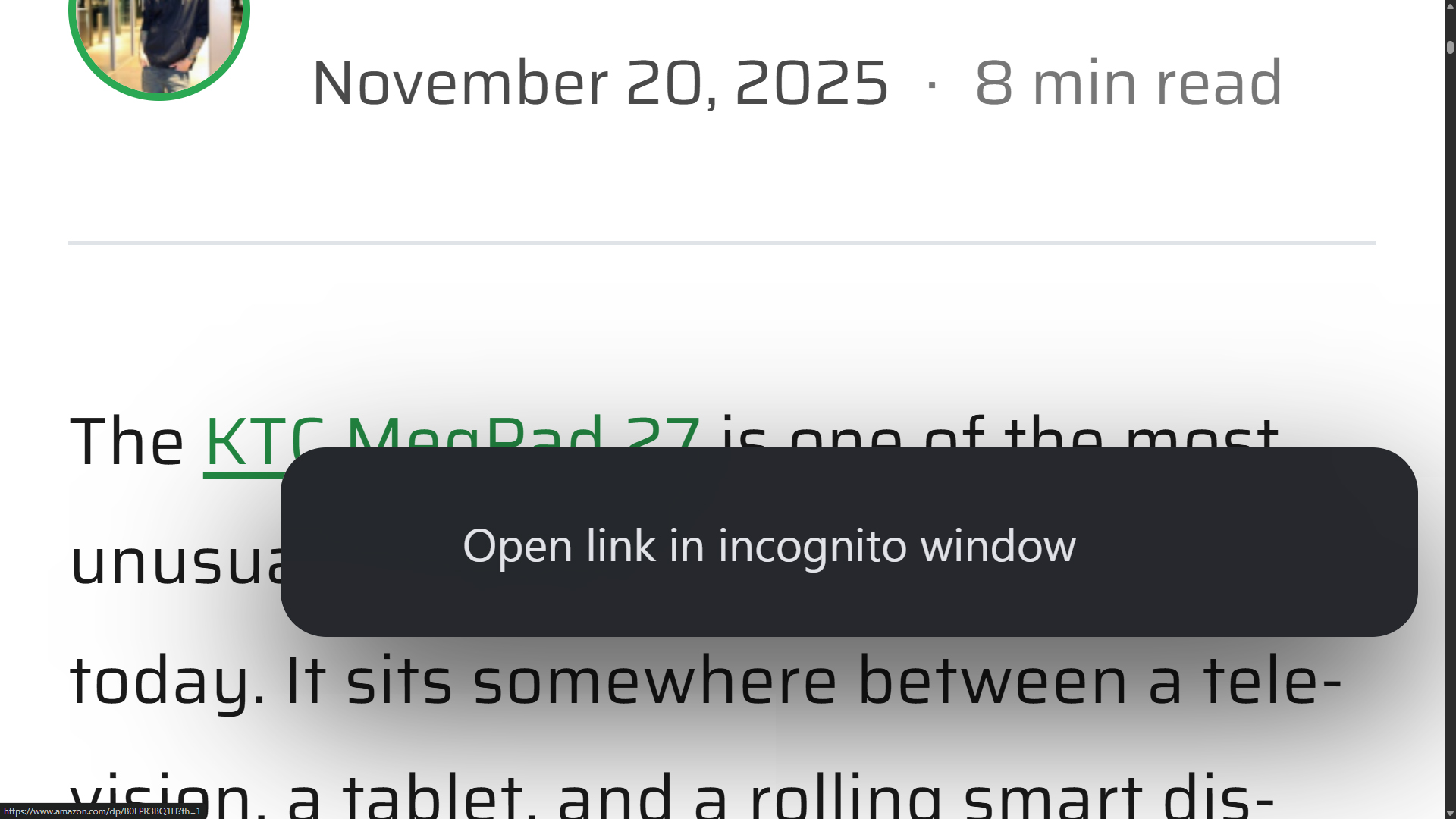
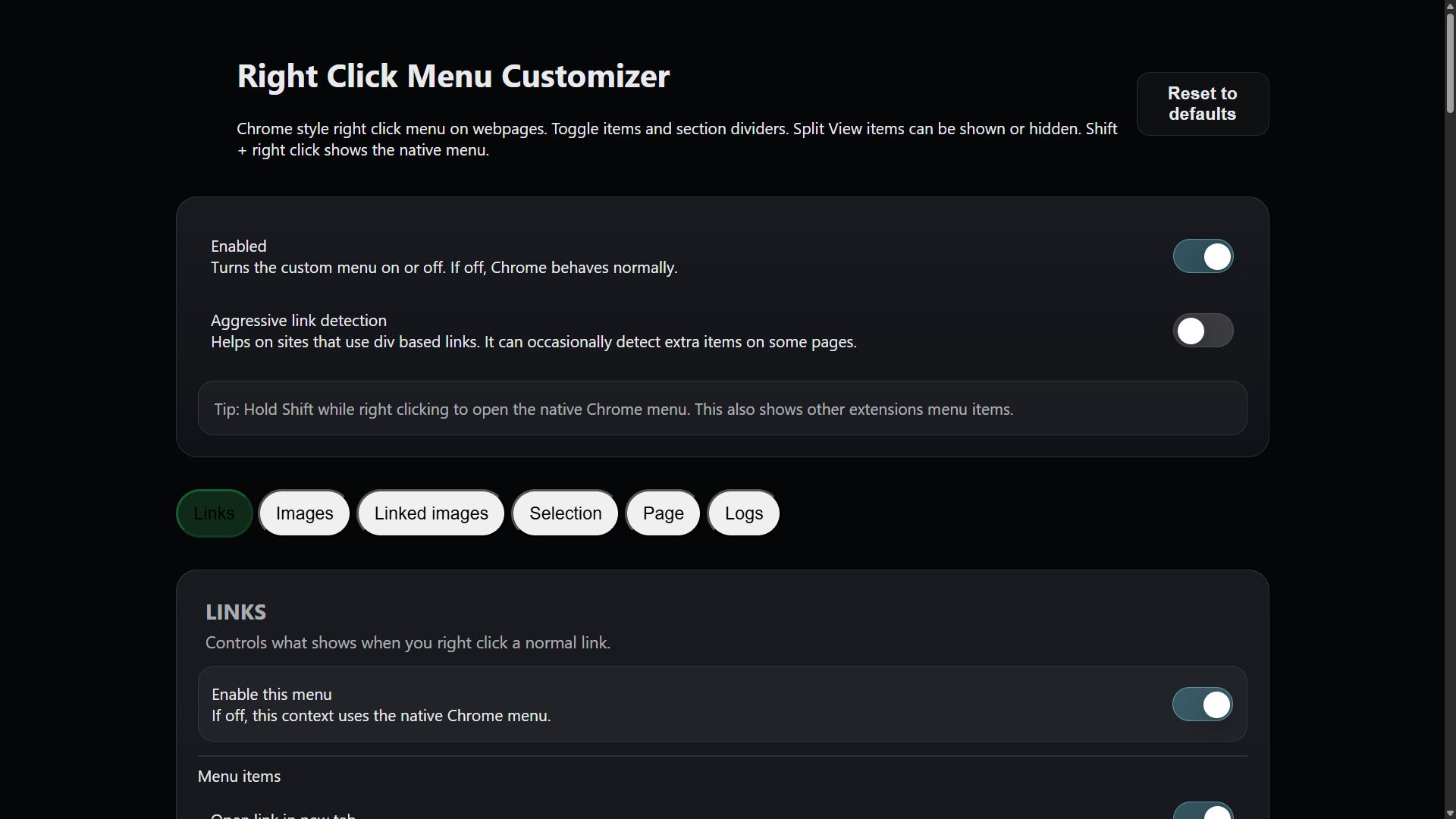
- Shows a Chrome-style right click menu on webpages
- Lets you toggle menu items on or off by context
- Lets you toggle section divider lines on or off
- Supports links, images, linked images, and text selection
- Includes Split View entries as toggleable items
- Shift + right click always opens the native Chrome menu
Why you might want this
Chrome keeps adding context menu items and moving things around. That is great for some people, but if you right click all day for work, browsing, or research, the right click menu is muscle memory. Small changes create constant friction.
Right Click Menu Customizer is for people who want their workflow back. It does not try to reinvent the browser. It just gives you control over what shows up.
How it works
The extension replaces the right click menu on webpages and renders a Chrome-style menu. You can choose exactly what appears in the menu depending on what you clicked.
It is designed to work on modern web apps that intercept right click, and it includes an always-available fallback:
- Shift + right click shows the real native Chrome menu, including other extensions menu items.
Contexts supported
Links
When you right click a link, you can enable or disable:
- Open link in new tab
- Open link in new window
- Open link in incognito window
- Open link in split view
- Open link in left view
- Open link in right view
- Save link as…
- Copy link address
- Copy link text (optional)
- Inspect
Images
When you right click an image, you can enable or disable:
- Open image in new tab
- Save image as…
- Copy image
- Copy image address
- Create QR Code for this image
- Search this image with Google Lens
- Inspect
Linked images
When an image is also a link, the menu combines link and image options. You can toggle the combined layout and its dividers the same way.
Text selection
When you highlight text and right click, you can enable or disable:
- Copy
- Search selected text
Page background
This is optional and disabled by default so you do not accidentally change blank-space right click behavior. If you enable it, you can toggle:
- Back
- Forward
- Reload
- Copy page address
- View page source (optional)
- Inspect
Split View note
Split View is a native Chrome feature. Chrome does not currently provide an extension API that lets third-party extensions trigger Split View directly. This extension can show or hide the Split View entries, and it keeps a reliable fallback:
- Use Shift + right click to open the native Chrome menu and use the real Split View action.
How to use it

- Install the extension.
- Right click a link or image on a webpage to see the custom menu.
- Open the extension Options page.
- Toggle items on or off for Links, Images, Linked Images, and Selection.
- Optional: Enable the Page menu if you want to customize blank-space right click.
Incognito support
If you want “Open link in incognito window” to work, enable Allow in Incognito for the extension:

- Go to chrome://extensions
- Find Right Click Menu Customizer
- Enable Allow in Incognito
Privacy
This extension does not collect personal data and does not transmit browsing history, page content, or identifiers to botcrawl.com or third parties. Settings are stored using Chrome storage. An optional local diagnostic log can be enabled for troubleshooting and is only visible in the Options page.
Read the full extension privacy policy here: Right Click Menu Customizer Privacy Policy.
Download
Local: https://botcrawl.com/wp-content/uploads/2026/02/right-click-menu-customizer-v1.0.4.zip
FAQ
Does this work on the bookmark bar right click menu?
No. Chrome does not allow extensions to modify Chrome UI menus like the bookmark bar menu.
Does this work on chrome:// pages?
No. Chrome restricts extensions from running on many internal pages.
Why does Shift + right click exist?
Because the native menu still matters for built-in Chrome actions and other extensions. Shift + right click gives you instant access to the real native menu anytime.
Does it track me?
No. There is no tracking, no analytics, and no data selling.
What if the menu does not show on a specific site?
Some web apps try to block or override right click. This extension is designed to work on modern sites, but if something gets weird, Shift + right click will always show the native menu.