How to remove Explore Related Products (Virus Removal Guide)
If you are seeing advertisements that say Explore Related Products on them, you are infected with adware. Most programs that display Explore Related Products pop-up ads are detected as Potentially Unwanted Programs (PUPs) and malware by most computer and internet security vendors.
Explore Related Products pop-up Ads
If you are seeing advertisements that say Explore Related Products on them, you are infected with adware. Most programs that display Explore Related Products pop-up ads are detected as Potentially Unwanted Programs (PUPs) and malware by most computer and internet security vendors.

Explore Related Products mainly uses browser helper objects that install to a Windows operating system, other software, and browser attachments, such as add-ons and extensions to collect user information display advertisements on affected internet browsers.
The items used to collect user information often have permissions set in place that allow them to do so. In return, they collect a wide variety of data, including browser activity, browser history, bookmarks, installed app data, and more.
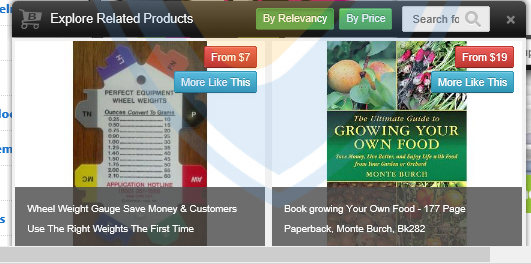
Advertisements display by this program primarily appear on retail based websites like Dell.com, eBay.com, Target.com, Walmart.com, and others, and are often identified by a search box with text that says something similar to “Search for coupons and deals.“ These pop-up ads also display retail items with buttons that say From $1 (example), More Like This, and so on.
Explore Related Products has also been found to associate with and bundle with additional third-party malware and PUPs. A computer user may experience advertisements served from third-party platforms such as RightCoupon, browser redirects when a opening a new browser window or tab, browser redirects when searching the web using the affected browser’s address bar, hijacked homepage settings, and other issues.
 How to remove Explore Related Products
Botcrawl may earn a commission from purchases made through links in this article.
- Option 1: Explore Related Products Removal Software & Tools – This first option details how to remove Explore Related Products malware using the free or full versions of Malwarebytes, Hitman Pro, software and/or CCleaner by Piriform.
- Option 2:Manually remove Explore Related Products – This second option details how to manually uninstall Explore Related Products and remove unwanted browser attachments
1. Explore Related Products Removal Software & Tools
Use the instructions below to automatically remove Explore Related Products and third-party malware, as well as automatically remove unwanted search engines from your installed internet browsers.
Malwarebytes Anti-Malware
2. Install the free or full version of Malwarebytes Anti-Malware software.


3. Once Malwarebytes is installed, run the program and update the database if needed.

4. On the Dashboard click the large green Scan Now button.
5. Once the malware scan is complete, Malwarebytes may prompt a notice stating malicious objects were detected. Select the malicious objects and click the Remove Selected button to completely remove the malicious files from your computer.
Hitman Pro by SurfRight
1. Install the free or purchase the full version of Hitman Pro software.

2. Once Hitman Pro is installed, open the program and click Next to start scanning your computer. *If you are using the free version you may chose to create a copy or perform a one-time scan.

3. When the scan is complete, click the Next button again to delete any threats or traces on your system.

4. If you are initially using the free version, to activate it, enter your email address twice and click the Activate button.

5. Restart your computer by selecting Reboot.
Your computer should now be clean of threats, tracking cookies, malware, and other unwanted traces.
CCleaner by Piriform
CCleaner can be used to automatically repair internet browser settings startup up settings, and uninstall Explore Related Products adware and associated third-party software.
1. Install the free or paid version of CCleaner by Piriform.


2. Once installed, open the program and navigate to Cleaner > Windows/Applications and click the Analyze button. Afterwards, click the Run Cleaner button on the bottom right of the program interface.
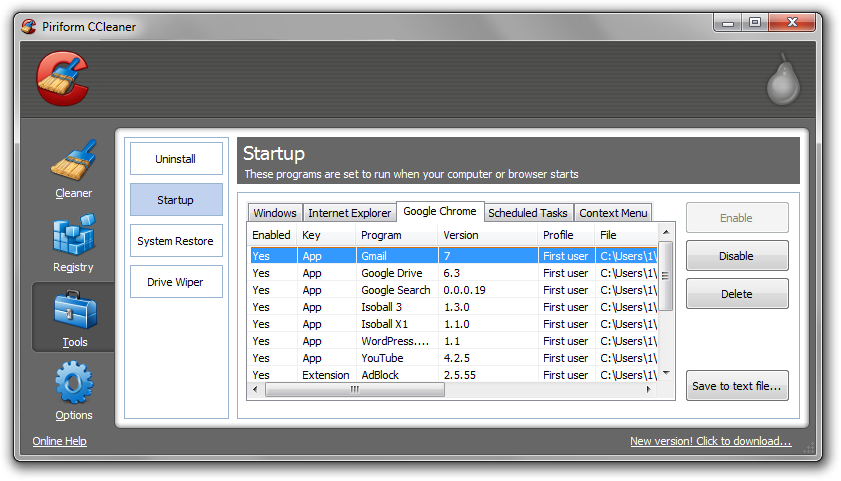
3. Next, navigate to Tools > Startup and search through each tab starting from windows, internet explorer, etc., all the way to Content Menu, for additional suspicious entries and click Disable and Delete once anything is found.
4. To automatically uninstall Explore Related Products and other unwanted programs, navigate to the Uninstall tab and search for Explore Related Products, etc. in the list of installed programs. Uninstall the unwanted software as selected by clicking the Run Uninstaller button.
2. Manually Remove Explore Related Products
Use the instructions below to manually uninstall Explore Related Products adware from Microsoft Windows XP, Windows Vista, Windows 7, and Windows 8.
How to uninstall Explore Related Products
1. Access Windows Start Menu and navigate to the Control Panel (on Windows 8, right click the bottom left corner to access the Windows 8 Start Menu).

2. Click Uninstall a program or Add and remove a program.
3. In the list of installed programs search for Explore Related Products and other potentially unwanted software. Once the adware program is located, double click the unwanted program(s) or highlight them in the list and click the Uninstall button.
How to remove Explore Related Products add-ons and extensions
Use the instructions below to remove Explore Related Products add-ons and extensions from Chrome, Firefox, and Internet Explorer. It may be necessary to remove third-party browser attachments.
Google Chrome
1. Click on the Customize icon (wrench or 3 bar icon) next to the address bar and navigate to Tools > Extensions.
2. Search for the Explore Related Products extension and remove it by clicking the trashcan icon next to it.
Mozilla Firefox
1. Type Ctrl+Shift+A.
2. On the Extensions and Plugin search for the Explore Related Products add-on and remove it.
Microsoft Internet Explorer
1. Click Tools and select Manage add-ons.
2. On the Toolbars and Extensions tab search for the Explore Related Products add-on and remove it if located.