How to remove Obrona Cleaner (Virus Removal Guide)
Obrona Cleaner (also known as the Obrona Cleaner virus) is promoted as a system optimization program for machines running the Microsoft Windows operating system. It claims to scan for improper computer configurations and performance issues. However, security analysts and software vendors have concluded that Obrona Cleaner is nothing more than scareware that sates harmless system configuration settings are "high threat" problems. Obrona Cleaner claims that harmless settings are dangerous in order to scare victims into purchasing the software.
[toggle heading=”What is Obrona Cleaner?”]Obrona Cleaner (also known as the Obrona Cleaner virus) is promoted as a system optimization program for machines running the Microsoft Windows operating system. It claims to scan for improper computer configurations and performance issues. However, security analysts and software vendors have concluded that Obrona Cleaner is nothing more than scareware that sates harmless system configuration settings are “high threat” problems. Obrona Cleaner claims that harmless settings are dangerous in order to scare victims into purchasing the software.

To make matters worse, Obrona Cleaner does not show the scan reports unless the user submits an email address. Personal information such as email addresses will likely be shared with third-parties and used in a variety of deceptive marketing campaigns (scams).

When Obrona Cleaner is installed, the program will let out a loud siren and will begin to supposedly scan the computer for issues. The program will asks for an email address and will attempt to get users to purchase the product to fix the issues it supposedly found.
A big issue with Obrona Cleaner is that the program primarily and almost always bundles with other potentially unwanted programs (PUP), adware, malware, and possibly malicious files. The Obrona Cleaner removal guide on this webpage will show you how to remove Obrona Cleaner and unwanted programs that it bundles with. One program in particular that it may bundle with is published by the same company. It is called Obrona Cleaner BlockAds. This is a program and browser add-on and extension that causes issues for computer users as well. In fact, Obrona BlockAds is essentially adware that displays advertisements of its own.
The Obrona Cleaner extension and browser attachments that it may bundle with have ‘permissions’ set allowing them to perform tasks users may find undesirable. These permissions are listed below.
- Obrona Cleaner can read and change all your data on the websites you visit.
- Obrona Cleaner can read and change your browsing history.
- Obrona Cleaner can manage your apps, extensions, and themes.
- Obrona Cleaner can manage your downloads.
[/toggle]
[toggle heading=”How does Obrona Cleaner get onto a computer?”]Obrona Cleaner adware is usually downloaded and installed without user knowledge alongside free downloadable content from a variety of locations on the web. Free downloadable content includes freeware, shareware, torrents, email attachments, and more.
Users who wish to install monetized freeware may be given a choice to accept or decline an offer to install Obrona Cleaner adware and similar products during the installation; However, the user request to decline the adware from installing can be ignored by the program or presented in a confusing manner.
In some cases, Obrona Cleaner and other unwanted programs are deceptively promoted through questionable advertisements. These advertisements may be dishonest, misleading, and cause the program to automatically download and install once clicked on.[/toggle]
How to remove Obrona Cleaner
Botcrawl may earn a commission from purchases made through links in this article.
- Step 1: Uninstall Obrona Cleaner
- Step 2: Scan your computer for malware with Malwarebytes Anti-Malware
- Step 3: Cleanup and repair settings with CCleaner by Piriform
Step 1: Uninstall Obrona Cleaner
1. Open Windows Start Menu and go to the Control Panel.
2. On Windows Control Panel, click Uninstall a program or Add and remove a program in the Programs section.

3. Search for Obrona Cleaner (by Download Sp. z o. o. or other) and other unwanted programs in the list of installed programs. Once an unwanted program is located, double click the item or select it with your mouse and click the Uninstall button.
4. Restart your computer.
Step 2: Scan your computer for malware
1. Download and install the free or full version of Malwarebytes Anti-Malware. The full version enables real-time protection to block malware and unwanted programs from infecting your computer, while the free version is just a free scan and removal tool.


2. Open the Malwarebytes Anti-Malware.

3. Click the large Scan Now button or visit the “Scan” tab to manually run a scan.
4. Once the malware scan is complete, click the Quarantine All button and reboot your computer.
Step 3: Cleanup and repair settings
1. Download and install the free or full version of CCleaner by Piriform.

2. Once installed, open the program and navigate to Cleaner > Windows/Applications and click the Analyze button. Afterwards, click the Run Cleaner button on the bottom right of the program interface.
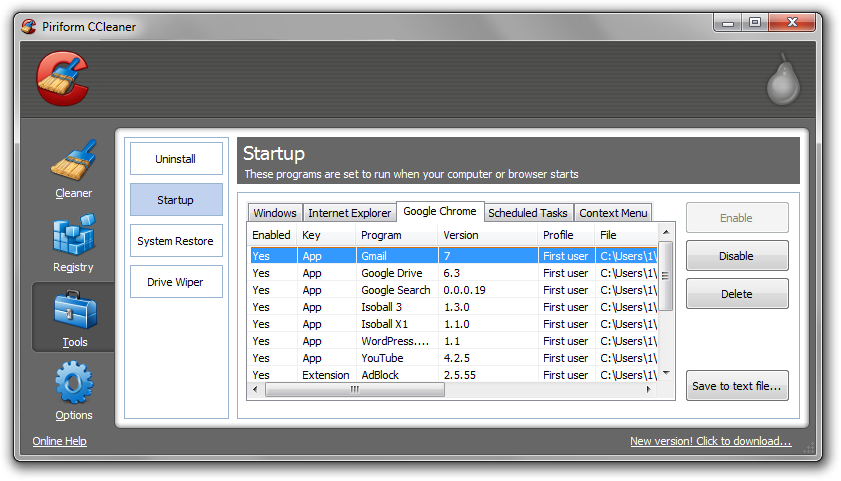
3. Next, navigate to Tools > Startup and search through each tab starting from windows, internet explorer, etc., all the way to Content Menu, for additional suspicious entries and click Disable and Delete once anything is found.
4. To automatically uninstall unwanted programs using CCleaner, navigate to the Uninstall tab and search for the program in the list of installed programs. Uninstall the unwanted software as selected by clicking the Run Uninstaller button.