
What Is murgakamis.top?
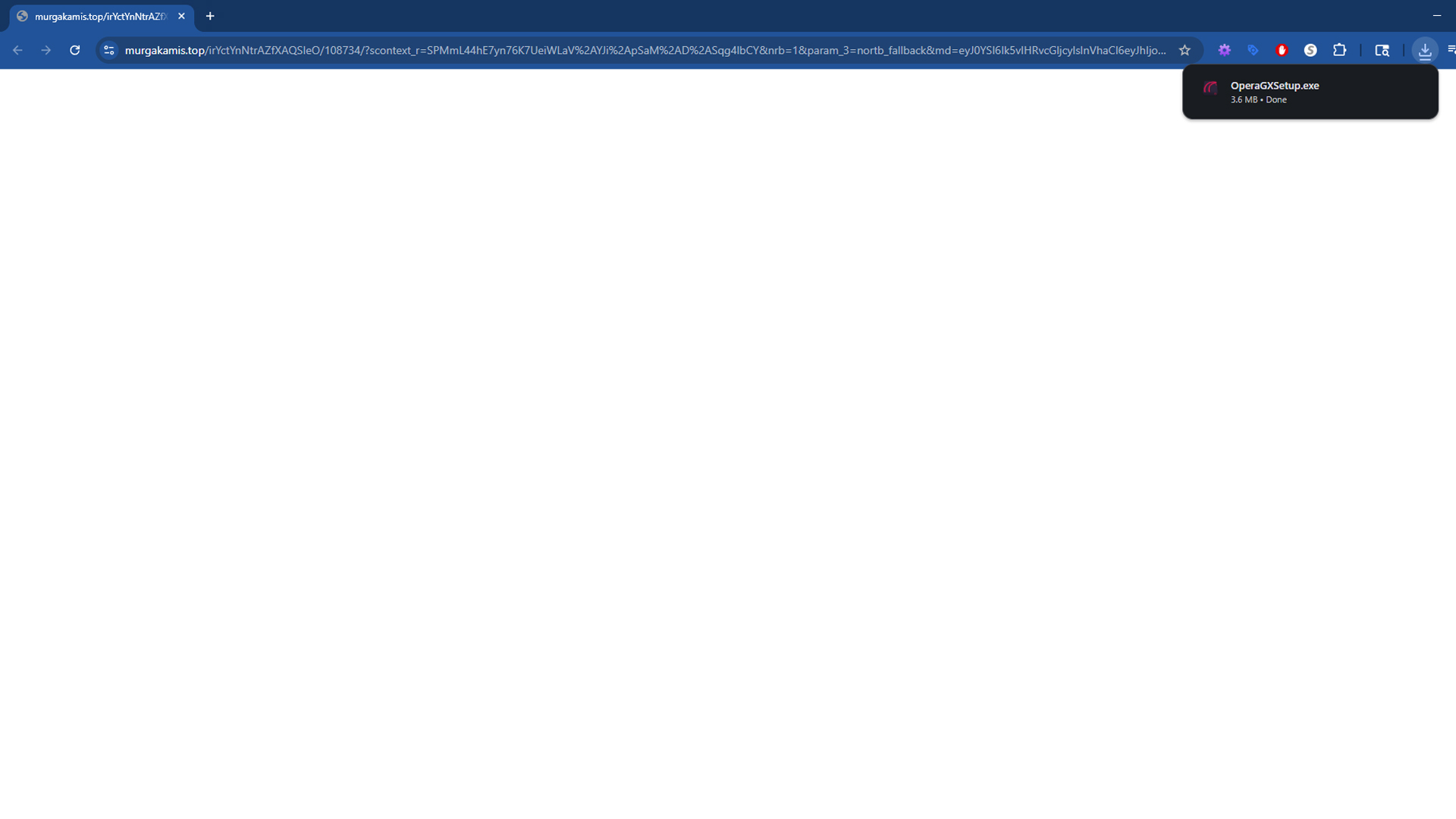
Murgakamis.top is a suspicious website that triggers automatic file downloads as soon as the page loads. The behavior is not what you would expect from a legitimate software portal that explains what you are downloading and asks for permission first. Instead, murgakamis.top begins pushing files directly into your browser’s downloads folder without clear consent. Reports show that one of the most common payloads is an executable named OperaGXSetup.exe. That installer is a real program when obtained from the official publisher, but it should never appear on your device without your knowledge. The pattern that matters here is the forced delivery of files. The domain acts like a drop point that can push any executable the operators choose to distribute next, which includes potentially unwanted programs, adware bundles, and in the worst cases outright malware.

People often describe this behavior as the murgakamis.top virus because it feels like an infection. Strictly speaking, a domain name cannot be a virus. The danger comes from how the site is used. Automatic downloads are a red flag because they bypass informed user action. The technique is widely abused by shady advertising chains and malvertising campaigns that monetize risky traffic from torrents, free streaming portals, file-hosting mirrors, and similar environments. If you see unsolicited files landing in your downloads folder after visiting unfamiliar sites, you should treat the event as a security incident and clean the system before anything is executed by mistake.
Why Security Professionals Consider murgakamis.top Unsafe
Murgakamis.top is unsafe because it behaves like a drive-by download source. A drive-by download is any download that starts without an explicit click that indicates consent. Your browser is capable of saving files to disk automatically under certain conditions. Website code can invoke responses that push a file as soon as the page renders. That is useful for legitimate scenarios such as delivering a report that you requested, but it becomes dangerous when the page is designed to deliver software that you did not intend to install. Automatic delivery removes the moment where you would normally evaluate a file, check the publisher, or cancel the action. It creates a situation where the only thing preventing a compromise is whether you notice the new file before running it.
Another reason the site is treated as high risk is the way these campaigns tend to evolve. Today you might receive OperaGXSetup.exe. Tomorrow the operators can change the payload to a fake browser update, a codec pack, a downloader that fetches more components, or a repacked installer that contains adware. The destination can change silently without the visitor realizing that anything is different. That ability to rotate content is central to how these networks operate. The site becomes a moving target that can test different payloads, measure what people run most often, and pivot whenever a file starts getting blocked more widely.
WHOIS and Domain Age: What the Records Say
Public WHOIS records show that murgakamis.top was created on June 22, 2025. The registrar is URL Solutions Inc., and the status is clientTransferProhibited. The registration uses privacy shielding so the names and contact details for the registrant, admin, and technical contacts are redacted. The nameservers are ns1.pananames.com, ns2.pananames.com, ns3.pananames.com, and ns4.pananames.com. The listed expiry date is June 22, 2026.
murgakamis.top at a glance
Created: 2025-06-22 • Expires: 2026-06-22
Registrar: URL Solutions Inc. • Status: clientTransferProhibited
Registrant: Redacted for privacy • Nameservers: ns1–ns4.pananames.com
Short domain history combined with privacy protection is common for sites that exist to funnel traffic and avoid accountability. It does not prove malicious intent on its own, but it supports what you see in practice. A domain like this can be abandoned quickly once it is reported and then replaced with a fresh one that has the same behavior. If you want to verify details for yourself or investigate other domains, you can use our WHOIS Lookup tool. You can also check how long a site has been active with our Domain Age Checker. These are simple checks that help you decide whether you should trust what you are seeing.
How Users Encounter murgakamis.top
Most people do not type murgakamis.top into the address bar. They end up there through a chain of redirects that begins on a risky page. Common sources include free streaming portals, video hosts that use click-to-continue gates, torrent indexes with aggressive ad placements, and file-host mirrors that open new tabs when you click the download button. The pattern is predictable. You try to reach something that looks free, you click a page element that appears to be required to continue, and a background script opens a new tab or swaps the current tab with a redirect chain. Murgakamis.top appears as one of the intermediate steps or as the final landing page that triggers the download.
These chains exist to make money from traffic. Advertisers pay for installs, subscriptions, or leads. The traffic brokers that run the chains want to maximize conversion, so they introduce tactics that push you into running a file or accepting an offer. Sometimes the destination pretends to be a necessary update. Sometimes it impersonates a known brand and uses legitimate names to create trust. There are many variations, but the intent is consistent. The site is part of an ecosystem that tries to turn a casual click into an install. That is why you will see us link this topic to broader coverage of online fraud and scam patterns. Understanding how these flows work helps you avoid the next trap even if the domain name changes.
How the Automatic Download Process Works
When your browser lands on murgakamis.top, the page can invoke a file transfer through standard HTTP headers or through JavaScript that instructs the browser to fetch a specific resource. If your browser is configured to save certain file types automatically, or if it honors the server’s attachment directive, the file will be written to disk without a prompt. Even when a browser shows a small banner or a downloads shelf at the bottom, many people ignore it. The file remains in the downloads folder, waiting for a double click that turns a nuisance into an incident.
Modern browsers try to protect users by flagging uncommon or dangerous downloads. Those protections are not perfect. Threat actors constantly change file names, switch hosting locations, and repack payloads to avoid simple checks. If the file is a legitimate installer fetched from a real publisher’s CDN through a broker, it may even pass reputation checks. That is one reason these operations like to use well-known app names. The presence of a known file can lull people into thinking the event was harmless. The correct way to handle any unsolicited installer is to treat it as untrusted, delete it, and then obtain the software directly from the official website if you actually need it.
Dangers Associated with the murgakamis.top Virus Pattern
Security risk grows out of what happens after the file lands on your machine. If you run the executable, several outcomes are possible. A repacked installer can add adware to your browser. That adware might change your search settings, inject extra advertisements, or redirect you through additional monetized pages. A more aggressive payload can install a background service that collects browsing data and sells it to third parties. You may also encounter downloaders that fetch additional components once they are online. Those components can include browser hijackers, fake system optimizers that charge fees for basic tasks, and in the worst cases trojans that open a remote access channel.
Credential theft is another risk. Some installers deploy extensions that request broad permissions such as “read and change all your data on the websites you visit.” That allows code to watch what you type, alter pages, and capture session tokens. If you log into email, social networks, or financial accounts while an invasive extension is active, your data is exposed. Ransomware is less common in this specific ecosystem, but the techniques that deliver automatic downloads are also used by operators who serve more serious threats during high value campaigns. The bottom line is simple. There is no safe version of a forced download. If a file is placed on your system without consent, the correct response is to clean up immediately.
A short scenario that matches what users report
A creator is looking for a video stream of an event and lands on a page with a big Start button. When they click, a new tab opens. It looks like the same site but there is a new URL. The page flickers, then a download begins. They see OperaGXSetup.exe in the downloads shelf and feel a moment of confusion. They did not ask for a browser installer. They close the tab and continue what they were doing. Hours later they open the downloads folder to clean up and double click the file out of curiosity. The installer runs and the computer starts behaving differently. Searches redirect, more ads appear, and a week later their password manager warns them about a login from an unfamiliar device. This is how a small lapse turns into a chain of problems. The only safe move is to delete unsolicited files and clean the system before anything runs.
Manual Cleanup: Remove Files and Reset the Browser
The first job is to remove anything murgakamis.top placed on your system. Do not run the files to see what they are. Treat them as untrusted until they are gone or scanned by a security tool.
Delete files downloaded from murgakamis.top
- Open your default downloads folder. Look for recent files that appeared around the time you visited risky sites. Common examples include installers such as
OperaGXSetup.exe. - Right click the suspicious file and choose Delete. Empty the recycle bin so the file cannot be restored accidentally.
- If you want to keep a sample for analysis, compress it into a password protected archive and move it off the desktop. Do not execute it.
Remove suspicious Chrome extensions
- Open Chrome. Click the three dot menu, then choose Extensions > Manage extensions.
- Review the list for anything you do not recognize, did not install intentionally, or that appeared recently. Pay close attention to extensions with permissions that say they can read and change data on websites you visit.
- Click Remove next to each suspicious item and confirm.
Clear notification permissions and site data
- Go to Settings > Privacy and security > Site settings > Notifications.
- Under Allowed, remove any site you do not trust. Notification spam is a common way to draw you back into bad ad chains.
- Return to Privacy and security and open Clear browsing data. Clear Cookies and other site data and Cached images and files for at least the last seven days.
Restore default search and startup pages
- Open Settings > Search engine. Set your preferred provider and click Manage search engines to remove any unknown entries.
- Open On startup. Select Open the New Tab page or specify a homepage you trust. Remove any unfamiliar URLs.
Optional Chrome reset and built in cleanup
- Navigate to Settings > Reset settings and choose Restore settings to their original defaults if the browser still behaves strangely.
- In some Chrome builds, Reset and clean up includes a Clean up computer option. Run it to scan for harmful software that could be tied to the murgakamis.top virus pattern.
Uninstall Unwanted Programs on Windows
Browser issues often come with desktop components that were installed at the same time. Removing those programs reduces the chance that settings will be changed again.
- Right click the Start button and select Apps and Features on Windows 10 or Installed apps on Windows 11.
- Sort by Install date so the most recent software appears first.
- Look for items you do not recognize or do not need, especially those installed around the time automatic downloads began.
- Click the three dot menu next to the program name and choose Uninstall. Follow the prompts.
- If an entry refuses to uninstall, restart and try again, or open Control Panel > Programs and Features and remove it there.
Stop Future Automatic Downloads in Chrome
It helps to tighten a few browser settings so that surprise downloads are less likely.
- Open Settings > Privacy and security > Site settings.
- Scroll to Additional permissions and open Automatic downloads.
- Select Do not allow sites to download multiple files automatically. Remove any sites from the allowed list.
- Open Downloads in Chrome settings and enable Ask where to save each file before downloading. This adds a confirmation step for every download.
Scan for Malware, Adware, and PUPs with Malwarebytes
Manual cleanup is important, but it is not enough on its own. Hidden components can linger in temporary folders, scheduled tasks, browser profiles, and registry keys. A thorough scan with a reputable anti malware tool finds what you might miss. Malwarebytes is an effective choice for removing adware, browser hijackers, and potentially unwanted programs that arrive through automatic download schemes like the one tied to murgakamis.top.
Download and install Malwarebytes: use the link below to obtain the latest version from a trusted source.
Detailed Malwarebytes removal steps
- Save the installer: After clicking the download link, your browser will save a file named similar to
MBSetup.exe. If your browser asks where to save it, choose the Downloads folder so you can find it easily. - Run the installer: Open the Downloads folder and double click the Malwarebytes setup file. If Windows prompts you with a User Account Control dialog, click Yes to allow the installer to make changes.
- Select your preferences: Choose your language if prompted. Read and accept the license agreement. You can accept the default installation path unless you have a reason to change it.
- Complete installation: Click Install and wait while the files are copied. When the installer finishes, choose Launch Malwarebytes.
- Update definitions: When Malwarebytes opens for the first time, it will check for updates. Allow it to download the latest detection rules so the scan can catch current threats tied to the murgakamis.top virus pattern.
- Choose scan type: Click Scan. A Threat Scan is recommended for most users. It checks memory, startup items, registry, and common malware locations. If you prefer, you can run a Custom Scan that also checks all drives, which takes longer but is more thorough.
- Let the scan finish: The scan may take several minutes. You can keep using your PC lightly during the process, but avoid opening new downloads or browsers that were involved in the incident.
- Review detections: When the results appear, expand each category to review what was found. Items may include adware, PUPs, unwanted extensions, and leftover files from installers delivered by murgakamis.top.
- Quarantine threats: Click Quarantine to move selected items into isolation where they cannot run. This removal step is safe. Malwarebytes will record what it changed in the scan report.
- Restart the computer: If Malwarebytes asks you to restart, do so. A reboot clears active components from memory and completes removal of items scheduled for deletion.

Related Posts
Shai-Hulud Malware Clone Powers New Npm Infostealer and DDoS Campaign
Four malicious npm packages tied to a Shai-Hulud copycat campaign were found stealing developer credentials, cloud secrets, cryptocurrency wallet data, and system information, with…
Read article
FBI Seeks Info in Steam Malware Investigation
The Steam platform has become the focus of a growing federal investigation after malicious software was discovered inside several games distributed through the marketplace.…
Read article
GhostPoster Browser Extensions Reached 840,000 Installs Before Removal From Stores
Security researchers have uncovered a large-scale malicious browser extension campaign known as GhostPoster that accumulated approximately 840,000 installs across Google Chrome, Microsoft Edge, and…
Read article