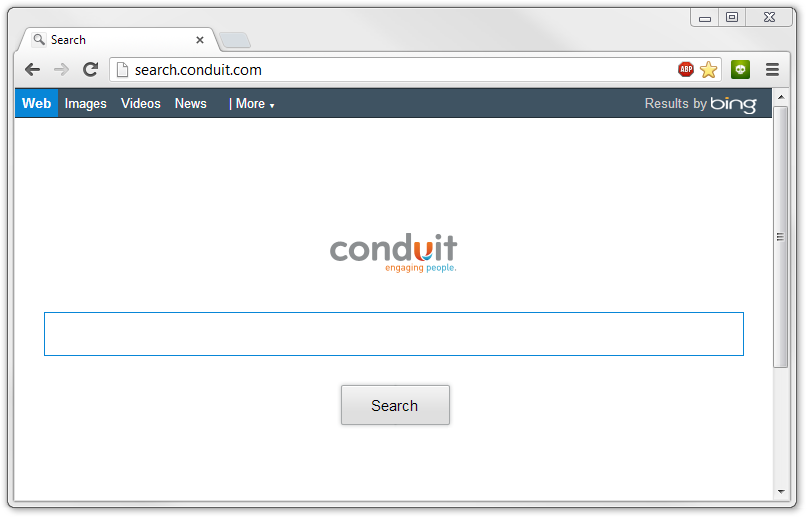
How to remove Conduit Search (Virus Removal Guide)
This Conduit Search removal guide will help you completely remove Conduit virus and unwanted malware from your computer in order to stop unwanted browser redirects to search.conduit.com, conduit.com, and other search engines on Chrome, Firefox, and Internet Explorer.
Conduit Search virus
The Conduit virus (also known as Conduit search virus, Protected Search by Conduit virus, Conduit apps, search.conduit.com redirect virus) is a questionable search engine and title of a potentially unwanted program found in the browser hijacker category of computer threats that is known to modify existing internet browser settings in order to cause browser redirects to search.conduit.com and other webpages.
Programs and browser attachments used to promote conduit.com primarily download and install onto a computer and attach to internet browsers as a standalone browser add-on or extension (Conduit Toolbar, Conduit Community app), but may also bundle with or may primarily be used by third-party add-ons, extensions, plugins, Toolbars, BHOs, and general software. The developers of third-party items (add-ons, software, etc.) use Conduit as well, and may distribute their product with Conduit attached to it, causing internet browsers to redirect to search.conduit.com, even though a Toolbar such as Certified Toolbar is attached.
How to remove Conduit Search virus
This Conduit Search removal guide will help you completely remove Conduit virus and unwanted malware from your computer in order to stop unwanted browser redirects to search.conduit.com, conduit.com, and other search engines on Chrome, Firefox, and Internet Explorer. Follow each step below to completely get rid of this infection and repair corrupted settings.
- Step 1: Scan your computer for Conduit malware
- Step 2: Clean up and repair settings
- Step 3: Uninstall Conduit software
- Step 4: Remove Conduit browser attachments
- Step 5: Remove Conduit search engine
- Step 6: Remove Conduit homepage
Step 1: Scan your computer for Conduit malware
Botcrawl may earn a commission from purchases made through links in this article.
2. Download and install the free or full version of Malwarebytes Anti-Malware. The full version enables real-time protection to block malware and unwanted programs from infecting your computer, while the free version is just a free scan and removal tool.


3. Once Malwarebytes is installed, run the Anti-Malware program. Malwarebytes may automatically begin to update and scan your computer at this point.

4. Click the large Scan Now button or visit the “Scan” tab to manually run a scan. Before the scan is started Malwarebytes may ask to update the software, make sure to do so if prompted to.

5. When the scan is complete, click the Quarantine All button to isolate and remove the detected files. You may be asked to reboot your computer after removal to completely remove detected files.

6. You can additionally chose to visit the History tab and click Delete All to remove these files from the Quarantine log, although these files no longer provide a threat.
Step 2: Clean up and repair settings
1. Download and install the free or full version of CCleaner by Piriform.


2. Once installed, open the program and navigate to Cleaner and click the Analyze button. Afterwards, click the Run Cleaner button on the bottom right of the program interface. This will clean up unnecessary junk that may have been introduced to your computer.
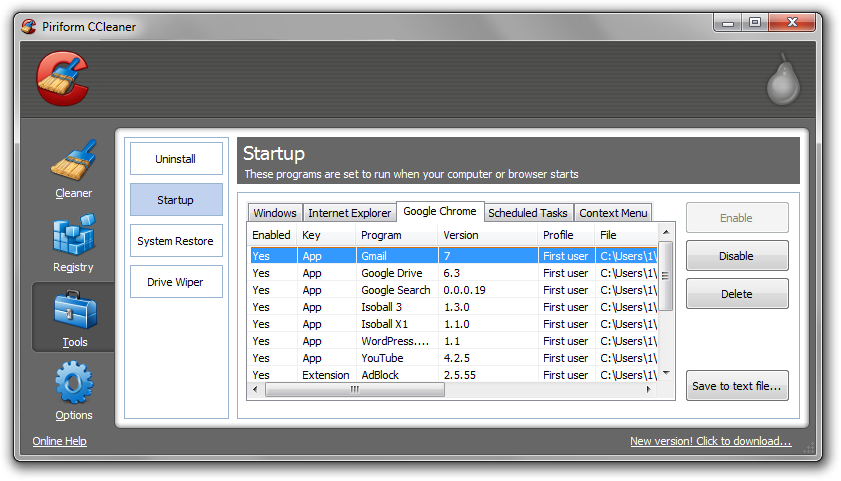
3. Next, navigate to Tools > Startup and search through each tab starting from Windows, Internet Explorer, etc., all the way to Content Menu, for additional suspicious entries and click Disable and Delete once anything you do not recognize is found. This will help you locate and remove unwanted browser attachments and repair other settings.
4. To uninstall Conduit Search programs using CCLeaner navigate to the Uninstall tab, select the program, and click the Uninstall or Delete button.
Step 3: Uninstall Conduit software
1. Access Windows Start Menu and navigate to the Control Panel (on Windows 8, right click the bottom left corner to access the Windows 8 Start Menu).

2. Click Uninstall a program or Add and remove a program.
3. In the list of installed programs search for Conduit programs, such as Conduit Toolbar or Conduit Search Protect and double click the unwanted program or select the program in the list and select the Uninstall button. Perform the manual uninstall steps and uninstall additional programs as necessary.
Step 4: Remove Conduit browser attachments
Google Chrome
1. Click on the Customize icon (wrench or 3 bar icon) next to the address bar and navigate to More tools > Extensions.
2. Search for the Conduit extension and remove it by clicking the trashcan icon next to it.
Mozilla Firefox
1. Type Ctrl+Shift+A.
2. On the Extensions and Plugin search for the Conduit add-on and remove it.
Microsoft Internet Explorer
1. Click Tools and select Manage add-ons.
2. On the Toolbars and Extensions tab search for the Conduit add-on, click it, and click the Remove button.
Step 5: Remove Conduit search engine
- In Mozilla Firefox, click the small search magnify glass near the search box (not url/search field) and click “Manage Search Engines…”. Remove Conduit search engine from the list of search providers by highlighting the selections and clicking remove.
- In Microsoft Internet Explorer navigate to Tools > Manage Add Ons > Search Providers and remove Conduit search engine from the list.
- In Google Chrome, click the customize icon (wrench or 3 bars) and navigate to Settings > Manage search engines… click the X next to Conduit search engine to remove it.

If http://www.conduit.com/ (or other webpage) is set as Google Chrome’s default search engine, add (or select) a new search engine (such as Google.com) and select the new search engine as the default search engine, then remove the unwanted search engine by clicking the X next to it.
Step 6: Remove Conduit homepage
- In Mozilla Firefox navigate to Tools > Options or click Firefox in the top left corner and click Options > Options. Under the General tab remove search.conduit.com from the “Home Page:” field and replace it with your preferred home page URL.
- In Microsoft Internet Explorer navigate to Tools >Internet Options. Remove search.conduit.com from the Home Page field and replace it with your preferred URL.
- In Google Chrome click the customize icon (wrench or 3 bars) and navigate to Settings.Click “Set pages” under the On startup option. Remove search.conduit.com and replace it with your preferred homepage URL.




thank you! i really appreciated your great explanation!
Nothing short of the death penalty will stop thsese internet terrorists.
Thanks, phew
I have the conduit search engine on my PC can I get rid of it for free
Yes of course. Search your computer for software you do not need and uninstall it, as well as remove any browser attachments you do not need.
You may also try software suggested on this page… it’s free!
thanks so much
Cheers mate!
That thing was a pain in the arse.
Many thanks!
thank a bunch
THANK YOU so much!!!!
Much, much appreciated 🙂
thank you!!!!!!!!!
Thank you for your help it solved my problem, you are pro , you are the greatest
thank you!!
Thanks mate 🙂 This got rid of it 🙂
Cheers helped me out
THANK YOU SOO MUCH, you are my hero, i was going crazy with this problem
Thank you Sean!
My God, thank you very much for your EXCELLENT assistance. I was going a bit crazy. Learned my lesson about researching a bit more before downloading crap like this. THANK YOU!!
awesome… glad theres people out there like you… i owe you a beer
Thank you! I’ve wasted a lot of time trying to remove this virus. Finally it’s gone!
Thank you sir
Thank you SO MUCH for publishing this helpful information. It took me 8 hours to remove this malware. I have reported the “conduit search virus” to the FBI Internet Crime Complaint Center, and to the Federal Trade Commisson, as this infection causes vandalism and theft to the consumer. I hope it helps!
THANK YOU VERY MUCH, SEAN!
this really helped
Thank you so much! Stupid virus. lol
You have helped me more then i could have ever done thank u so much u have truly been a great help in removing the conduit virus!!!
Thank you so much
you’re genious
Thanks for the help. Iuse both ccleaner and malwarebytes.
Thank you Sean, I have manually removed this virus thanks to your advice. Your time and advice on this is very much appreciated. A genuine modern Knight in armour 🙂
Thank you so much!!! You are a lifesaver. I appreciate you greatly.
Take care 🙂
Thank you for stopping me from face-desking.
It’s so generous of you to take the time to write this up in so much detail, and in such an easy-to-follow way. You’ve saved me a lot of headache, and I sincerely thank you.
Thank you so much, you are definately a pro. Easy to understand and apply. I will hunt you down if it fails me. SYKE! Thanks again man!
Thank you so much! This was very helpful.
Thank you so very very much. got rid of it on all 3 browsers. so helpful
awesome!!! totally helped. thanks
Dude this was super helpful!!!!!!!!
wow…wonderful tips….thanks a lot
A great detailed blog article! You’ve help me along with many others rid of Conduit Search for good! Thank you!!!
Touche
Thank you! Clicked on horizontal bars on search.conduit.com, then tools, then the only ext. listed, which had been enabled. Clicked on trashcan icon and away went the conduit problem! So simple….a million thanks!
Thank you!! Your advice fixed the problem.
Fuck this conduit bloody hell! wanna sue the bastards
This helped soooooo much thank you for the step by step for all three browsers.
Thanks very much. I had these tools. Your clarification on how to use them was very helpful.
Thanks, ccleaner did it
helped so much, my computer is perfectly fine now and it was super easy
This worked perfectly for me using ie10 and windows7:
On the day of the hijacking I simply deleted every program which had that day’s install
date. After a couple of browser setting resets my system was back to normal. Honestly, I was surprised how easy it was. I didn’t come up with this myself though.
Thank you for this
malware didnt seem to remove conduit however ccleaner did when used the uninstall delete option, also seems ccleaner has to be used for each user account thank you for the steps
THANK YOU! I did it manually… and it worked well! Thanks.
I, too… noted the date of the install…then removed anything else that had that date as well! :0)