
AdVPN
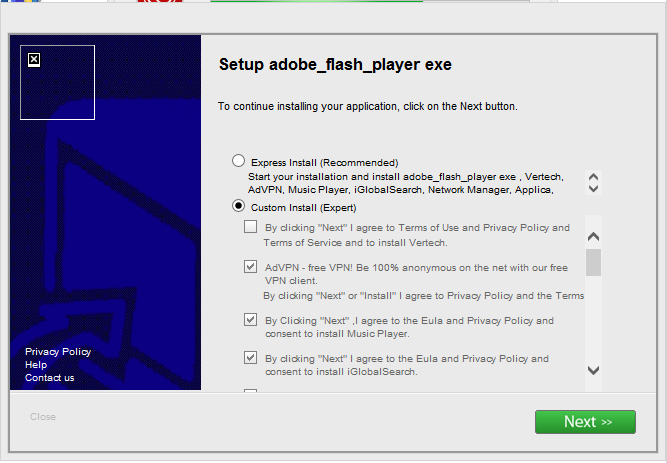
AdVPN (also searched for as AdVPN virus) is a potentially unwanted program that is advertised as a free VPN client that claims to “allow you to be 100% anonymous on the net.” The program utilizes very deceptive marketing tactics and marketing campaigns that often trick users into manually installing it. The program may be promoted as something it is not or a third-party download manager may not allow users to decline the program from installing.
Downloading free objects online, such as freeware and torrent files can result in this potentially unwanted program and other threats, like adware and malware infecting the user’s system. Even if a program is well known, like Google Chrome or BlueStacks, if you download it from a malicious site or by using an untrustworthy download manager it can lead to a computer infection.
Removing AdVPN from your computer immediately is highly recommended. You should do this as soon as possible. This program has a bad online reputation and may be the sign of a more serious computer infection. Use the AdVPN removal guide below to completely remove this program and other threats from your computer.
How to remove AdVPN virus
- Remove AdVPN with Malwarebytes
- Perform a second-opinion scan with HitmanPro
- Cleanup junk and repair your settings with CCleaner
Remove AdVPN with Malwarebytes
Botcrawl may earn a commission from purchases made through links in this article.
1. Download and Install Malwarebytes Anti-Malware software.


2. Open Malwarebytes and click the Scan Now button – or go to the Scan tab and click the Start Scan button.
3. Once the Malwarebytes scan is complete click the Remove Selected button.
4. To finish the Malwarebytes scan and remove detected threats click the Finish button and restart your computer if promoted to do so.
Perform a second-opinion scan with HitmanPro
1. Download and Install HitmanPro by Surfright.

2. Open HitmanPro and click Next to start scanning your computer. *If you are using the free version you may chose to create a copy or perform a one-time scan.
3. Once the HitmanPro scan is complete click the Next button.
4. To activate the free version of HitmanPro: enter your email address twice and click the Activate button.
5. Click the Reboot button.
Cleanup junk and repair your settings with CCleaner
1. Download and Install CCleaner by Piriform.

2. Open CCleaner and go to the main Cleaner screen. Click the Analyze button. When the process is complete, click the Run Cleaner button on the bottom right of the program interface.
3. Go to Tools > Startup and search for suspicious entries in each tab starting from Windows all the way to Content Menu. If you find anything suspicious click it and click the Delete button to remove it.
4. Go to the Registry window and click the Scan for Issues button. When the scan is complete click the Fix selected issues… button and click Fix All Selected Issues.
How to stay protected against future infections
The key to staying protected against future infections is to follow common online guidelines and take advantage of reputable Antivirus and Anti-Malware security software with real-time protection.
Real-time security software
Security software like Malwarebytes and Norton Security have real-time features that can block malicious files before they spread across your computer. These programs bundled together can establish a wall between your computer and cyber criminals.

Common Online Guidelines
- Backup your computer and personal files to an external drive or online backup service
- Create a restore point on your computer in case you need to restore your computer to a date before infection
- Avoid downloading and installing apps, browser extensions, and programs you are not familiar with
- Avoid downloading and installing apps, browser extensions, and programs from websites you are not familiar with – some websites use their own download manager to bundle additional programs with the initial download
- If you plan to download and install freeware, open source software, or shareware make sure to be alert when you install the object and read all the instructions presented by the download manager
- Avoid torrents and P2P clients
- Do not open email messages from senders you do not know
Helpful Links
- How to uninstall a program from Windows
- How to uninstall a program from Mac
- How to remove extensions from Chrome
- How to remove add-ons from Firefox
- How to remove add-ons from Internet Explorer
- How to remove extensions from Safari
- Shai-Hulud Malware Clone Powers New Npm Infostealer and DDoS Campaign
- FBI Seeks Info in Steam Malware Investigation
- GhostPoster Browser Extensions Reached 840,000 Installs Before Removal From Stores
- Kimwolf Android Botnet Exploits Residential Proxies to Breach Internal Networks
- ClickFix Attack Uses Fake Windows BSOD Screens to Deploy Malware

Related Posts