What is MyKrazyGames ads and how do I remove it?

MyKrazyGames ads is an internet browser extension operated by a native gaming website. The website uses the MyKrazyGames ads extension to track and store your online activities and display advertisements while you browse the web. Advertisements displayed by the extension are typically in-text ads that say “By MyKrazyGames” on them.
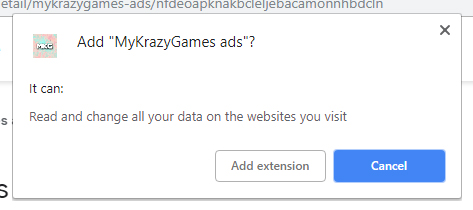
The extension has permission to “read and change all your data on the websites you visit.” Once the extension is installed it will have the ability to gather sensitive information which it uses to build a marketing profile.
It is recommended to remove the MyKrazyGames ads extension from Google Chrome and scan your computer for malware because the extension is usually promoted on websites that show malicious advertisements and host prohibited content.
1. Open the Customize and control Google Chrome menu and go to More tools > Extensions.
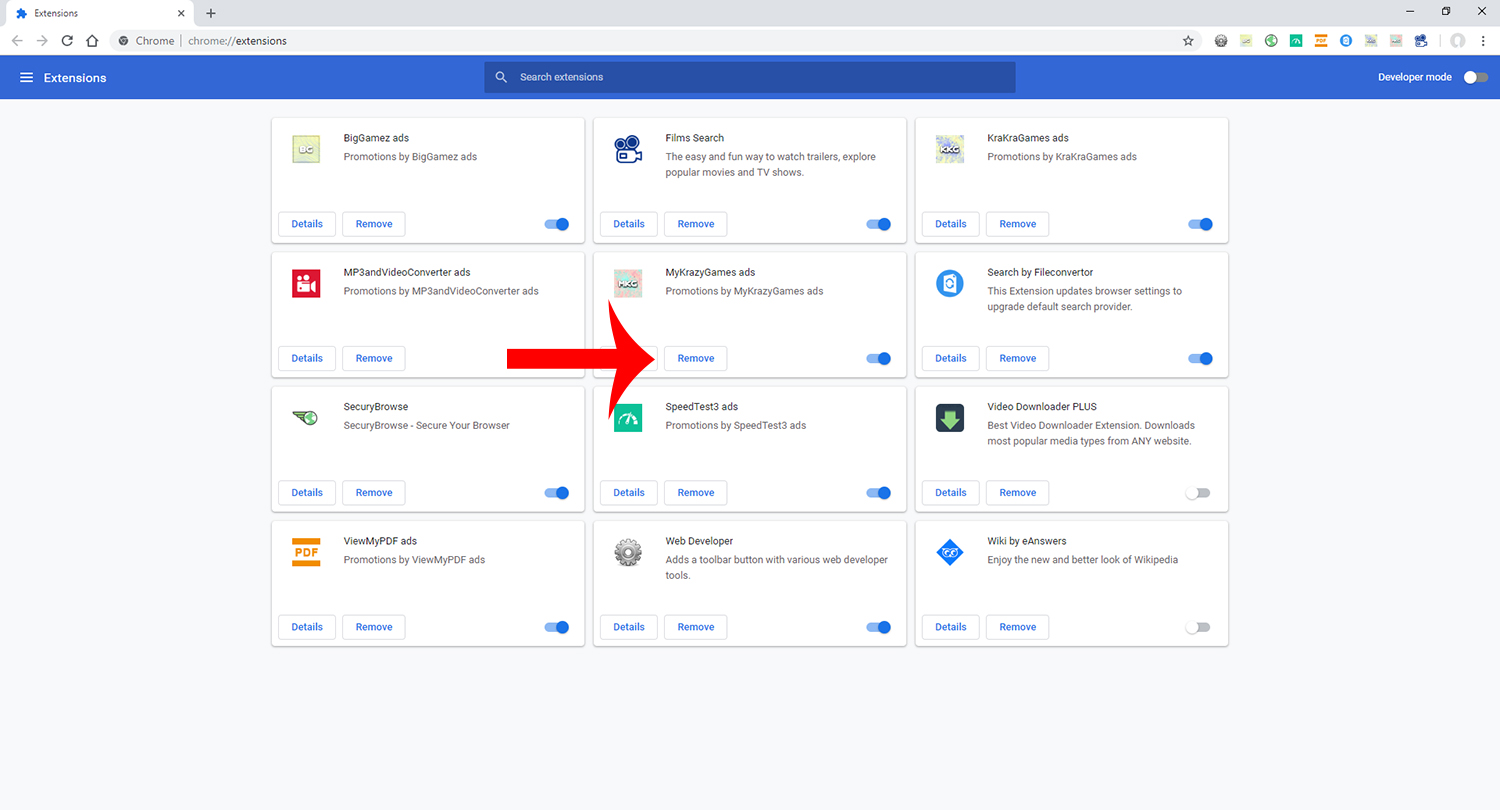
2. Click the Remove button next to MyKrazyGames ads and click the next Remove button that appears to approve removal.
Botcrawl may earn a commission from purchases made through links in this article.
3. Download Malwarebytes Anti-Malware software to scan your computer and remove malicious files and potentially unwanted programs.
4. To install the program, locate and double-click the executable file you just downloaded. The file can usually be found in the Download folder.
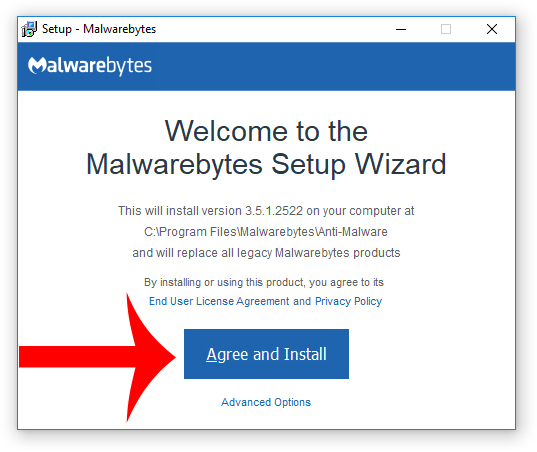
5. Choose if this is for home or work use and click Agree and Install to begin installing Malwarebytes. Once the installation is complete, click Finish.

6. Once Malwarebytes is installed, open the program and click the Scan Now button on the dashboard – or go to the Scan tab and click the Start Scan button.

7. When the scan is complete click the Quarantine Selected button.
8. If Malwarebytes says “All selected items have been removed successfully. A log file has been saved to the logs folder. Your computer needs to be restarted to complete the removal process. Would you like to restart now?” click the Yes button to restart your computer.
9. Download HitmanPro to perform a second-opinion scan and remove any remaining malicious trace files. A second-opinion scan is important when removing malware and malicious files from your computer.
10. To install the program, locate and double-click the executable file you just downloaded. The file can usually be found in the Download folder.
11. Once HitmanPro is installed, open the program and click Next to start scanning your computer. *If you are using the free version you may choose to create a copy or perform a one-time scan.
12. When the HitmanPro scan is complete, click the Next button.
13. To activate the free version of HitmanPro: enter your email address twice and click the Activate button.
14. Click the Reboot button.