What is SecuryBrowse and how do I remove it?

SecuryBrowse
Learn what the SecuryBrowse extension is, if it’s safe to use, and how to remove SecuryBrowse, PUPs, viruses, adware, and other threats.
Botcrawl may earn a commission from purchases made through links in this article.
Description and Permissions
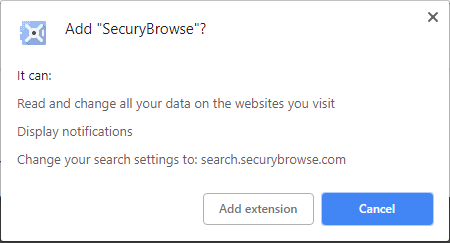
- Read and change all your data on the websites you visit
- Display notifications
- Change your search settings to: search.securybrowse.com
What is SecuryBrowse?
SecuryBrowse (also called SecuryBrowse Protection) is a browser extension compatible with Google Chrome and other web browsers. When the SecuryBrowse extension is installed it will modify existing internet browser settings including the default search engine and track your browsing data and develop a marketing profile on you.
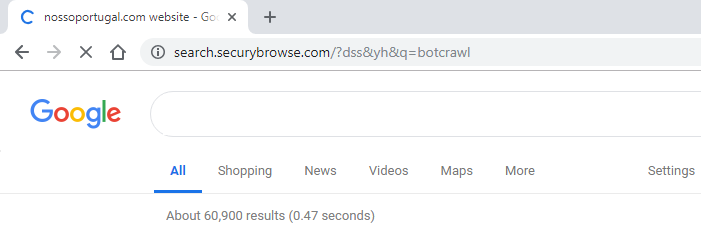
A security issue with the SecuryBrowse extension is that it is advertised on websites that also advertise and host malware, potentially unwanted programs (PUPs), adware, and spyware. This means that if you have come across advertisements promoting SecuryBrowse, or found the extension installed without your knowledge, it is likely that your computer is infected with other threats that should be removed before they can cause any harm.
How is SecuryBrowse distributed?
The SecuryBrowse extension is usually advertised by deceptive advertisements. The extension is often endorsed as something it is not in order to trick victims into installing it and other potentially unwanted programs and malware. In addition, adware is known to show advertisements for the extension.
How to remove SecuryBrowse
STEP 1: Remove malware from your computer
1. Download Malwarebytes Anti-Malware software to scan your computer and remove malicious files and potentially unwanted programs.
2. To install the program, click the file you just downloaded. It can usually be located in the Download folder.
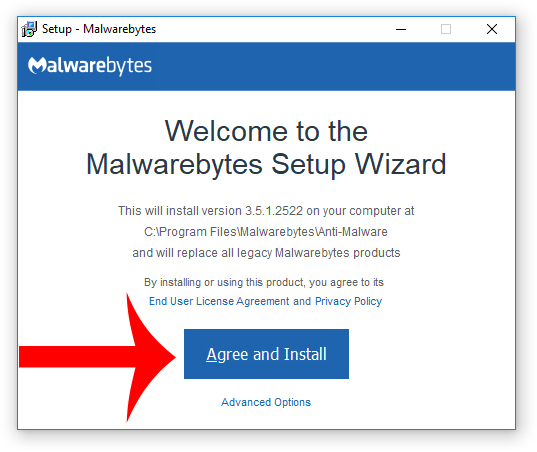
3. A window that says “Welcome to the Malwarebytes Setup Wizard” will appear. Click Agree and Install to begin the installation. Once complete, click Finish.

4. Now the Malwarebytes is installed, open the program and click the Scan Now button – or go to the Scan tab and click the Start Scan button.

5. When the scan is complete click the Quarantine Selected button.
6. If Malwarebytes says “All selected items have been removed successfully. A log file has been saved to the logs folder. Your computer needs to be restarted to complete the removal process. Would you like to restart now?” click the Yes button to restart your computer.
7. Next, Download HitmanPro to perform a second-opinion scan and remove any remaining malicious trace files.
8. Once installed, open HitmanPro and click Next to start scanning your computer. *If you are using the free version you may chose to create a copy or perform a one-time scan.
9. When the HitmanPro scan is complete click the Next button.
10. To activate the free version of HitmanPro: enter your email address twice and click the Activate button.
11. Click the Reboot button.
Your computer should now be completely free of SecuryBrowse Extension and other malicious files; However, you can still use the manual repair and uninstall instructions below if your browser settings have not been repaired or if you think an unwanted program is still installed on your machine.
STEP 2: Remove SecuryBrowse extension
Chrome
1. Open the Customize and control Google Chrome menu and go to More tools > Extensions.
2. Find the extension you want to remove in the list and click the Remove button to remove it.
Firefox
1. Open the Menu and click Add-ons.
2. Click Remove next to the Firefox add-on you want to remove.
Other browsers
STEP 3: Uninstall unwanted programs
If you are infected with adware and other unwanted programs you might be able to uninstall unwanted programs using the default method of your operating system. If you do not find an unwanted program installed on your machine make sure to scan your computer for malware using the instructions above to eradicate possible threats.