


There is a Facebook feature that allows anyone logged into a particular Facebook account to browse and clear their entire Facebook search history.
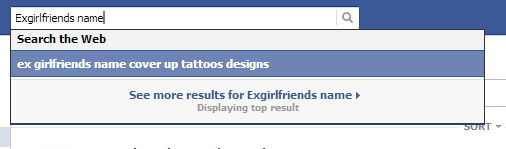
How to clear Facebook search history
The instructions and video detail how to delete your entire Facebook search history at once, or single Facebook search terms.

2. In the top right corner on your Facebook profile page, click the Activity Log button.

3. On the left side of the page, under the 3rd section (photos, likes, comments), click MORE to open additional selections.

4. On the bottom of the list click Search.

5. To clear your entire Facebook search history at once, click the Clear Searches link in the top right corner.

How to remove individual search terms
To remove individual searches, opposed to clearing the entire Facebook search history, click the icon on the right side of the searched term and click Remove when prompted.

- RadiusDC Phoenix Outage Caused by Major Cooling Failure
- Mark Zuckerberg’s Phone Number Leaked in Instagram Password Reset Flaw
- Discord Down for Some Users as API Errors Hit Login and Messages
- Google Health Shows Where Big Tech Wants Wellness to Go
- U.S. Soldier Charged Over Polymarket Bets While Congress Still Gets to Trade Stocks

Related Posts






9 Comments
Your hints were very helpful and worked well last few weeks until today when the Clear Searches link at the top is not there anymore!!
It should still be there.
I need help!!!
I want to get rid of some people name on the search bar. Every time I enter a specific letter that name will pop up and I don’t want to.
I have cleared everything on it what is followed but when I search its still there.
Can somebody help me?
Thanks in advance.
How to remove list of names from right hand side of Facebook home page?
Thank You
the “clear searches” option is gone!. Facebook removed the “search” option in the list on the left. So you are no longer allowed to remove your search history! Terrible
You are right. We are unsure if they are going to “rebrand” the search history options using a different title, or if they entirely removed the option in order to better accommodate advertisers, etc.
It could come back…
***Update April, 3rd 2013***
The search option is back!
They removed the option!
I still have the option