
The productivity agent Manus AI has quietly become a milestone for the Windows ecosystem. It is the first publicly promoted agent that can read and work with local files through Microsoft’s new agent connector system, a platform feature that was announced at Build 2025 and expanded at Ignite 2025. Instead of forcing users to upload documents to the cloud or copy content into a browser, Manus can reach directly into your Windows file system, interpret what it finds, and turn that material into websites, slides, reports, and other deliverables.
Microsoft is positioning Windows as an agent focused operating system, and Manus AI is one of the earliest real world examples of how that strategy will work. The app uses Windows powered agent connectors, including the File Explorer connector, to discover and work with content that lives on your PC. This is a significant shift in how assistants operate. We are not just dealing with a chat window that answers questions. Manus behaves more like a hosted worker that can run tasks, read and organize files, and keep operating while you move on to something else.
For Windows users, that brings new possibilities and new responsibilities. It also signals where Microsoft intends to take the platform over the next few years. Manus AI sits right at the intersection of those changes, so it is worth understanding how it works and why the way it accesses your files is different from the extensions and utilities you might be used to.
What Manus AI Actually Does
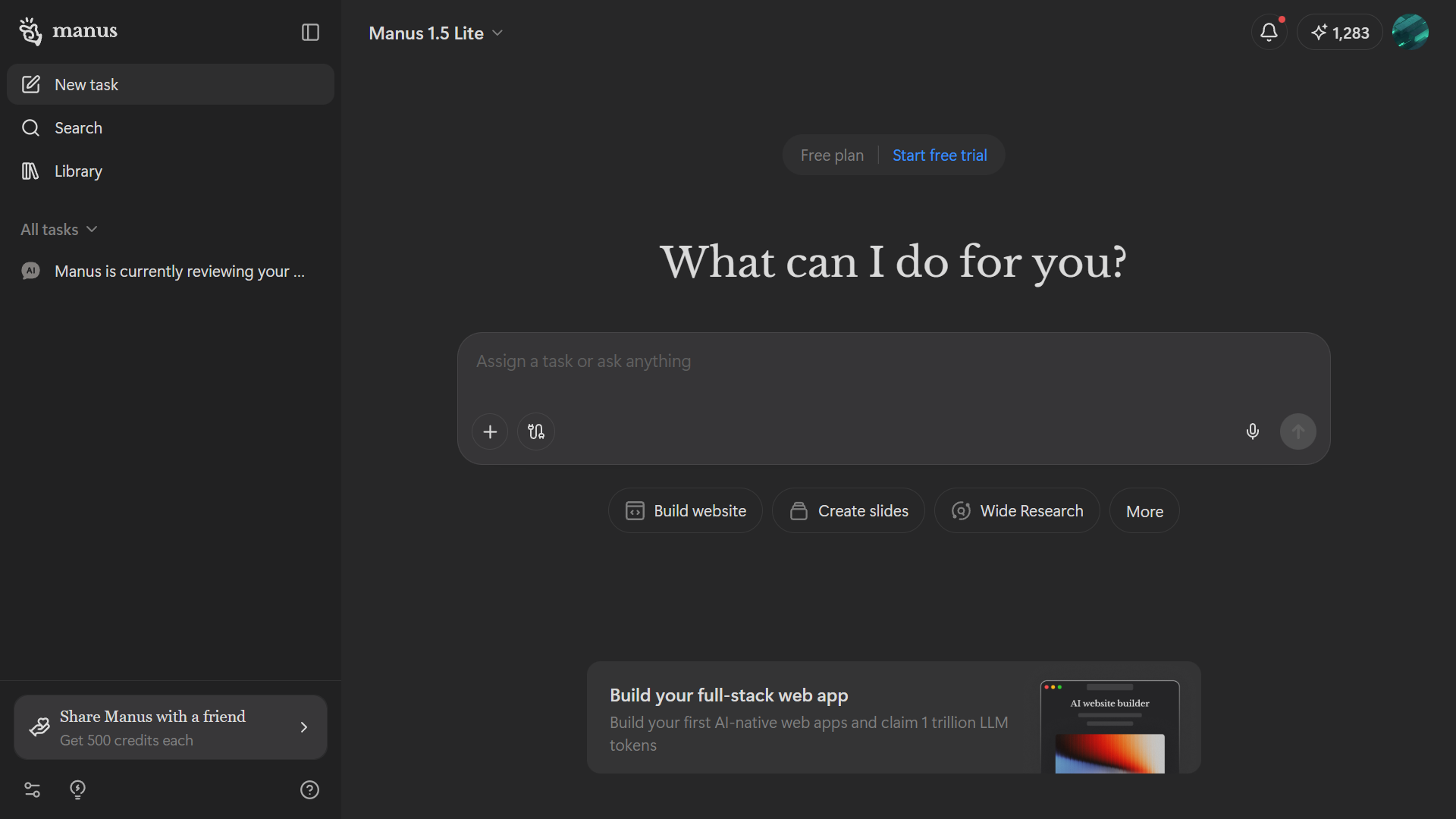
Manus AI presents itself as a general productivity agent. The interface looks like a modern workspace instead of a bare chat box. You can ask it to perform broad research, summarize information, generate content, or assemble structured outputs such as websites and slide decks. Manus AI does not just answer questions. It supports multi step tasks, scheduled jobs, and concurrent work streams that run in parallel.
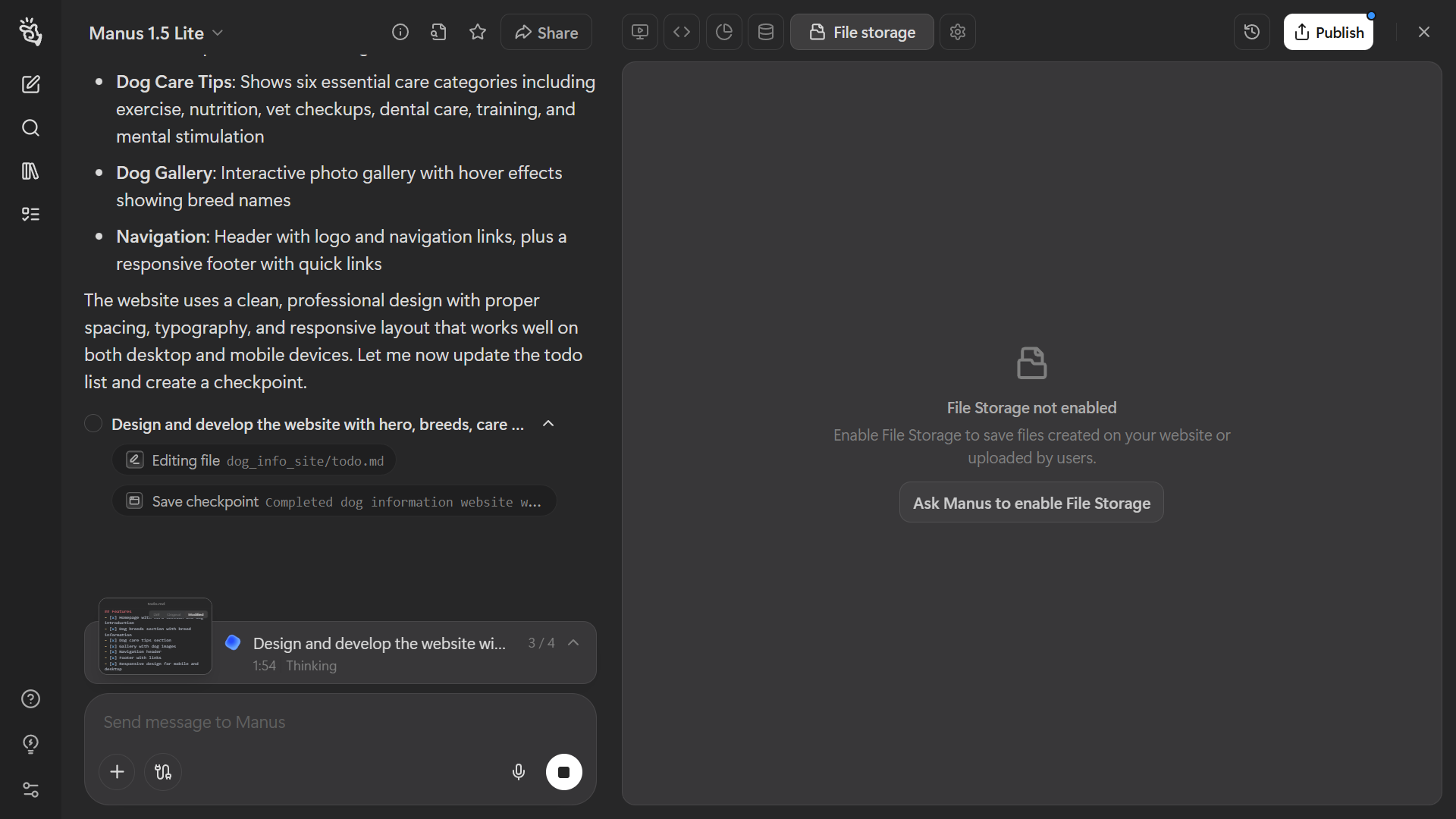
To see how Manus AI performs in a real workflow, I wanted to try one of its core features for myself. Microsoft has highlighted Manus as one of the first agents capable of using the new File Explorer connector, but I did not rely on that integration. Instead, I simply asked Manus AI to build a full website from scratch to see how well its project generation system works. The results were surprisingly complete, and the process offered a clear look at how Manus handles multi step tasks and structured outputs.
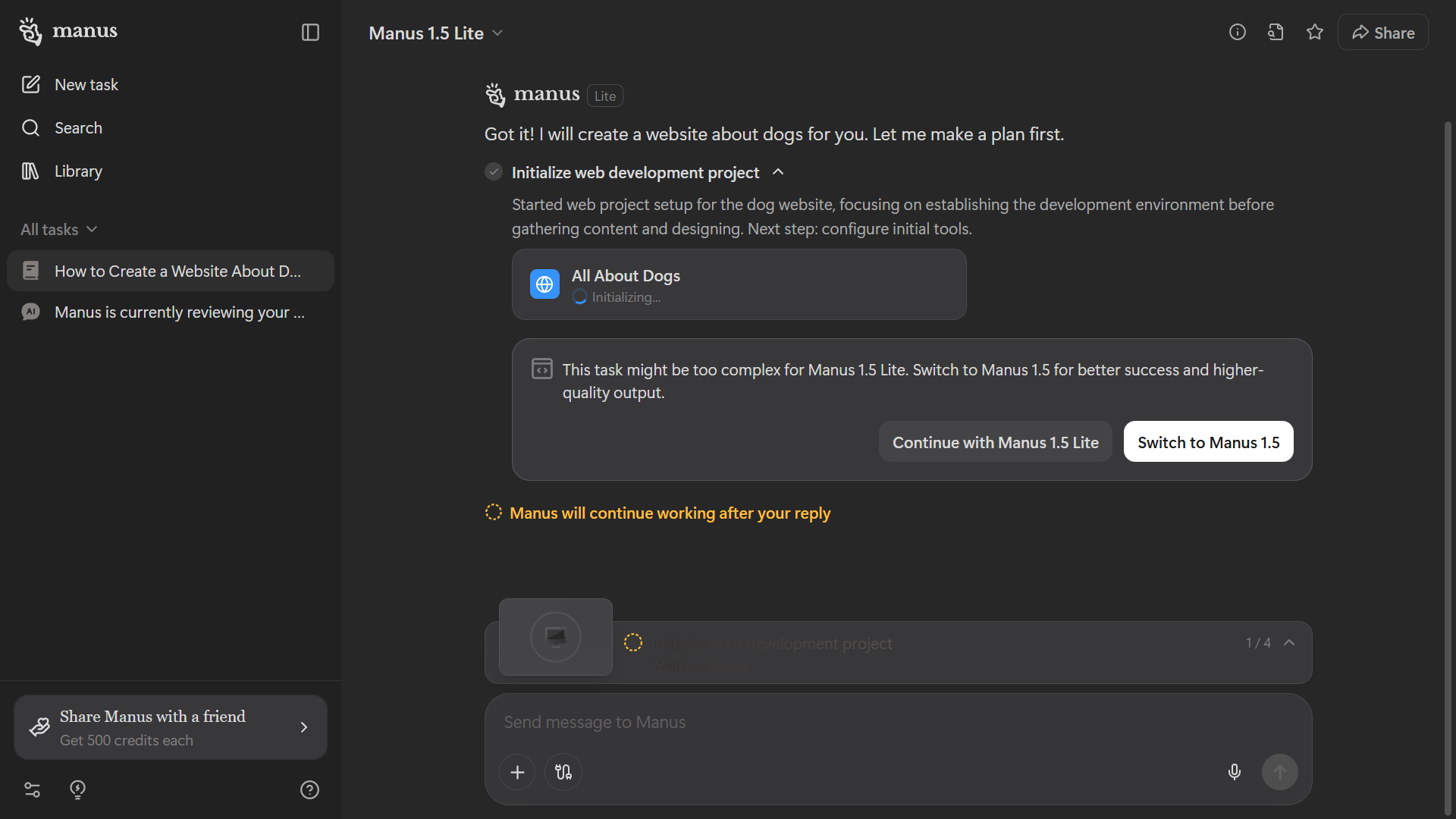
I asked Manus AI to build a simple website using the Manus 1.5 Lite model. The process took about four to five minutes before the builder initialized and began preparing the project.
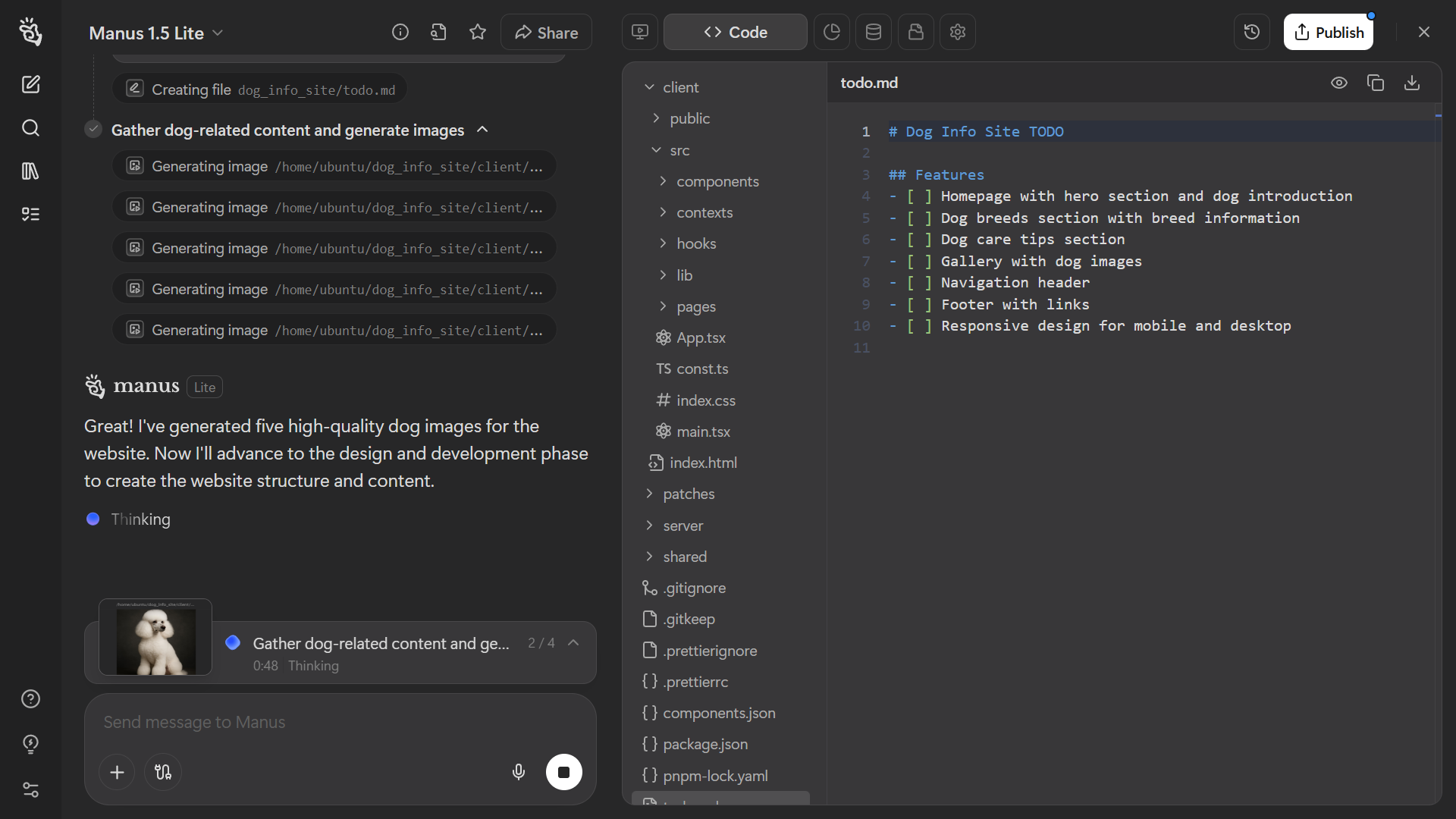
After a short wait, Manus AI started gathering images and creating the project structure inside a new file directory on my system.
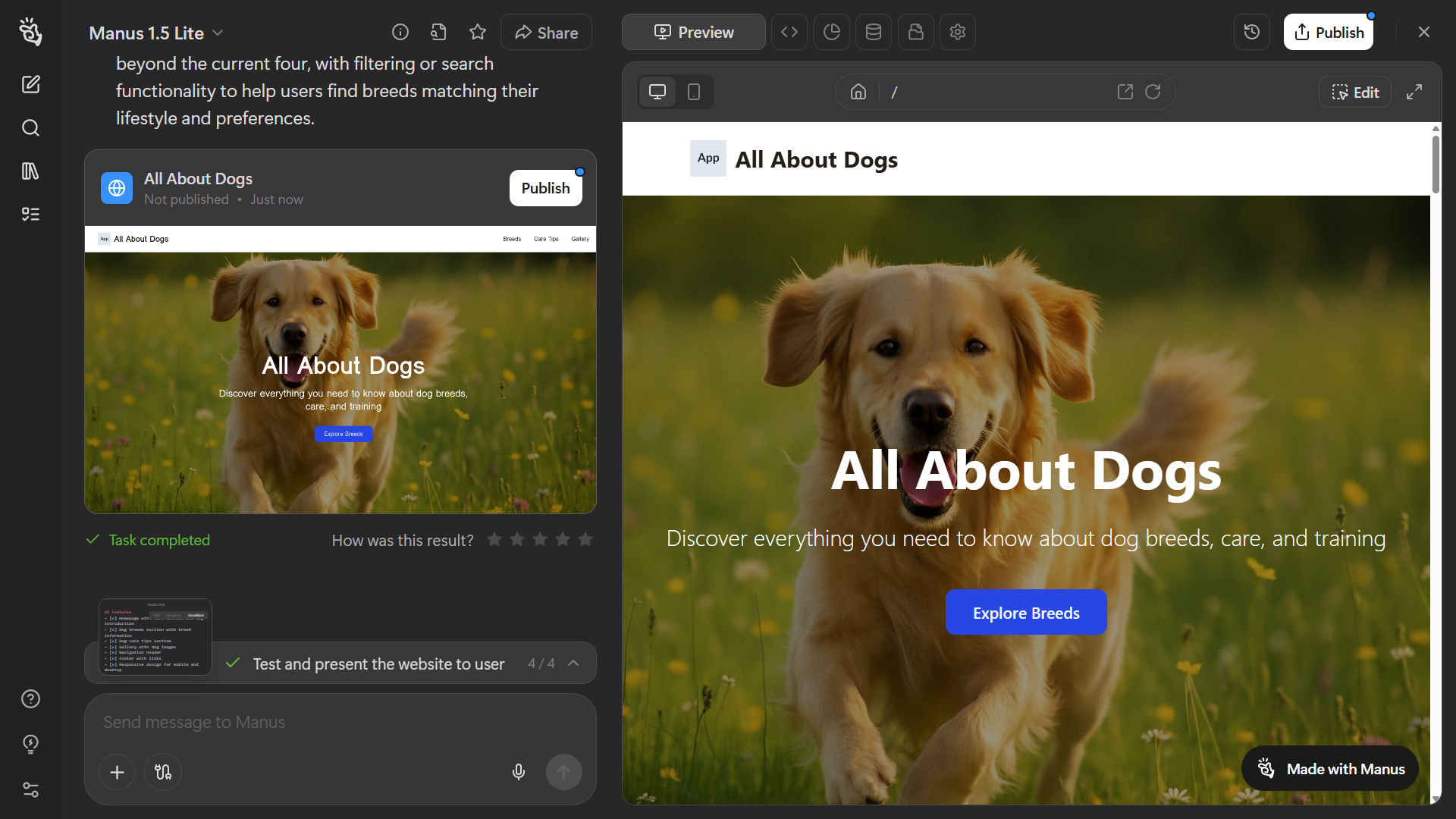
When it finished, Manus AI had built a complete website “all about dogs,” complete with images, organized folders, and a functional layout. It also offered the option to publish the website publicly or restrict access to selected users. You can view the website Manus AI created here: https://doginfo-niexc8lx.manus.space
From the subscription options and feature set, it is clear that Manus AI is designed for sustained daily use rather than one off experimentation. The service offers several tiers. Higher plans unlock more monthly credits, more concurrent tasks, and more scheduled jobs that can run automatically. The basic idea is simple. The more serious your workload, the more tasks Manus AI can handle at once and the more complex those tasks can become.
Manus is particularly focused on three broad scenarios.
- Research and insights. You can ask Manus to investigate topics, compare sources, and produce structured summaries or reports.
- Website generation. Manus can assemble a site from documents, notes, or other content that already lives on your computer.
- Slide creation. Manus can design presentation slides with a coherent layout and narrative based on your existing material.
On the surface, that sounds similar to other agents and assistants that sit on top of large language models. The crucial difference, and the reason Manus AI is now being highlighted by Windows Developer channels, is where it pulls the underlying data from. Instead of operating purely in the cloud or asking you to upload files into a web interface, Manus is able to reach into your Windows environment through Microsoft’s new agent connector model.
From Build to Ignite: How Windows Became an Agent Platform
To understand what makes Manus AI different, it helps to look at what Microsoft has been building under the hood. At Build 2025, Microsoft introduced a long term strategy to turn Windows into a platform where agents can operate alongside users. The company announced Windows AI Foundry, Windows ML, and a private preview of a new Model Context Protocol integration that would allow agents to talk to native Windows apps and services.
That early announcement described a registry of agent aware tools, later formalized as the Windows on device registry, as well as a framework where apps could expose capabilities as servers that agents could call. The focus at Build was on developers. Microsoft wanted app authors to start thinking about how their software could provide structured actions that agents might use later.
By the time Ignite 2025 arrived, that vision had evolved into a more concrete platform. Microsoft announced the public preview of native Model Context Protocol support on Windows, the on device registry of agent connectors, and built in connectors for File Explorer and System Settings. The company also previewed Agent Workspace, a contained environment where agents can run in a parallel desktop session with their own identity and policies.
In that same Ignite update, Microsoft highlighted a handful of partners that were already integrating with this new agent platform. Manus AI was one of them. In the Windows Developer blog and social posts, the company called out Manus as a productivity app that uses the File Explorer connector so it can build websites directly from the files on your PC without uploads or application switching.
How Windows Agent Connectors Work
Agent connectors are the bridge between Windows and the tools that agents use. The new Windows on device registry stores these connectors as MCP servers. Each one exposes a specific surface area. The File Explorer connector, for example, lets agents search, read, and manage local files in a controlled way. The System Settings connector lets agents toggle configuration options, change themes, or troubleshoot issues with guardrails around what they can touch.
When an agent wants to take an action, it does not talk directly to File Explorer or any other app. The request flows through a proxy layer that Microsoft refers to as the MCP proxy. That proxy verifies the identity of the agent, checks the connector’s identity, enforces policies, and logs the interaction. In practice, this means that every call from an agent to a connector is mediated by the operating system instead of a direct connection that could be forged or manipulated.
Connectors can be local or remote. Developers can ship them in MSIX or MCP bundle format and register them on a device so that compatible agents can discover them. They can also host MCP servers in the cloud and register those remote endpoints with the on device registry. From the agent’s perspective, both types of connectors look similar. From an administrative perspective, they can be managed with the same policy framework through tools like Intune or other management solutions.
Microsoft has framed these choices as part of a secure by default approach. Agent connectors must be packaged, signed, and have clear manifests that describe the capabilities they require. Agents run under their own agent accounts instead of sharing user credentials. Permissions are supposed to begin at a minimal baseline and expand only when the user grants consent.
That does not remove risk entirely, and we have already examined some of those questions in our coverage of Agent Workspace and the new Windows AI toggles. It does, however, give Manus AI and similar tools a structured way to work with the file system instead of relying on ad hoc integration tricks.
How Manus AI Uses the File Explorer Connector
In practical terms, Manus AI uses the File Explorer connector to treat your PC as its primary content source. When you ask it to build a website or prepare a slide deck, it can scan directories, locate relevant documents, parse their contents, and assemble a final output that reflects what it found. Instead of copying text into a prompt, you can let Manus operate on files that are already part of your workflow.
On Copilot enabled hardware and newer Windows builds, the File Explorer connector can also leverage semantic search. That means Manus AI does not just search by file name or extension. It can ask for files that match a description, match a topic, or include certain text. For images, the connector can expose enhanced search based on image classification and metadata, which gives Manus more context for visual material.
There are several steps involved in a typical Manus workflow on Windows.
- You sign in to Manus and define a task. For example, build a simple product website from your existing sales material or assemble a quarterly update slide deck.
- Manus requests access to the File Explorer connector. Windows prompts you to approve that request, and you can choose which directories or scopes to grant.
- Once permission is granted, Manus queries the connector for files that match its criteria. It may look at folder structures, file names, or content to decide which items are relevant.
- Manus reads those files through the connector, extracts structure and meaning, and uses that to populate a website, slide deck, or written deliverable.
- If the job is large, Manus uses its concurrent task and scheduled task system to keep the work running in the background while you do something else.
From your perspective, the experience is relatively straightforward. You grant access once, define what you want, and review the result. The complexity sits below the surface, where Windows and the Manus connector integration define which files can be touched, how those requests are routed, and what gets logged.
Real World Scenarios Where Manus AI Shines
Because Manus AI is built around real content instead of synthetic examples, it lends itself well to practical tasks that would normally require a human assistant or a lot of manual copying and pasting. The new Windows integration makes those jobs smoother for several types of user.
Small businesses and solo creators
Many small teams have their material scattered across Word documents, spreadsheets, PDFs, screenshots, and raw images. Manus AI can sweep across these assets, pull out key messages, and turn them into a coherent site without asking anyone to upload everything to a browser first. That reduces friction and lowers the barrier for basic digital presence work.
Internal reports and presentations
For people who maintain regular slide decks or recurring reports, Manus AI can read from a collection of documents, prior presentations, and data files stored in known folders. The File Explorer connector lets it reuse that material without maintaining a separate cloud copy. That may be especially useful in environments where data is already organized by quarter, project, or client.
Personal knowledge work
Power users who keep notes, exports, and research material on disk can ask Manus AI to revisit older content and assemble a fresh writeup or summary. Instead of searching manually for which files contain relevant information, they can rely on Manus to find and interpret the material through semantic search and content understanding.
In each case, the fact that Manus can reach into your file system through a structured connector makes a difference. It turns your existing folders into an extended memory instead of forcing you to recreate that structure in a separate platform.
How Manus AI Compares To Traditional Assistants
Traditional assistants, whether they live in a browser tab or a standalone client, often treat your files as an external resource. You upload a document, wait for a scan, and then ask questions about that file. The assistant’s world ends at the boundary of the upload box. If you want to include another document, you repeat the process.
Manus AI behaves more like an agent that lives inside the operating system’s permission model. It can discover new files as they appear, work across many documents at once, and run jobs that may not be tied to a single chat session. That design aligns closely with Microsoft’s broader idea of an agentic Windows where background workers can take on repetitive tasks at scale.
There are tradeoffs here. The tighter integration with the file system means Manus relies on Windows policies, connectors, and identity systems. That can be a strength, because administrators can manage agent access centrally. It also introduces another layer to understand and monitor, especially in environments where compliance and data governance are priorities.
Security, Privacy, and How This Fits Into Windows’ Agent Story
Whenever an app can read local files, especially through a generalized connector, questions about security and privacy follow naturally. Manus itself is not a platform feature. It is a third party service that happens to be using Microsoft’s new tools in a prominent way. The risk profile for any deployment will depend on how it is configured, how access is granted, and what additional policies are in place on the Windows side.
Microsoft has said that agents and connectors must abide by secure by default policies. These include signed packages, minimal capabilities called out in manifests, separate agent identities, and explicit consent flows for sensitive actions. Enterprise administrators can also set baseline policies that restrict where and how connectors can run, whether remote connectors are allowed, and which accounts can use agent workspaces.
At the same time, any feature that gives background systems read and write access to user folders deserves careful evaluation. We have already taken a deeper look at the new Agent Workspace feature and how Windows grants agents access to Desktop, Documents, Downloads, Pictures, Videos, and other known folders. That analysis highlights both the potential of these constructs and the need for clear oversight. Readers who want a broader view of those risks can review our recent article on the Windows 11 AI feature that sparked privacy concerns around agent access to personal data.
Manus does not rewrite those fundamentals, but it does make them visible in a concrete way. Instead of talking abstractly about agents that might one day read files, we now have a widely promoted app that is doing so through a supported connector. That is a sign that Microsoft intends agents like this to become normal rather than experimental.
What This Means For Windows Developers
From a developer standpoint, Manus is an early blueprint for how to build agent ready applications on Windows. The Manus team has essentially wrapped its core capabilities as an agent that can call out to MCP servers registered on the system. The File Explorer connector is just one of those endpoints. As Microsoft and third party developers release more connectors, Manus and similar tools will gain more surfaces to interact with.
Developers who maintain desktop apps can follow a similar pattern.
- They can expose actions in their apps as MCP servers and register them in the on device registry.
- They can define tight capability manifests so agents know exactly what each connector can do.
- They can test agents in a controlled way using the emerging Agent Workspace tools.
- They can use Windows ML and Foundry Local if they want to run local models on top of their own data.
For developers who have been hesitant to invest in their own assistant experiences, Manus is also a signal that there will be room in the ecosystem for specialized agents. Microsoft does not need to own every workflow. If agents like Manus can coordinate with Windows at a platform level, there is room for tools that target specific industries, content types, or workflows while still enjoying deep integration with the file system and settings.
How Users Can Approach Manus AI Safely
For individual users who want to experiment with Manus AI on a Windows device, a few practical habits can help keep things manageable as the agent platform matures.
- Start with a narrow scope. When Windows asks you to grant Manus access through the agent connector, limit that access to folders that hold the documents relevant to your immediate task.
- Keep sensitive data in clearly separated locations if you are testing new agent features. If a folder is off limits to any automated tooling, treat it that way in your file layout.
- Review the tasks you assign to Manus. The more open ended the request, the more material the agent may need to scan.
- Watch for new options in Windows Settings as Microsoft exposes more agent controls. Features like the experimental agentic toggle, file access management, and connector level permissions will become increasingly important.
- Maintain a solid baseline of endpoint security and monitoring so that any new background processes, agent activity, or unexpected file operations are visible.
These are the same principles that apply whenever a new layer of automation appears between you and your data. In practice, Manus is making that layer visible earlier than most. It gives users a clear reason to try the new connector model, which is exactly why Microsoft is highlighting it so prominently in its Ignite material.
Where Manus AI and Windows Agents Go Next
Manus AI is unlikely to remain the only agent that uses the File Explorer connector for long. As more apps register their own connectors and more developers experiment with on device registries, agents will gain additional abilities. Some will focus on media workflows, others on development pipelines, internal business systems, or specialized knowledge domains.
On Microsoft’s side, the company still has work to do on the platform. Agent Workspace is only in a private or limited preview state. Policies for agent accounts and connectors are still evolving. Security teams are still evaluating how these components behave under real world conditions. The pace of change has been rapid, with major announcements at both Build and Ignite this year.
The fact that Manus is already running as a working example is a sign that the infrastructure is solid enough for early adopters. It also means that feedback from Manus users and administrators will inform how Microsoft tunes the agent experience, the consent prompts, the event logging, and the management tools that surround all of this.
Why Manus AI Matters for the Future of Windows Agents
Manus AI represents a turning point for Windows. It is not just another productivity app. It is a proof of concept that shows how agents can live inside the operating system, reach into the file system through supported connectors, and perform meaningful work in the background. Microsoft’s decision to showcase Manus alongside its Ignite announcements underscores the importance of this shift.
For users, this brings new convenience, especially if most of your important work already lives in your Documents, Desktop, and project folders. For developers, it offers a roadmap for building agent ready software that can plug into Windows in a consistent way. For security and privacy professionals, it is a reminder that new platform features should always be evaluated with care, no matter how polished the user experience may look on the surface.
We will continue to follow how agents like Manus evolve on Windows and how Microsoft refines its agent platform, including Agent Workspace, connector policies, and the broader push toward an agentic desktop. Readers who want to explore related coverage can dive into our Artificial Intelligence articles and our ongoing reporting in the PC and Laptop section.
- OpenAI Privacy Policy Email Confirms ChatGPT Ads and New Features
- Google Warns Gemini AI Is Being Used Across the Attack Chain
- AiFrame Fake AI Chrome Extensions Tied to tapnetic.pro Hit 300,000 Users
- ChatGPT Salute Turns ChatGPT Into a Task and Workflow Platform
- OpenAI Advertising Policy Confirms Ads Are Coming to ChatGPT

Related Posts