

Clickconfirmation.com
Our guide explains what Clickconfirmation.com is and helps you remove viruses, malware, malicious extensions, adware, and other threats.
What is Clickconfirmation.com?
Clickconfirmation.com (also known as ClickConfirmation or Click Confirmation) is a website that provides traffic verification services for questionable online advertisers and publishers. Clickconfirmation.com services flag, vet, and filter traffic they find suspicious such as a large amount of advertisement clicks to increase advertiser ROI and publisher transparency. In other words, if you have been redirected to clickconfirmation.com you may have clicked a certain amount of advertisements associated with a potentially malicious ad network.

ClickConfirmation does not provide vetting services for reputable and safe online advertisers and publishers like Google AdSense. Therefor, if you have been redirected to clickconfirmation.com it is likely that you clicked advertisements from a malicious advertising network that might have introduced viruses, malware, adware, spyware, and other threats to your machine including malicious browser extensions.
Once you click on a certain amount of advertisements you will be redirected to the clickconfiramtion.com website that contains text and a captcha to check if you are not w robot. Here’s an example of text from the website:
CLICK CONFIRMATION
Your click has been flagged as suspicious – perhaps you are clicking on lots of ads today?
Please help us determine if our filters are accurate:
When ClickConfirmation has determined that you are not a robot you will be directed to the “Submission received” page shown below.

A concern with clickconfiramtion.com is that the services are used by websites that host malware and use malicious advertising networks which means that your computer might be infected with a virus or malware. It is recommended to remove viruses, malware, and other threats that have been introduced to your machine in order to keep your privacy safe and protect your computer.
How to remove viruses and malware
Botcrawl may earn a commission from purchases made through links in this article.
1. Download Malwarebytes Anti-Malware software to scan your computer and remove malicious files and potentially unwanted programs.


2. To install the program, click the file you just downloaded. It can usually be located in the Download folder.
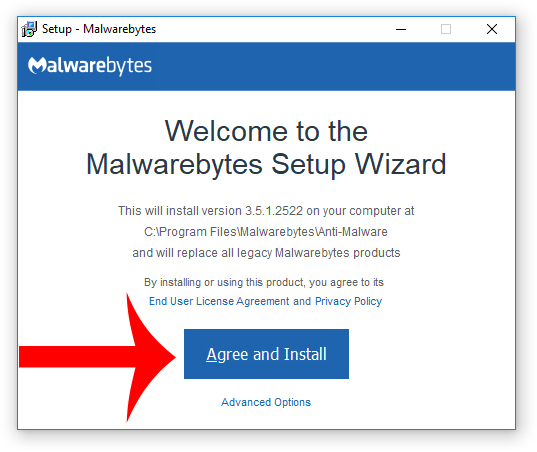
3. A window that says “Welcome to the Malwarebytes Setup Wizard” will appear. Click Agree and Install to begin the installation. Once complete, click Finish.

4. Now the Malwarebytes is installed, open the program and click the Scan Now button – or go to the Scan tab and click the Start Scan button.

3. When the scan is complete click the Quarantine Selected button.
4. If Malwarebytes says “All selected items have been removed successfully. A log file has been saved to the logs folder. Your computer needs to be restarted to complete the removal process. Would you like to restart now?” click the Yes button to restart your computer.
5. Next, Download HitmanPro to perform a second-opinion scan and remove any remaining malicious trace files.

6. Once installed, open HitmanPro and click Next to start scanning your computer. *If you are using the free version you may chose to create a copy or perform a one-time scan.
7. When the HitmanPro scan is complete click the Next button.
8. To activate the free version of HitmanPro: enter your email address twice and click the Activate button.
9. Click the Reboot button.
- Shai-Hulud Malware Clone Powers New Npm Infostealer and DDoS Campaign
- FBI Seeks Info in Steam Malware Investigation
- GhostPoster Browser Extensions Reached 840,000 Installs Before Removal From Stores
- Kimwolf Android Botnet Exploits Residential Proxies to Breach Internal Networks
- ClickFix Attack Uses Fake Windows BSOD Screens to Deploy Malware

Related Posts


2 Comments
Doesn’t friggin WORK ! I HAVE Malwarebytes , and I did run a scan and I STILL cannot log onto my Martins Food site for coupons !! I keep getting directed to Click confirmation . I even ran windows security
Hello, there is no need to yell at free content online that someone took time to post here to help you. If you have an issue and want a solution simply ask! 🙂
Hope this helps!