What Is The isearch.claro-search Virus (Claro Search)?
Isearch.claro-search.com is often refereed to as iSearch, Claro malware, the iSearch redirection virus, and simply “Claro Search”. Claro Search is a dangerous internet browser hijacker (categorized as adware and spyware) which uses browser helper objects (BHOs) and configures host settings in order to redirect infected victims using the internet to their websites. In particular: isearch.claro-search.com.
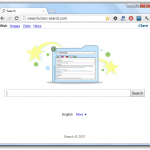
Many internet users unknowingly suspect the isearch virus and isearch.claro-search.com as being a realistic browser helper object or website. For instance, search.claro-search.com looks and acts very similar to Google because of the white background and minimal appearance. Isearch.claro-search.com is not a realistic website and contains many trojans, rootkits, and viruses.
The isearch.claro-search.com website also displays realistic SERPs (search engine result pages) similar to Google’s developments.
iSearch is utilized by the use of backdoor processes or Trojans and can also leave room for more malware on a computer system such as rootkits, trojans, and other malware. If you are infected by iSearch you can experience symptoms which range from simple CPU usage drains to complete system crashes, to and array of internet browser setting changes and redirections.
Similar browser hijackers include: Mystart, Media Finder, MP3 Tube Toolbar, Text Enhance.
If isearch.claro-search.com is not removed from your computer:
- Your computer can become malformed and operate improperly.
- Your browser settings become corrupted and internet usage is taken hostage by a constant redirection setting to drive-by-download websites which can open the door for more infections, and over-all cause a wide range of operating system related issues associated with Trojans (Privacy threat).
- Computer accesses may become blocked or locked if not isearch.claro-search.com is not addressed, similar to ransomware.
What Are Symptoms Of The isearch.claro-search.com Virus?
Symptoms for the isearch.claro-search.com virus range. Some infected users may notice only a few symptoms, some may have severe issues, and some infected computer users may never detect any symptoms. All symptoms listed below occur without consent of the computer user.
- isearch.claro-search.com uses browser helper objects (in this case search tools) and infects some users by installing isearch.claro-search.com search toolbar into their internet browser which redirects internet users to isearch.claro-search.com. Some internet users are redirected for every search or webpage they visit.
- User initiated browsing and search is redirected to isearch.claro-search.com while using the internet
- High levels of CPU usage is used due to the iSearch (Claro) processes, which can cause systems to crash or become malformed.
How To Remove The isearch.claro-search.com Virus
There are many ways to remove the isearch.claro-search.com virus for different victims. After removal it is recommended to change the preference settings in each internet browser installed on your system which have been altered by Claro (such as home page settings).
Removal Options
Please click a link below to automatically scroll to the “in page” selected option (named anchor link).
- Malware Removal Software
- Disable Add-ons And Extensions
- Manually Kill Processes, Delete Files, And Delete Values
- Safe Mode With Networking
- Restore Computer To Date And Time Before Infection
1. Malware Removal Software
The easiest way to remove isearch.claro-search.com is by utilizing the free version of Malwarebytes. Malwarebytes is proven to remove the iSearch Virus and has the largest sample rate of all removal software due to being the most downloaded Anti-Malware program of 2011 and 2012.
![]()
2. Disable Malicious Add-ons And Extensions
If isearch.claro-search.com is infecting your search tools by use of Browser Helper Objects, there is most likely an add-on or extension in your internet browser which must be disabled and removed. We will detail instructions for Mozilla Firefox first since FireFox is the most common browser infected by isearch.claro-search.com, then we will proceed to Google Chrome, Microsoft Internet Explorer, and Apple Safari.
*Before you proceed to change your internet browser settings to normal, in most scenerios you must uninstall Claro Search from your computer before removal of “managed search” options, etc. are available.
- Navigate to Control Panel > Add or Remove Programs ( or Uninstall a program)
- Uninstall isearch.claro-search.com associated programs (Claro LTD Toolar).

Mozilla Firefox
This example shows the removal process for an extension named “incredibar”, which is a similar infection. Follow the steps to search through extensions for anything suspicious or which resembles isearch.claro-search.com. If internet settings have been compromised by browser helped type objects then conitnue to follow the instuctions prior to removing or searching for the isearch.claro-search.com extension. The isearch.claro-search.com may be titled something which resesembles isearch.claro-search.com, such as iSearch Toolbar, or Claro Search.
Step 1: Open Firefox and navigate to Tools > Add-ons (or Ctrl+Shift+A)

Step 2: Select Extensions, find the isearch.claro-search.com extension and click disable, then remove.

Step 3: Click on the magnifying glass search icon as shown in the image below and select Manage Search Engines…

In this case you will notice Claro Search on the list.

Step 4: Choose the suspicious Search from the list of search engine, click Remove to succesfully remove it. Proceed to click OK to save changes.

Step 5: Navigate to Tools > Options. Under the General tab reset the startup homepage or change it to your preferred search engine (ie: google.com, etc).

Step 6: In the URL address bar on Firefox, type: about:config and hit Enter.

Step 7: Finally click I’ll be careful, I promise! to continue.

Step 8: In the search filter at the top of Firefox, type: isearch.claro-search.com

Step 9: You should see all the preferences that were changed by IncrediBar toolbar. To complete the isearch.claro-search.com removal, right-click on the preference and select Reset to restore default value and continue to reset all found preferences!

Optional: Block isearch.claro-search.com Cookie (Firefox)
- From the Tools menu, select Options
- In the upper section of the Options window, click Privacy
- In the Cookies tab, click Exceptions
- In the new Exceptions – Cookies window, enter isearch.claro-search.com
Google Chrome
This example shows the removal process for an extension named “incredibar”, which is a similar infection. Follow the steps to search through extensions for anything suspicious or which resembles isearch.claro-search.com. If internet settings have been compromised by browser helped type objects then conitnue to follow the instuctions prior to removing or searching for the isearch.claro-search.com extension. The isearch.claro-search.com may be titled something which resesembles isearch.claro-search.com, such as iSearch Toolbar, or Claro Search.
Step 1: Open Chrome, click on the Settings Icon (wrench), and navigate to Tools > Extensions.

Step 2: Select the isearch.claro-search.com plugin from the list and click disable, then remove.

Step 3: Click on the wrench icon once again and select Settings.

Step 4: Click the Manage search engines… button.

Step 5: Select your preferred search engine from the list and make it your default search engine (ie: Google).

Step 6: Select the suspicious Search from the list and remove it by clicking the “X” mark as shown in the image below to finish the removal process.

- Please note: To search which extensions are currently running on Chrome navigate to Tools > Task Manager
Step 7: If your homepage on start up has been changed simply navigate to Settings, Under the “On startup” section click set pages and replace isearch.claro-search.com with your preferred homepage.
Microsoft Internet Explorer
This example shows the removal process for an extension named “incredibar”, which is a similar infection. Follow the steps to search through extensions for anything suspicious or which resembles isearch.claro-search.com. If internet settings have been compromised by browser helped type objects then conitnue to follow the instuctions prior to removing or searching for the isearch.claro-search.com extension. The isearch.claro-search.com may be titled something which resesembles isearch.claro-search.com, such as iSearch Toolbar, or Claro Search.
Step 1: Open IE, click the Tools button and then select Manage Add-ons.

Step 2: Select Search Providers. Choose Bing or Live Search search engine and make it your default web search provider (Set as default).

Step 3: Remove isearch.claro-search.com Web Search engine providers and close the window.

Step 4: Finally navigate to Tools > Internet Options. Select the General tab and click the “use default” button or enter your preferred homepage, such as google.com instead of isearch.claro-search.com. Click OK to save the final changes.

Optional: Block isearch.claro-search.com Cookie (IE)
- From the Tools menu of Internet Explorer, select Internet Options
- Select the Privacy tab, and then click Sites. The Per site privacy actions window will be displayed
- In the Per site privacy actions window, enter isearch.claro-search.com in the Address of Web site field.
- Click Block
Optional: Restricted site option (IE)
- Access: Tools(Alt-x) > Internet Options> Security > Restricted sites
- Click the “Sites” button and enter: isearch.claro-search.com
Apple Safari
This example shows the removal process for an extension named “incredibar”, which is a similar infection. Follow the steps to search through extensions for anything suspicious or which resembles isearch.claro-search.com. If internet settings have been compromised by browser helped type objects then conitnue to follow the instuctions prior to removing or searching for the isearch.claro-search.com extension. The isearch.claro-search.com may be titled something which resesembles isearch.claro-search.com, such as iSearch Toolbar, or Claro Search.
Step 1: Open Safari, go to Preferences and click Extensions.
Step 2: Remove/Disable the isearch.claro-search.com extension.

3. Manually Remove isearch.claro-search.com
First remove the program using the Uninstaller, then proceed to kill the process, delete files, and remove registries.
- Navigate to Control Panel > Add or Remove Programs ( or Uninstall a program)
- Uninstall isearch.claro-search.com associated programs (Claro LTD Toolar).
1. Kill the isearch.claro-search.com processes
- Open Window’s task manager Ctrl+Shift+Esc (or Ctrl+Alt+Delete > Task Manager)
- Click the “Processes” tab, browse for the isearch.claro-search.com processes (below), right-click each and select “End Process”. (random characters: unknown letter and or number sequences). The process may also be titled clarosearch.exe and clarosearch.dll.
(random characters).exe Fake svchost.exe
2. Delete the associated isearch.claro-search.com files
Access Window’s Start Menu and search for each file or type %systemroom%, %windows%, %appdata%, and %temp% into the search query individually followed by Enter to immediately enter the associated folders (example pictured below).
C:\Windows\SysWOW64\WScript.exe "%1" %* %SystemRoot%\SysWow64\CScript.exe "%1" %* %SystemRoot%\SysWow64\CScript.exe "%1" %* %Windows%\system32\DRIVERS\[random].sys %Windows%\system32\fake consrv.dll %Windows%\system32\fake svchost.exe %AppData%\(random).exe %Temp%\(random).class
3. Remove related isearch.claro-search.com registry values
To access Window’s Registry Editor click the “Start” menu and type regedit in the search field, then press Enter.

While the Registry Editor is open, search and delete the following registry entries listed below by right clicking them and selecting delete.
HKEY_LOCAL_MACHINE\SOFTWARE\Microsoft\Windows\CurrentVersion\Run\(random).exe HKEY_LOCAL_MACHINE\SOFTWARE\Microsoft\Internet Explorer\Search\CustomizeSearch=(site address) HKEY_CLASSES_ROOT\Interface\[random] HKEY_CURRENT_USER\Software\Microsoft\Windows\CurrentVersion\Ext\Stats\(random)
4. Safe Mode With Networking
For users needing access to the Internet or the network they’re connected to because the virus has malformed settings. This mode is helpful for when you need to be in Safe Mode to troubleshoot but also need access to the Internet for updates, drivers, removal software, or other files to help troubleshoot your issue.
- This mode will also bypass any issues where Antivirus or Anti Malare applications have been affected/malfunctioning because of the infection’s progression.
The plan with this option is to enter your computer in “safe mode with network” and install anti-malware software. Proceed to scan, and remove malicious files, or manually remove files.
1. Reboot your computer in “Safe Mode with Networking”. As the computer is booting (when it reaches the manufacture’s logo) tap and hold the “F8 key” continuously to reach the correct menu. On the Advanced Boot Options screen, use your keyboard to navigate to “Safe Mode with Networking” and press Enter. Shown below.
- Make sure to log into an account with administrator rights.
The screen may appear black with the words “safe mode” in all four corners. Click your mouse where windows start menu is to bring up necessary browsing.

2. Now, either search for and remove the files manually or use software to scan and remove the infection. If internet connection is still compromised please proceed to the instructions below.
3. If you still can’t access the Internet after restarting in safe mode, try resetting your Internet Explorer proxy settings. These 2 separate options and following steps will reset the proxy settings in the Windows registry so that you can access the Internet again.
How To Reset Internet Explorer Proxy Settings
Option 1
In Windows 7, click the Start button . In the search box, type run, and then, in the list of results, click Run.
-or-
In Windows Vista, click the Start button , and then click Run.
-or-
In Windows XP, click Start, and then click Run.
Copy and paste or type the following text in the Open box in the Run dialog box and click OK:
reg add “HKCU\Software\Microsoft\Windows\CurrentVersion\Internet Settings” /v ProxyEnable /t REG_DWORD /d 0 /f
In Windows 7, click the Start button . In the search box, type run, and then, in the list of results, click Run.
-or-
In Windows Vista, click the Start button , and then click Run.
-or-
In Windows XP, click Start, and then click Run.
Copy and paste or type the following text in the Open box in the Run dialog box and click OK:
reg delete “HKCU\Software\Microsoft\Windows\CurrentVersion\Internet Settings” /v ProxyServer /f
Restart Internet Explorer and follow the steps listed previously to run the scanner.
Option 2
Launch Internet Explorer. In Internet Explorer go to: Tools->Internet Options->Connections tab.
Click Lan Settings button and uncheck the checkbox labeled Use a proxy server for your LAN. Click OK.
4. It is now recommended to download Malwarebytes (free or paid version) and run a full system scan to remove the iSearch Claro Hijacker Virus.
5. Restore Computer To Date And Time Before Infection
Restoring your Window’s computer to a date and time before you computer was infected by the isearch.claro-search.com viruse will ensure the safety of your internet browser if orchestrated correctly. We have provided instructions for a simple restore for victims who are able to access their desktops correctly, as well as instructions to restore for victims who can not access their operating systems.
Start Menu Restore
Standard directions to quickly access Window’s System Restore Wizard.
1. Access windows Start menu and click All Programs.
2. Click and open Accessories, click System Tools, and then click System Restore.
If you are prompted for an administrator password or confirmation, type the password or provide confirmation.
3. Restore your computer to a date and time before infection.
Safe Mode With Command Prompt Restore
If you can not access your operating system, this is the suggested step.
1. Restart/reboot your computer system. Unplug if necessary.
2. Enter your computer in “safe mode with command prompt”. To properly enter safe mode,repeatedly pressF8 upon the opening of the boot menu.
3. Once the Command Prompt appears type “explorer” .
4. Once Windows Explorer shows up browse to:
- Win XP: C:\windows\system32\restore\rstrui.exe and press Enter
- Win Vista/Seven: C:\windows\system32\rstrui.exe and press Enter

5. Follow all steps to restore or recover your computer system to an earlier time and date, before infection to complete.

Window’s Restore Information: http://botcrawl.com/how-to-restore-microsoft-windows-vista-microsoft-windows-xp-and-microsoft-windows-7/


Just did it by system restore at no cost after two hours stressing and nearly downloading expensive tools extened scams
thanks Sean, i have not try it yet but i will & i’ll let you know if it works.
are you on FB? Also i got the virus from Avast..fyi.
You are welcome. Yes I am on FB but it’s private: http://www.facebook.com/seangdoyle so is Botcrawl.com: http://www.facebook.com/botcrawl
Hope it works out!
there’s a lot of Sean Doyle on FB, none of them look like your pic on here.
you are the bro!
Thanks a lot! I found this extremely helpful, as the claro bar was driving me mad, having to type in google.com, as I’m sure it’s now burned in two locations in my brain.
Anyways, as a heads up to everyone else around here, I got the virus from downloading a .exe called Free-to-burn-iso images or the likes, I took it off my computer, so it’s cloudy, but you’ll know it if you have it on your computer.
Aloha this has been SO helpful, so thorough. This Claro trojan had me going crazy thinking my computer was done for. The AVG antivirus 30 day trial download found several infections and even a rootkit infection too. Didn’t remove that one BUT they DID tell me what it was and that I had it so I could go get an online Rootkit removal tool and got rid of that too! Reading ALL this GREAT help online is lifesaving for so many people out here who just can’t keep affording to take their computers to technicians all the time. So if you ever wonder if you are really doing all this for nothing or not helping out people. YOU ARE!!! AND we really DO appreciate it!
Thank you Thank You Thank you! I also ended up totally deleting Mozilla from my computer waiting a few days. I did make sure to save my bookmarks as an HTML and then reinstalling Mozilla and did not have the Claro for a while then a couple of days sure enough it shows up right where you said. So I followed your directions. Again Thank YOU!
thanks that works
You super hero geeksters! I’m out of work, money and beer. Not in great shape for computer cootie repairs, so I’m really heaving heart grateful to you. Also, I’d been without a computer for several years and reacqaintance with technobabble has been overwhelming but your concise, intelligent presentation gave me reassuring clarity — and courage! — without beer!
Wow! Many thanks!!!
This really works for me!
Keep up the good work!
I ran malware scans and repairs in Safe Mode, but also had to Uninstall an application called BrowserProtect, which was not recognized by any of the current malware definitions. Apparently this application was merely reseting the Firefox home page URL away from the user preferred to the offending one.
Excellent directions. Thank you
I’m not sure where this Claro search garbage even came from. I set my page back to google but if I searched from the url bar on a new tab i got redirected to claro search results. The problems is gone now!! Thank you so much for this instructional.
thanks a ton! When many of the suggestions did not work I ended up doing a restore settings in both IE and mozilla
Pingback: How to remove Claro - Tech Support Forums - TechIMO.com
When the other suggestions did not work, I ended up doing a system restore and voila!, no more claro! I will be more careful when downloading from now on. Thank you for the help!
I wish all the hackers in the world attack with virus to isearch.claro-search.com.
great work.many thanks for your help.
thank you very much. you guys are the best
Thank you so much. You are genius. You are serving the humanity. You are giving solutions for all the affected people free of cost. You have done a great job. Keep it up. Many people are in trouble by such kind of viruses every day. We need one complete software who give us a one touch solution like write the name and we get a solution. So please think about that. Searching through google takes time. Thank you. You make my browser free from claro.
Thank you so much for this, it worked, finally!
Thank you so much for the clarify. This is very much appreciated.
Thanks a 1000, your help was very welcome.
Wonderful. I could remove the claro virus and My Internet explorer is completely free from claro search.
Thanks
Thanks !!!! This worked wonderful for me . Many Thanks !!!!!1
superb effort! Thanks for info!
THIS LITERALLY SAVED MY LIFE , SO NICE TO GIVE FREE INSTRUCTIONS !!! Really helped me thank you!!!
Thanx so much. I got this crap afta downloading and installing a program 4 converting videos
NICE GUIDE POST,REALLY GOOD,THANKS,KEEP UP LIKE THIS BRO.
A free software Adwcleaner did removed the Claro-search virus on my computer. Thanks God after trying most free software and methods from Google.
The problem is not with VLC player-download from a safe site such as sourceforge.
Thank you so much!
Fantastic! Claro seemed to be downloaded along with the vlc player, which I have used in the past. No more. Brilliant. Clear for idiots like me. And it worked.
thank you thank you thank you !!!! i was installing the vlc player, and wasn’t paying attention, i tried to cancel the install but it was to late… lucky i came across your instructions for firefox . i followed your detailed list, and every bit of that claro is gone.. thanks again.
Thank you!!! I was about to tear my hair out. You’re a life saver!
this helps
Thanks Sean – your directions worked perfectly for Firefox infection. Thankfully no damage done.
Thank you. Claro found its way to me when I agreed to install Freecorder. Without paying too much attention, I clicked “yes” to installing other software and having them as my default browser. Luckily, having McAfee Internet Security highlighted a problem immediately, when I was being directed by Claro to a site. Shame McAfee didn’t remove Claro (and associated programs), but your helpful guide has – especially as I have Firefox, Chrome and IE!!!!!
Pingback: [PROBLEMA] come eliminare claro search dal pc
My problem is Claro_search. I have tried all easy ways to remove but to no avail(Firefox 16.0.2. I have noticed the following statements in the registry though:
HKEY_LOCAL_MACHINE\SOFTWARE\Microsoft\internet Explorer\Toolbar\claro LTD toolbar
HKEY_LOCAL_MACHINE\SOFTWARE\Babylon
” ” ” ” \Babylon Client
Any suggestions B4 I proceed?
Thank You
Pingback: this "Claris Search" thing... - PCs, laptops, hardware, software - City-Data Forum
Pingback: ich bekomm http://isearch.claro-search.com nicht weg =(
How To Remove The iSearch Claro Hijacker Virus (http://t.co/ixnCPBRz) http://t.co/XPQBr7Vc
Fantastic help – thank you so much!