
How to remove Snapdo (Virus Removal Guide)
Snapdo by Resoft (also searched for as Snap.do) is a questionable search engine and title of a potentially unwanted program (PUP) in the browser hijacker category of computer threats. Unwanted programs used to promote snap.do including the Snapdo program for Windows often install without user consent and change your existing internet browser settings such as the homepage and default search engine. This causes internet browsers to start-upon and redirect to search.snap.do, snapdo.com, and other webpages when you open a new browser window, open a new browser tab, or search the web using the browser address bar.

Snap.do utilizes one of multiple programs, browser helper objects (BHOs), and browser attachments to change your browser settings. This means that you may need to uninstall various unwanted programs and remove multiple browser add-ons and extensions to get rid of this infection. Google Chrome, Mozilla Firefox, and Microsoft Internet Explorer.

Snapdo programs and browser attachments have public permissions set allowing them to access, gather, and control user data and user settings. Information collected by Snap.do malware include all of your browsing activities, bookmarks, and history. This information is often used for a wide variety of marketing purposes and may warrant unsolicited targeted advertisements.
How to remove Snapdo
This snapdo removal guide will completely remove the “snapdo virus” in order to stop browser redirects to snap.do, search.snap.do, and snapdo.com.
Step 1: Scan your computer for malware
Botcrawl may earn a commission from purchases made through links in this article.
2. Install the free or full version of Malwarebytes Anti-Malware. The full version enables real-time protection to block malware and unwanted programs from infecting your computer, while the free version is just a free scan and removal tool.
3. Once Malwarebytes is installed, run the Anti-Malware program. Malwarebytes may automatically begin to update and scan your computer at this point.

4. Once Malwarebytes has been opened, if a scan or update has not automatically initiated, please click the large Scan Now button or visit the “Scan” tab to manually run a scan. Before the scan is started Malwarebytes may ask to update the software, make sure to do so if prompted to.

5. Once the scan is complete, click the Quarantine All button to isolate and remove the detected files. You may be asked to reboot your computer after removal to completely remove detected files.

6. You can chose to visit the History tab and click Delete All to remove these files from the Quarantine log, although these files no longer provide a threat.
Step 2: Clean up and repair settings
1. Install the free or full version of CCleaner by Piriform.


2. Once installed, open the program and navigate to Cleaner and click the Analyze button. Afterwards, click the Run Cleaner button on the bottom right of the program interface. This will clean up unnecessary junk that may have been introduced to your computer.
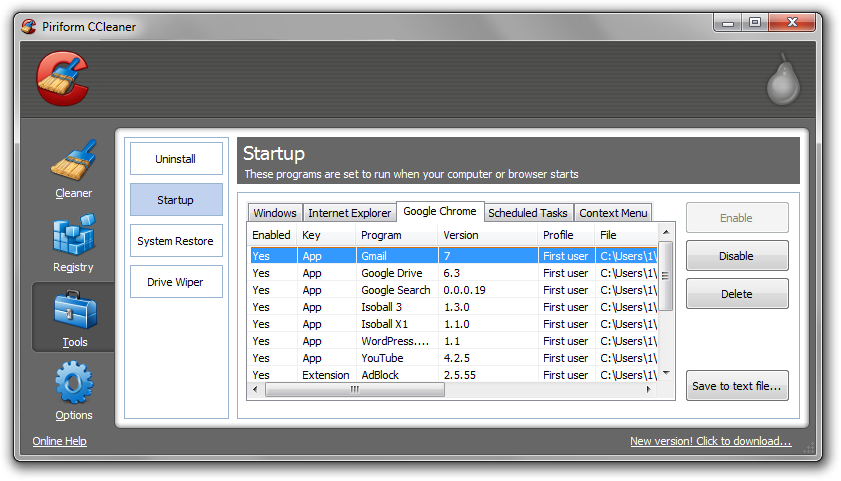
3. Next, navigate to Tools > Startup and search through each tab starting from Windows, Internet Explorer, etc., all the way to Content Menu, for additional suspicious entries and click Disable and Delete once anything you do not recognize is found. This will help you locate and remove unwanted browser attachments and repair other settings.
Step 3: Manually uninstall Snap.do
1. Access Windows Start Menu and navigate to the Control Panel (on Windows 8, right click the bottom left corner to access the Windows 8 Start Menu).

2. Click Uninstall a program or Add and remove a program.

3. In the list of installed programs search for Snap.do or other program used to promote the search engine. Once the program is located, double click it or select the program in the list and click the Uninstall button to begin the uninstall process.
Step 4: Manually remove browser attachments
Google Chrome
1. Click on the Customize icon (wrench or 3 bar icon) next to the address bar and navigate to More tools > Extensions.
2. Search for the Snap.do extension and remove it by clicking the trashcan icon next to it.
Mozilla Firefox
1. Type Ctrl+Shift+A.
2. On the Extensions and Plugin search for the Snap.do add-on and remove it.
Microsoft Internet Explorer
1. Click Tools and select Manage add-ons.
2. On the Toolbars and Extensions tab search for the Snap.do add-on, click it, and click the Remove button.
Step 5: Remove Snap.do search engine
- In Mozilla Firefox, click the small search magnify glass near the search box (not url/search field) and click “Manage Search Engines…”. Remove search.snap.do, snapdo.com, and other webpages from the list of search providers by highlighting the selections and clicking remove.
- In Microsoft Internet Explorer navigate to Tools > Manage Add Ons > Search Providers and remove search.snap.do, snapdo.com, and other webpages from the list.
- In Google Chrome, click the customize icon (wrench or 3 bars) and navigate to Settings > Manage search engines… click the X next to search.snap.do, snapdo.com, and other webpages to remove them.
Please note, If http://www.snap.do/ is set as Google Chrome’s default search engine, add (or select) a new search engine (such as Google.com) and select the new search engine as the default search engine, then remove the unwanted search engine by clicking the X next to it.
Step 6: Remove Snap.do from homepage
- In Mozilla Firefox navigate to Tools > Options or click Firefox in the top left corner and click Options > Options. Under the General tab remove search.snap.do, snapdo.com, or other webpage from the “Home Page:” field and replace it with your preferred home page URL.
- In Microsoft Internet Explorer navigate to Tools >Internet Options. Remove search.snap.do, snapdo.com, or other webpage from the Home Page field and replace it with your preferred URL.
- In Google Chrome click the customize icon (wrench or 3 bars) and navigate to Settings.Click “Set pages” under the On startup option. Remove search.snap.do, snapdo.com, or other webpage and replace it with your preferred homepage URL.



Dude, you are awesome, it worked for me. Thanks.
I have completed both steps 1 and 2 but i am struggling with step 3. When i go into control panel and click uninstall on either snap.do or snap.do Engine, I am finding it to be unresponsive. Yet if i click uninstall on any other program, it works without fail. Is there anything i can do?
Thanks
You can try to locate the uninstall.exe file in the directory folder. Might be located C > Program Files > *random > uninstall.exe
i found this on another website and its something that is left out of this guide and was driving me crazy
in firefox, snapdo will open its own search page in a new tab and none of the malware software will fix this, however. go to the “about:config” page (without the quotes) firefox will say something about voiding your warranty but click the button to continue.
once on the page find the line that is labeled “browser.newtab.url” and right click on it, select modify, this will give you a dialogue box which will allow you to set whatever web page you want as your new tab page. if you want the firefox thumbnail page of recently used sites then set this to “about:newtab” (without the quotes)
hope thats usesfull 🙂
Thank you!
thanks a lot
If anyone should be subjected to a DOS attack it is these types of assholes that do nothing but destroy the Internet
oh yea man
thanks that was quick share indeed! have uninstalled , hope it works now
Thanks a bunch for all the steps to overcome snapdo! Welcome back google chrome. All thanks to u!
Thank you so much for this tutorial. Was extremely helpful and helped me make sense of an increasingly frustrating situation. Thanks again!
I run windows 8 on my laptop, chrome is infected with Snap-Do. I cannot find any reference to snap-do in programs or reg-edit. I have purchased Malware bytes and have performed a thorough search of the computer and H-Drives-backups to no avail. I have uninstalled chrome and reloaded — still the same. One thing I did notice, I fired up the computer one time without turning the wireless net on and a name came up in the web search box at the top of the screen ‘feed snap-do . com’ came up when I tried to access chrome?? would the malware only be coming in when I try and fire up Chrome?
explorer appears to be unaffected by snap-do.
hope you can help
Petr
Same problem as Peter.
I am not sure of the issue you are referencing to.
Though it is boldy simple: You must uninstall software that is causing unwanted symptoms.
Look through your Control Panel for unwanted software and uninstall any if found. If you do not find any software to remove (which I doubt – It’s there) I recommend to search in C: > Program Files for a folder that represents software you are not familiar with. If you find unfamiliar software, go into the folder and click the uninstall.exe file to remove the software.
Freeware and shareware, or free software you downloaded online might be the culprit.
You may also want to check your browser shortcuts by right clicking the browser’s icon and making sure they are not set to snap.do, etc.
Another very simply solution is to use the instructions in this article for the free or full version of CCleaner by Piriform.
same
first see if you have a program called Protector it’s by the publisher Conduit. I have this same problem. I’ve read online it’s getting harder and harder to track its source and this surely is true! I’ve tried everything. I just uninstalled the program so hopefully it will work
Thank you so much for the help!!!! It was an amazing explanation!!!! I thought I could not done it by myself at all but your instructions were amazing!
Thank you so much for the help!!!! It was an amazing explanation!!!!
Sometimes it is also installed as QUICK SHARE..
(1) Uninstall program
(2) Scan registry for issues with CC CLEANER
that’s it..
thanks it was installed as quickshare on my pc. i deleted the extension and it gone.
Thanks for the advice!!!
great help.. thanks!
These instructions were great! Easy to follow and worked!! Thank you.
thank you! great tutorial!!
Well done! This is the best and most complete tutorial to remove this crap from your computer.